Enable Transparency Effects in Windows 11 Desktop
Windows 11, Personalisation, Transparency Effects
How to Use Transparency Effects in Windows 11 for a Sleeker Desktop
Windows 11 is full of subtle visual touches, and one of the nicest is its soft “frosted glass” transparency. Used well, it can make your desktop feel lighter, more modern, and just a bit more fun to use. In this guide, we will walk through how to switch this effect on, what it actually changes, and why you might want to turn it off on older or slower PCs for a smoother experience.
What Are Transparency Effects in Windows 11?
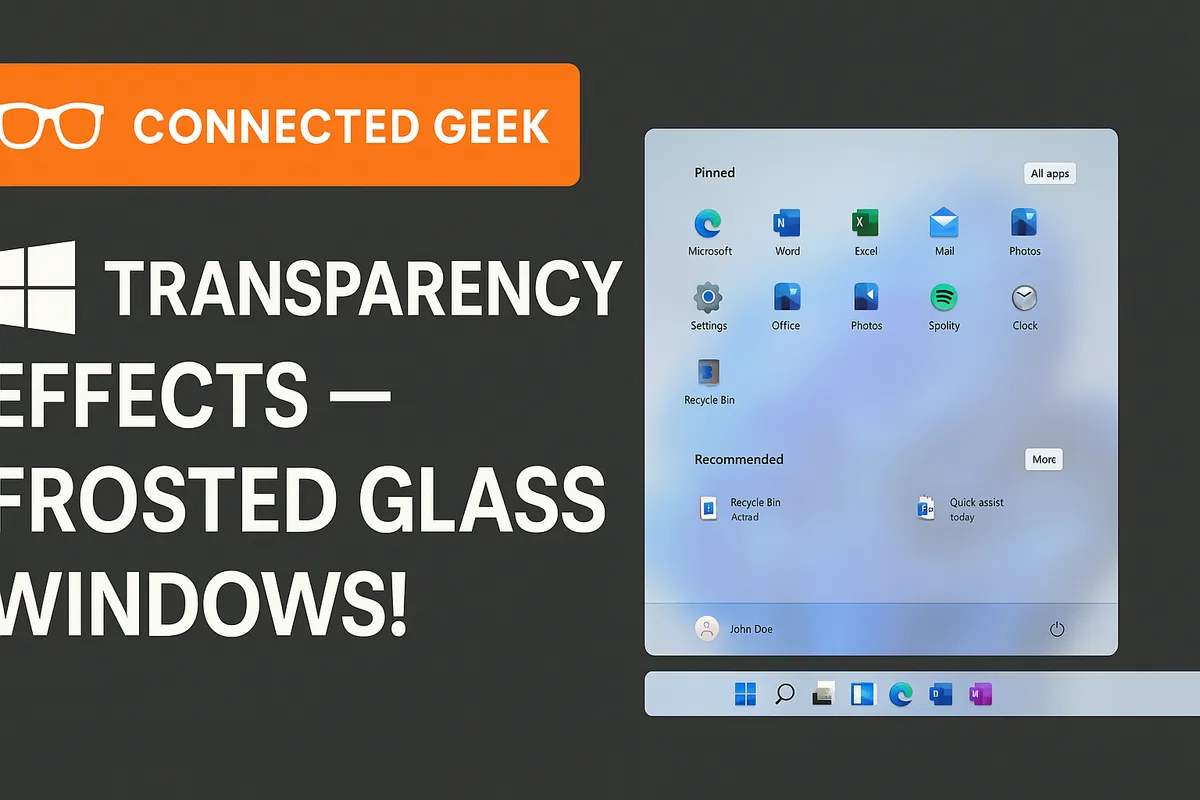
Transparency effects in Windows 11 add a subtle blur and translucency to key interface elements. Instead of solid blocks of colour, menus and panels take on a glassy, frosted look that gently shows a hint of whatever is behind them. It is not just about looks, either; this effect can help your desktop feel less cluttered because windows blend together more softly instead of fighting for attention with harsh edges and flat colours.
How to Enable the Frosted Glass Effect Step by Step
Turning on this effect only takes a few clicks. Here is the exact path to follow inside Windows 11:
- Open Settings. You can press Windows + I on your keyboard or click the Start button and choose the gear icon if it is pinned.
- In the left-hand menu, click Personalisation. This is where Windows keeps most of your appearance options.
- From there, choose Colours. You will see options for accent colours, dark and light modes, and more.
- Scroll until you find Transparency effects, then toggle the switch to On.
As soon as you flip that switch, Windows applies the frosted glass effect across the interface. There is no need to restart or log out; you can enjoy the new look immediately and tweak other colour options around it until you are happy with the overall style.
What Changes: Start Menu and Taskbar Translucency
With transparency effects turned on, one of the first things you will notice is that the Start Menu and Taskbar become pleasantly translucent. When you open the Start Menu, it no longer feels like an opaque block dropping over your wallpaper. Instead, you get a soft blur that lets the background gently show through, giving everything a calm, layered look.
The Taskbar benefits in a similar way. Rather than a heavy strip at the bottom of your screen, it takes on a subtle glass-like appearance that changes slightly with your wallpaper and accent colours. For many people, this small change makes Windows 11 feel more premium and less like a wall of flat rectangles around the edges of the screen.
When to Turn Transparency Off for Better Performance
As stylish as the frosted glass effect is, it does use a bit of extra graphics power. On modern laptops and desktops, this is usually no problem at all. However, if you are running Windows 11 on an older PC, a basic laptop, or a device that already feels a little sluggish, turning transparency off can make things feel snappier and more responsive.
The good news is that switching it off is just as easy as turning it on. Head back to Settings → Personalisation → Colours, find Transparency effects, and toggle the switch to Off. The Start Menu and Taskbar will go back to solid colours, which can give your desktop a cleaner, more minimal look. Many users on older hardware report that animations feel smoother and windows open a bit quicker once the effect is disabled, making everyday tasks more comfortable.
Finding the Right Balance for Your PC
Ultimately, transparency effects in Windows 11 are about personal taste and how your PC feels day to day. If you love the modern, glassy aesthetic and your computer handles it smoothly, leave the effect on and enjoy the extra polish it brings to the Start Menu, Taskbar, and other interface elements. If you prefer a simpler look or want every bit of performance you can get from older hardware, do not hesitate to turn it off for a cleaner, faster feel. The setting is only a toggle away, so you can always experiment until you find the balance that suits you best.
