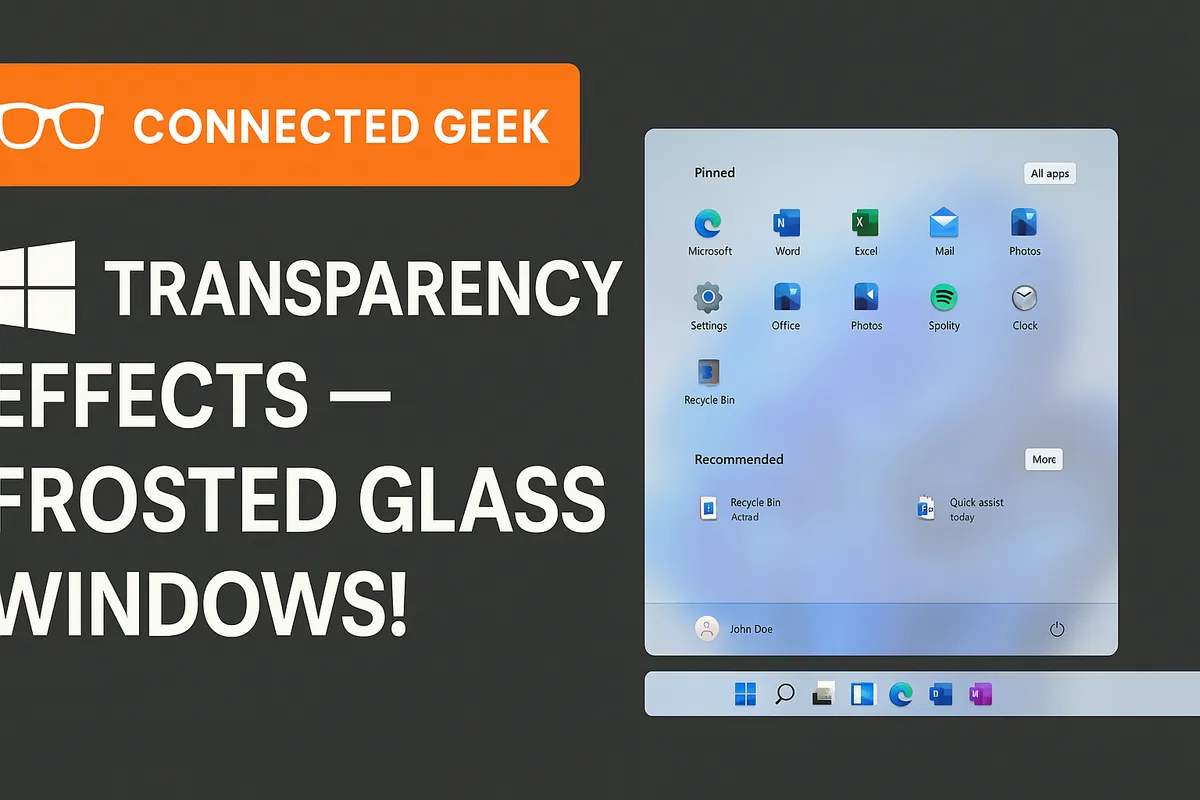
Windows 11 Transparency Effects: Enable the Frosted Glass Look
Windows 11, Personalisation, Transparency Effects
Windows 11 Transparency Effects: How to Get That Frosted Glass Look
If you have ever admired the soft, frosted glass look on the Windows 11 Start Menu and Taskbar and wondered how to turn it on (or off), you are in the right place. This guide walks you through enabling transparency effects, explains what they actually change on your screen, when it makes sense to switch them off for better performance, and why so many people love this modern, airy aesthetic.
What Are Windows 11 Transparency Effects, Exactly?
In Windows 11, transparency effects are subtle visual touches that make parts of the interface look like frosted or blurred glass. Instead of flat, solid colour panels, certain elements become slightly see‑through, gently showing the colours and shapes behind them without making anything hard to read. It is a bit like looking at your desktop background through a lightly fogged window: you can sense what is behind, but the focus stays on what you are doing right now.
This effect is part of Microsoft’s design language in Windows 11, which aims to feel calm, clean, and modern. Rounded corners, soft shadows, and translucent surfaces all work together to give the system a more polished, premium feel compared to older versions of Windows that relied heavily on solid blocks of colour and sharp edges.
How to Enable Transparency Effects in Windows 11 (Step by Step)
Turning on the frosted glass look is quick and easy once you know where to find it. You do not need any special tools or extra downloads; everything is built into the Windows 11 Settings app. Just follow these steps at your own pace:
- Open the Settings app. You can do this by clicking the Start button and choosing Settings, or by pressing Windows key + I on your keyboard for a quick shortcut.
- Go to Personalisation. In the left‑hand sidebar of the Settings window, select Personalisation. This is where Windows keeps all the options related to your wallpaper, colours, themes, and overall look and feel.
- Click on Colours. Inside the Personalisation section, choose Colours. This page controls accent colours, light or dark mode, and, importantly, transparency effects.
- Find the “Transparency effects” toggle. Scroll a little if you need to, and you will see an option labelled Transparency effects with an on/off switch beside it.
- Turn the toggle On. Click the switch so that it moves to the On position. As soon as you do this, Windows 11 applies the new visual style right away—no restart required. You should notice the changes within a second or two.
That is all there is to it. At any time, you can return to Settings → Personalisation → Colours and flip the Transparency effects toggle off again if you change your mind or want to test the difference.
What Changes Visually When Transparency Effects Are On?
Once you have transparency enabled, you will notice that a few key areas of Windows 11 take on that frosted glass appearance. The effect is designed to be subtle and tasteful, so it does not shout for attention, but it makes the whole interface feel more alive and connected to your background and open apps.
The Start Menu: A Soft, Translucent Panel
The Start Menu is one of the most noticeable places where transparency shows up. When you click the Start button, the panel that appears over your desktop is no longer a solid block. Instead, you will see a soft blur of whatever is behind it—your wallpaper, open windows, or icons—filtered through a gentle translucent layer. It is similar to how frosted bathroom glass lets in light and colour but keeps the details hidden.
Importantly, the text and icons in the Start Menu remain crisp and easy to read. The blur effect is strong enough to avoid distractions, but light enough to keep you aware of what is happening in the background. This creates a sense that the Start Menu is part of the same space as your desktop, instead of feeling like a separate, flat overlay slapped on top.
The Taskbar: A Glassy Strip Along the Bottom of Your Screen
The Taskbar is another big winner with transparency effects. Rather than a solid, opaque bar, it becomes a translucent strip that gently picks up the colours of your wallpaper or windows behind it. The blur effect keeps things neat: you will not be distracted by tiny details behind the Taskbar, but you will see soft shifts in colour and brightness as your background changes or as you move windows around.
This makes the Taskbar feel lighter and less bulky, especially on smaller screens. The icons still stand out clearly, but the bar itself no longer feels like a heavy border across the bottom of your display. For many people, this small change makes Windows 11 feel more spacious and less cramped, even if the actual usable area is the same as before.
Other Places You Might Notice the Frosted Look
While the Start Menu and Taskbar are the stars of the show, transparency effects can also appear in a few other parts of Windows 11, depending on your version and settings. For example, you may see a similar translucent effect in:
- The Quick Settings panel that appears when you click the network, volume, or battery icons on the Taskbar.
- The Notification Centre, which slides in from the side of the screen.
- Some built‑in apps or system menus that adopt the same design language.
These extra touches keep the design consistent, so different parts of Windows feel like they belong together instead of looking like a mix of styles from different eras.
Why Do So Many Users Love the Transparent, Frosted Glass Aesthetic?
Transparency effects are not just a visual trick; they change how Windows 11 feels to use day to day. Many people keep them on because they make the system feel more personal, more modern, and simply more pleasant to look at. Here are some of the main reasons everyday users appreciate this aesthetic.
A More Modern, Premium Look
The frosted glass effect has become a hallmark of modern user interfaces, from smartphones to smart TVs. By adopting this style, Windows 11 feels more in line with current design trends. It gives the impression that your computer is up to date and thoughtfully designed, rather than purely functional and boxy.
For many people, their PC is a daily companion for work, study, and entertainment. Having it look attractive and contemporary can make sitting down at your desk feel just a little bit nicer, the same way a well‑decorated room feels more inviting than a bare one.
A Sense of Depth and Space on Your Desktop
Transparency adds a subtle sense of depth to the screen. Instead of flat layers stacked on top of each other, you get the feeling of different surfaces floating in the same space. The Start Menu and Taskbar no longer feel like heavy slabs blocking your view; they feel like light, semi‑transparent panels that belong with whatever is behind them.
This can make your desktop feel more open and less cluttered, even when you have a lot happening. For users who like to keep a favourite photo or calming wallpaper as their background, transparency lets that image shine through more often, instead of hiding it behind solid menus and bars.
A More Cohesive, Personalised Experience
Because translucent elements pick up colours from your wallpaper and open apps, your whole system starts to feel more unified. Change your wallpaper, and you will often see a gentle shift in the tones of your Start Menu and Taskbar too. This makes personalisation feel more meaningful: your choice of background does not just sit behind everything else; it quietly influences the whole look of your desktop.
If you enjoy tweaking themes, accent colours, and wallpapers, transparency effects can amplify those choices, giving you a setup that truly feels like yours rather than a generic default.
Subtle Visual Feedback Without Distraction
Another reason people enjoy transparency is that it offers a gentle sense of what is happening behind the current window without being distracting. For example, if your desktop background changes automatically throughout the day, you might see the colours on your Taskbar and Start Menu shift slightly as well. It is a quiet reminder of what is going on in the background, but it never competes with your main task for attention.
When You Might Want to Turn Transparency Effects Off
As attractive as transparency effects are, they are not the best choice for every situation. The good news is that Windows 11 makes it easy to switch them off whenever you like. Here are the main times when it is worth considering turning the Transparency effects toggle to Off in Settings → Personalisation → Colours.
If You Have an Older or Lower‑Powered PC
Transparency effects rely on your computer’s graphics capabilities to blur and blend what is behind those frosted panels. On most modern machines, this is no problem at all. However, if you are using an older PC, a basic laptop, or a device with limited graphics power, these effects can add just a bit of extra strain on your system.
You might notice small signs like menus feeling slightly sluggish, windows taking a moment longer to open, or animations not looking as smooth as you would like. In these cases, turning transparency off can help free up a little performance for the things that matter more, like your apps and games. It is a simple change that can make Windows feel snappier on low‑powered hardware.
If You Want to Maximise Battery Life on a Laptop or Tablet
On portable devices, every bit of battery life counts. Visual effects like transparency are small but constant tasks for your graphics hardware, which can contribute, even slightly, to power usage. If you spend a lot of time working on battery power—on a train, in a café, or during long meetings— turning off transparency can be one of several easy tweaks to help stretch your battery a little further.
You can always turn transparency back on when you are plugged in at home or at the office and want your desktop to look its best again.
If You Prefer a Simpler, More Solid Look
Not everyone loves translucent effects, and that is completely okay. Some people find that solid colours feel clearer and less visually busy. If you like a very straightforward, minimal desktop, or you use your PC in bright environments where subtle transparency is harder to see, you might simply prefer to keep the interface fully opaque.
Turning off transparency does not remove any features or change how Windows 11 works; it just swaps the frosted glass look for clean, solid panels. This can make the interface feel a bit more traditional and, for some users, easier on the eyes.
If You Are Troubleshooting Visual Glitches
Occasionally, if your graphics drivers are out of date or there is a temporary software issue, you might see odd behaviour like flickering, strange colours, or panels not rendering correctly. While this is not common, turning off transparency can sometimes help you figure out whether the visual effects are part of the problem. If things improve when transparency is disabled, that is a helpful clue while you update drivers or install system updates.
How to Turn Transparency Effects Off (and Back On Again)
Switching transparency off uses the same path you followed to turn it on. Here is a quick refresher, so you can change the setting whenever you like:
- Open Settings (Start → Settings, or press Windows key + I).
- Click Personalisation in the left‑hand menu.
- Choose Colours.
- Find the Transparency effects toggle and click it to turn it Off or On, depending on your preference.
The change is immediate, so you can experiment freely. Try working for a while with transparency off, then switch it back on later and see which style feels more comfortable and enjoyable for you.
Finding the Balance Between Beauty and Performance
One of the nice things about Windows 11 is that it gives you control over how your system looks without forcing you into a single style. Transparency effects are a good example of this balance. On a newer PC, they are a lovely finishing touch that makes the interface feel smooth and sophisticated. On an older or more modest machine, turning them off is a sensible way to keep things running as smoothly as possible.
There is no right or wrong choice—only what works best for you. If you value every bit of performance or battery life, you may choose a simpler, solid look. If you enjoy a visually rich environment and your hardware can handle it comfortably, the frosted glass Start Menu and Taskbar can make Windows 11 feel genuinely delightful to use.
Putting It All Together
To recap, Windows 11’s transparency effects:
- Are controlled by a simple toggle in Settings → Personalisation → Colours → Transparency effects.
- Give the Start Menu and Taskbar a translucent, frosted glass look that blends with your background.
- Are loved by many users for their modern, spacious, and personalised aesthetic.
- Can be turned off on older or lower‑powered PCs to help performance and battery life, or simply if you prefer a more solid, traditional look.
Feel free to experiment with the setting and see how it changes your daily experience. Whether you fall in love with the frosted glass style or decide that solid colours suit you better, the choice is just a quick toggle away. Windows 11 is happy to adapt to your taste—so you can enjoy a desktop that looks and feels just right for you.
