Windows 11 Themes: Transform Your PC's Look in One Click
Windows 11, Personalisation, Themes
Windows 11 Themes: Transform Your PC’s Look in a Single Click
If your Windows 11 desktop feels a little tired, you don’t need a new computer to make it exciting again. With themes, you can completely change your PC’s personality in one effortless click — from the wallpaper and accent colours to the sounds and even your mouse cursor style.
What Exactly Is a Windows 11 Theme?
Think of a Windows 11 theme as a complete outfit for your PC. Instead of changing just your wallpaper or only your colours, a theme bundles multiple visual and audio elements together into one convenient package. With one theme, you instantly refresh your computer’s entire vibe — no fiddling with lots of separate settings.
- Wallpaper: A theme usually includes one or more high‑quality background images that rotate automatically or stay fixed, depending on the design.
- Accent colours: These are the colours you see on window borders, buttons, the Start menu, and taskbar highlights. Themes apply a coordinated palette so everything feels intentional and stylish.
- Sounds: Many themes come with their own sound scheme, changing the chimes you hear when you get a notification, plug in a device, or empty the Recycle Bin. It’s like giving your PC a new voice.
- Mouse cursor style: Some themes even swap out the standard mouse pointer for a new design, making every click feel fresh and different.
All of these elements are bundled together, so when you apply a theme, Windows 11 updates everything at once. It’s a full makeover, not just a quick touch‑up — and that’s what makes themes such an enthusiastic game‑changer for your everyday PC experience.
One Click, Total Makeover: How Themes Transform Your PC Instantly
The most exciting part about Windows 11 themes is just how fast the transformation happens. You don’t have to be “good with computers” or spend time digging through complicated menus. You simply choose a theme and click it — that’s it. In a second or two, your desktop background changes, your accent colours shift, your sounds refresh, and your mouse cursor may even take on a new look. It feels like stepping into a newly decorated room without lifting a paintbrush.
This single‑click transformation is perfect if you:
- Just bought a new PC and want it to feel truly yours from day one.
- Use your computer all day and crave a workspace that feels energising, calming, or simply more “you.”
- Are bored of the default look but don’t want to spend time tweaking lots of settings manually.
With themes, you can reinvent your PC’s personality as often as you like. Want a sleek, dark, cinematic feel for late‑night browsing? Click a dark theme. Prefer bright, colourful nature scenes while you work? Switch to a nature theme. That single click is all it takes to give your screen a dramatic, delightful refresh.
How to Access Themes in Windows 11 (Step‑by‑Step)
Getting to your themes in Windows 11 is wonderfully straightforward. You don’t need to hunt through hidden menus — everything lives in one friendly place inside Settings. Here’s exactly how to find it using the built‑in Settings → Personalisation → Themes path.
- Open Settings. Click the Start button (the Windows logo on your taskbar) and select the gear‑shaped Settings icon. You can also press Windows key + I on your keyboard to open Settings instantly.
- Go to Personalisation. In the left‑hand sidebar of Settings, click Personalisation. This is your home base for everything that affects how Windows 11 looks and feels — from your background to your colours, lock screen, and of course, themes.
- Open the Themes section. Within Personalisation, look for the option labeled Themes and click it. This opens the dedicated themes page, where the real visual fun begins.
On the Themes page, you’ll see your current theme at the top, plus a gallery of available themes below. Windows 11 usually includes several built‑in themes right out of the box, so you can start experimenting immediately — no downloads required. It’s like opening a wardrobe and discovering outfits you didn’t even know you owned.
Applying a Theme: Change Everything with One Enthusiastic Click
Once you’ve reached the Themes page, applying a new look is almost unbelievably simple. Windows 11 is designed to handle all the details for you, so you can focus entirely on the fun part: choosing what you like the most.
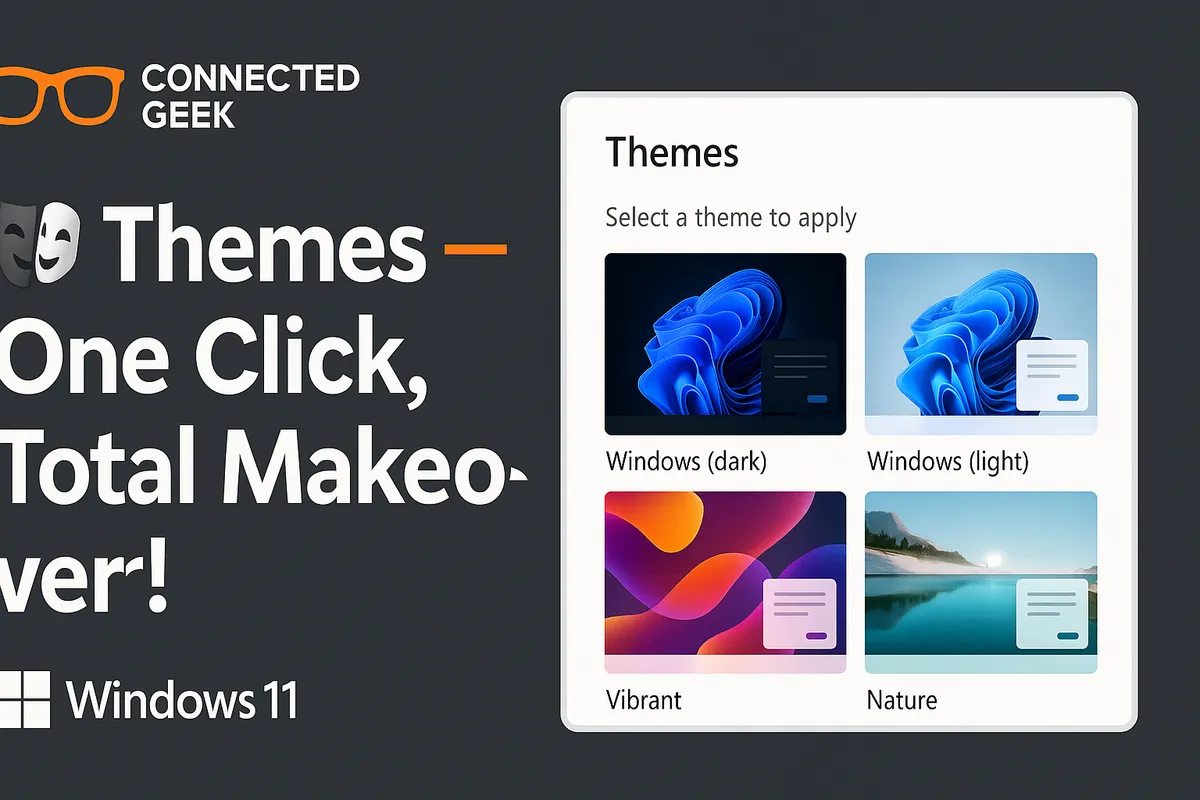
- Browse through the theme thumbnails displayed under Current theme and Change theme. Each tile shows a preview of the wallpaper and colours you’ll get.
- Hover your mouse over a theme to see its name. Themes might be labelled with styles like “Glow,” “Captured Motion,” or “Sunrise,” giving you a hint of their personality before you commit.
- When you see one you love, simply click it. Within a moment, your desktop background, accent colours, and any associated sounds or cursor styles will all update to match that theme.
That’s all there is to it. No saving, no confirmation boxes, no complex options. One click, and your PC steps out in a brand‑new outfit. If you change your mind, click another theme and watch your system transform again just as quickly. It’s playful, instant, and incredibly satisfying.
Exploring Free Themes in the Microsoft Store
The built‑in themes are only the beginning. Windows 11 connects directly to a huge collection of free themes in the Microsoft Store, and diving into that library is like walking into a colourful gallery curated just for your desktop. From scenic landscapes and city skylines to abstract art, gaming worlds, and minimalist colour blocks, there’s a theme for practically every taste and mood — and most of them won’t cost you a cent.
You can reach the Microsoft Store’s themes section right from the Themes page in Settings, which makes discovering new looks delightfully seamless. Here’s how to browse and download those free themes step by step.
- On the Settings → Personalisation → Themes page, look for a link that says something like Browse themes or Get more themes in Microsoft Store. Click that link. Windows 11 will open the Microsoft Store app directly to the themes section — no searching required.
- In the Microsoft Store, scroll through the grid of available themes. Each card shows a preview image and the name of the theme, and many are marked as Free. You can click any theme to open its details page and see more preview images, plus a short description of what it includes.
- When you find one that excites you, click the Get or Install button. The theme will download to your PC in the background. This usually takes only a few moments, especially for themes that focus mainly on wallpapers and colours.
- Once the download finishes, the theme becomes available automatically in your Settings → Personalisation → Themes gallery. Just return to that page and click the new theme’s tile to apply it instantly.
Because these themes come straight from the Microsoft Store, they’re easy to trust and even easier to remove if you change your mind later. You can install several, try them all, and switch between them whenever you like. It’s a fun, zero‑risk way to keep your PC feeling visually fresh and inspiring.
Why Themes Are the Ultimate Zero‑Effort Refresh for Your PC
Customising your computer can sometimes sound like a project: choosing the right wallpaper size, matching colours, adjusting sound settings, and fine‑tuning every little detail. Themes sweep away all that effort and replace it with something delightfully simple: click once, enjoy the result. That’s why themes are such a powerful, zero‑effort way to give your PC a completely fresh look.
- No design skills needed: Every theme is carefully designed so the wallpaper, colours, and other elements work together beautifully. You don’t have to worry about whether that blue matches that green — it’s already been handled for you.
- No complicated setup: There’s no multi‑step wizard or long list of questions. You simply choose a theme, click it, and instantly enjoy the new look.
- Instant mood change: Because themes affect so many elements at once, they can genuinely shift how your PC feels to use — brighter and more energetic, darker and more focused, or calm and nature‑inspired.
Whether you’re working, studying, gaming, or just browsing, a new theme can make your everyday tasks feel fresher and more enjoyable. You might be surprised at how much more enthusiastic you feel about sitting down at your computer when the screen greeting you truly matches your personality or current mood.
Seasonal Themes: Match Your Desktop to the Time of Year
One especially fun way to use Windows 11 themes is to change them with the seasons. Just as you might swap your wardrobe from light summer clothes to cosy winter sweaters, you can refresh your PC’s appearance to match the time of year. This simple habit keeps your desktop feeling alive and in tune with what’s happening outside your window.
Autumn and Winter: Embrace Darker, Cosier Themes
As the days get shorter and the evenings draw in, darker themes can feel wonderfully comfortable. Look for themes that use deep blues, charcoal greys, rich burgundies, or moody forest scenes. These darker themes often pair beautifully with Windows 11’s dark mode, making your screen easier on the eyes in low light and adding a touch of cinematic drama to your workspace.
- Try a theme with night‑time city skylines for a modern, urban feel on winter evenings.
- Explore themes featuring starry skies or nebulae if you love a cosmic, dreamy atmosphere.
- Choose autumn‑themed packs with falling leaves and warm oranges to match the season outside.
These darker themes don’t just look stylish — they can also make your desktop feel more focused and less distracting during long winter work sessions. The combination of rich colours and subtle lighting can create a cosy, concentrated mood that’s perfect for productivity or relaxed browsing.
Spring and Summer: Bright Nature Themes for Fresh Energy
When spring and summer arrive, it’s the perfect moment to brighten things up. Themes filled with lush green forests, blooming flowers, sunny beaches, or clear blue skies can make your PC feel as fresh and vibrant as the season itself. Opening your laptop to a bright, nature‑inspired theme can instantly lift your mood and add a burst of energy to your day.
- Look for themes featuring fields of flowers, mountain lakes, or bright coastal scenes to bring the outdoors to your desktop.
- Try minimalist colour‑block themes in pastel shades for a clean, airy look that feels perfect for spring cleaning your digital space.
- Explore tropical or beach‑themed packs during summer holidays to keep that vacation feeling alive every time you sit down at your PC.
Because switching themes is so quick and effortless, you can change them as often as the weather — or even more frequently. Monday could be a calm forest, Wednesday a vibrant cityscape, Friday a golden beach. Seasonal themes turn your desktop into a living reflection of your world, and that makes everyday computing feel surprisingly delightful.
Fun Ideas for Personalising Your PC with Themes
Once you start exploring themes, you’ll quickly realise how many creative ways there are to use them. Because each theme bundles wallpaper, accent colours, sounds, and mouse cursor style together, you can build little “modes” for different parts of your life — all without lifting more than a finger to switch between them.
- Work mode: Choose a calm, minimal theme with soft colours and simple backgrounds that don’t distract you. Every time you apply it, your PC instantly feels like a focused workspace.
- Gaming or movie night mode: Switch to a darker, more dramatic theme with rich colours and maybe bolder sounds. It sets the perfect mood for entertainment and helps your screen blend into the background while you play or watch.
- Relax mode: Pick a nature‑focused theme with gentle landscapes and soothing colours. This is wonderful for evening browsing, journaling, or catching up with friends online.
Because themes are so easy to apply, you can treat them almost like playlists for your screen: quick, expressive, and perfectly tuned to how you feel right now. It’s a playful way to keep your digital life feeling flexible and full of personality.
Tweaking a Theme After You Apply It (Optional, but Fun!)
Even though themes are designed to be one‑click solutions, Windows 11 still lets you adjust little details afterwards if you want to. This is entirely optional, but it’s nice to know you have the freedom to fine‑tune your look while still enjoying the convenience of a bundled theme.
- Background: After applying a theme, you can visit the Background section in Personalisation to choose whether the images change every few minutes or stay fixed on your favourite picture from the theme’s collection.
- Colours: In the Colours section, you can adjust whether Windows uses light or dark mode and how it applies your accent colour to the taskbar, Start menu, and window borders — all while keeping the theme’s overall style intact.
- Sounds and cursor: If a theme’s sounds or cursor style aren’t quite your taste, you can change them back to the default options or choose alternatives from the Sounds and Mouse pointer settings, all without losing the rest of the theme’s magic.
These tweaks are there if you want them, but they’re never required. The heart of the experience remains the same: themes give you a complete, coordinated look in one enthusiastic click. You can enjoy that instant transformation and only dive deeper if you feel like experimenting.
Bringing It All Together: Your PC, Your Style, Zero Hassle
Windows 11 themes are one of the most joyful, accessible ways to personalise your computer. In a single click, you can completely transform your PC’s look and feel — swapping out wallpaper, accent colours, sounds, and mouse cursor style all at once. You don’t need to be a designer, and you don’t need to spend time tinkering with individual settings. Themes deliver a full, coordinated makeover instantly.
Accessing themes through Settings → Personalisation → Themes is easy for every Windows 11 user, and the built‑in options give you a great starting point. From there, the Microsoft Store opens up a world of free themes ready to download and enjoy, covering everything from seasons and nature to art, travel, and more. Because switching themes takes almost no effort, you can refresh your desktop as often as you like — daily, weekly, or with every change of season.
Darker themes can make autumn and winter feel cosy and focused, while bright nature themes bring spring and summer energy straight to your screen. Along the way, you can create your own personal “modes” for work, play, and relaxation, all powered by that same simple idea: choose a theme, click it, and let Windows 11 handle the rest.
If your PC has been wearing the same look since the day you set it up, there’s no better time to explore themes. Open Settings, head to Personalisation → Themes, and start clicking. In just a few seconds, you can turn a familiar desktop into something that feels brand new — enthusiastic, expressive, and unmistakably yours.
