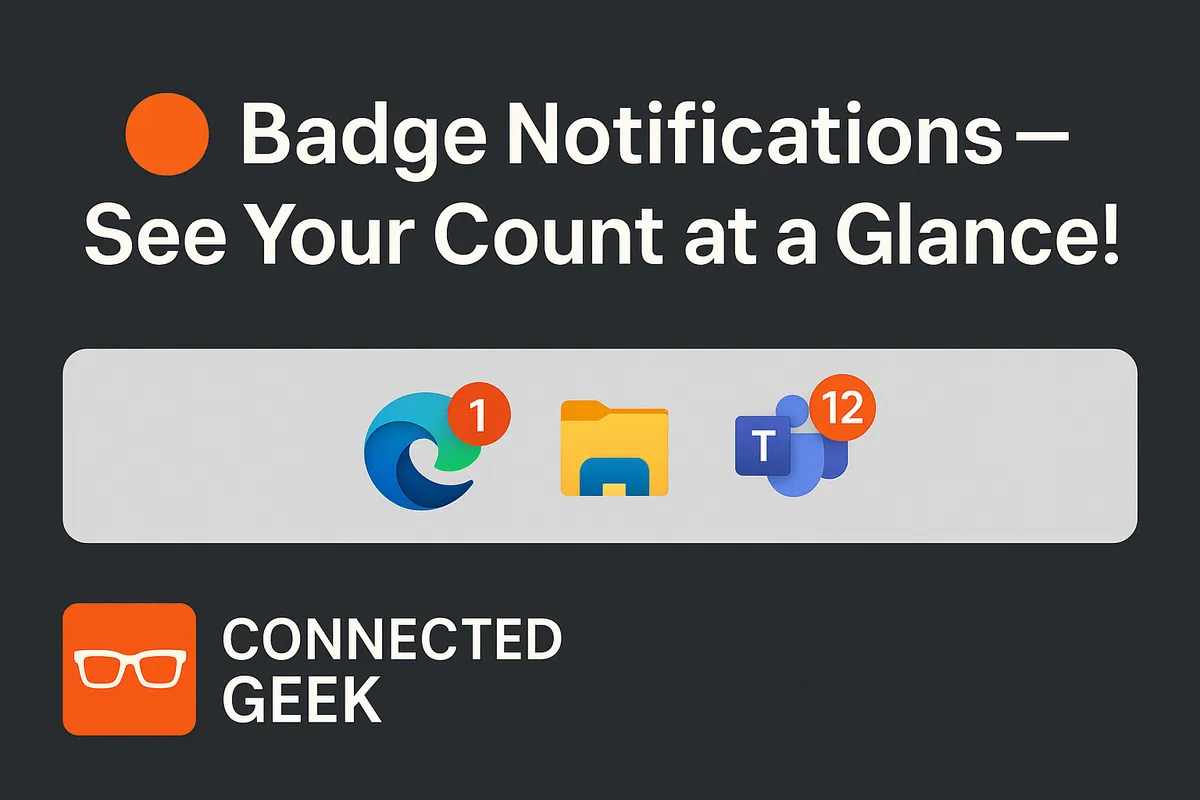
Manage Windows 11 Taskbar Notification Badges
Windows 11, Taskbar Notifications
Notification Badge Counts on the Windows 11 Taskbar: Handy Helper or Visual Clutter?
If you have ever noticed a tiny colored dot with a number sitting on top of an app icon on your Windows 11 taskbar, you have already met notification badge counts. These small number bubbles quietly keep track of what is waiting for your attention, especially emails, chats, and app alerts. Whether you love being up to date at a glance or prefer a calmer, cleaner desktop, understanding how these badges work—and how to turn them off—can help you shape Windows 11 to fit your style.
What Are Notification Badge Counts on the Taskbar?
Notification badges are the little numbered dots that appear on taskbar app icons in Windows 11. Think of them as mini scoreboards for your unread activity. When an app has something new to tell you—like a fresh email, a missed chat, or an app alert—it can add or update that number on its taskbar icon. The higher the number, the more items are waiting for you inside the app.
For example, if your Mail app shows a badge with “5,” that usually means you have five unread emails. If your chat app shows “3,” you likely have three conversations with new messages. The badge does not show you the content itself, but it gives you a quick count so you know how much is piling up without opening anything yet.
Why Badge Counts Can Be So Helpful at a Glance
One of the biggest advantages of notification badges is that they help you see email and chat counts at a glance. Instead of constantly opening Outlook, Mail, Teams, or your favorite messaging app to check what is new, you can simply glance down at the taskbar and instantly know where your attention is needed most.
This can be especially helpful if you juggle multiple communication tools throughout the day. A quick look at the taskbar can tell you, “I have a few new emails, but a lot of chat activity,” and you can decide what to tackle first. For many people, this tiny visual cue helps reduce the urge to constantly open apps “just to check,” because the badge already tells you whether there is anything new to see.
Badge counts can also support better time management. You might choose to ignore small numbers during deep work and only respond when the count gets higher, or clear them out during short breaks. Used thoughtfully, they can act like a gentle dashboard for your digital life, rather than a loud interruption.
How to Turn Notification Badges Off in Windows 11
Of course, not everyone enjoys seeing numbers pop up on their taskbar. If you find badge counts distracting or stressful, Windows 11 makes it easy to turn them off. You can always turn them back on later, so feel free to experiment and see what feels best for you.
- Open Settings. You can do this by clicking the Start button and selecting the gear icon, or by pressing Windows key + I on your keyboard.
- In the left-hand menu, click System, then choose Notifications.
- Scroll until you find the option labeled Show notification badges on taskbar apps (or very similar wording, depending on your build of Windows 11).
- Toggle this switch off if you do not want to see badge counts, or toggle it on to enable them again.
The change takes effect right away, so you will see badges disappear or reappear on your taskbar icons as soon as you flip the switch.
Should You Keep Badge Counts On or Turn Them Off?
There is no single “right” answer here—only what works best for you. If you like staying on top of email and chats without constantly opening apps, keeping notification badges on can be a friendly, low-key way to stay informed. They give you quick insight without full pop-up notifications taking over your screen.
On the other hand, if seeing numbers climb makes you feel pressured or distracted, you might enjoy a calmer taskbar with badges turned off. You can still open your apps when it suits you and check messages on your own schedule, without a constant visual reminder waiting at the bottom of your screen.
The nice part is that Windows 11 lets you switch this feature on or off in just a few clicks. Try living with badge counts enabled for a few days, then turn them off and compare how you feel. Your ideal setup is the one that helps you stay informed and comfortable while you work, browse, and chat.
SEO Title: How to Use Notification Badge Counts on the Windows 11 Taskbar (Or Turn Them Off)
Meta Description: Learn what Windows 11 taskbar notification badge counts are, how they help you see email and chat numbers at a glance, and how to toggle “Show notification badges on taskbar” on or off in Settings.
