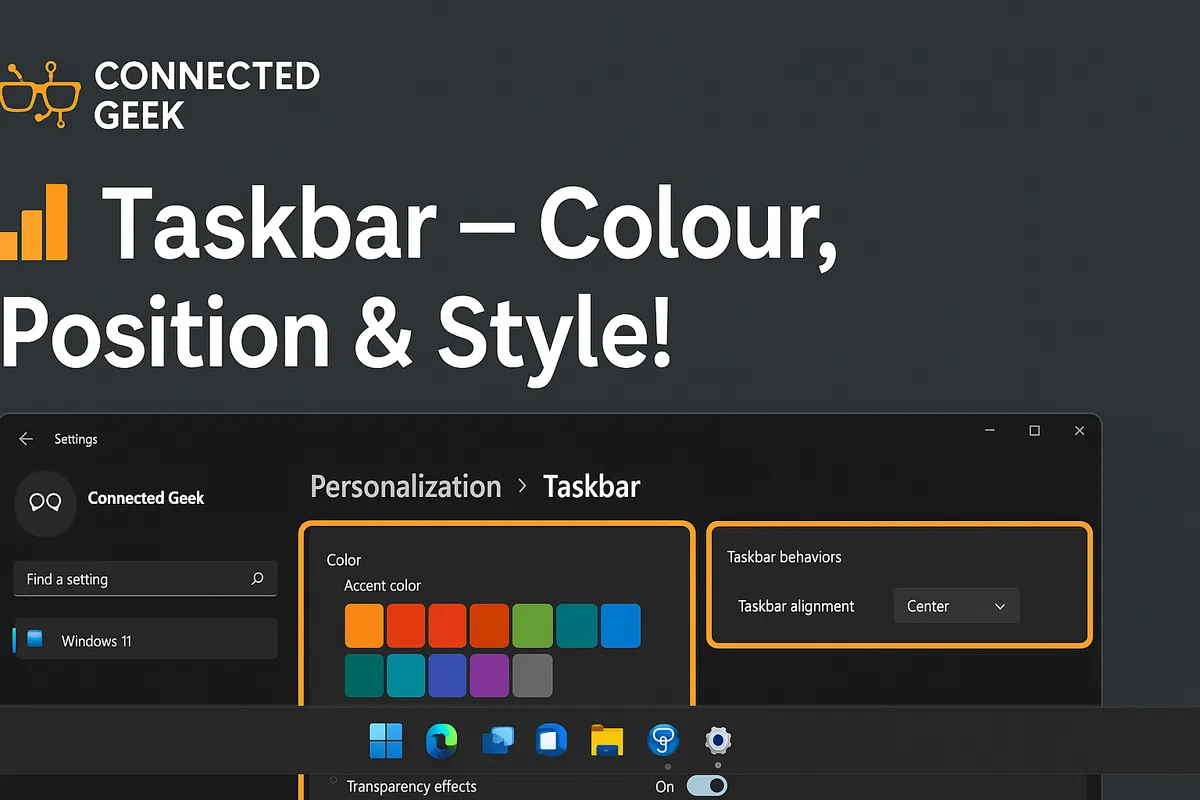
Windows 11 Taskbar Customization: Colours, Alignment, and Icons Explained
Windows 11, Taskbar Customization, Personalization
Windows 11 Taskbar Customization: Make Your Desktop Truly Yours
The Windows 11 taskbar is more than just a strip of icons at the bottom of your screen. It is command central for your apps, notifications, and daily workflow. With a few friendly tweaks, you can make it look better, behave smarter, and feel like it was designed just for you. In this guide, we will walk through how to add your accent colour to the taskbar, control exactly what appears on it, and fine‑tune its behaviour so it works the way you do.
1. Adding Your Accent Colour to the Taskbar
One of the quickest ways to make Windows 11 feel more personal is to give the taskbar a splash of your favourite colour. Windows calls this your accent colour, and you can apply it to the Start menu and taskbar with just a couple of clicks. If you have ever wished that the default grey looked a little more “you”, this is where the fun starts.
Step‑by‑step: Turn on “Show accent colour on Start and Taskbar”
- Open Settings. Click the Start button and choose Settings, or press Windows key + I on your keyboard.
- Go to Personalisation. In the left‑hand sidebar, choose Personalisation. This is your home base for changing how Windows looks and feels.
- Select Colours. In the main Personalisation window, click Colours. Here you will see options for your accent colour, light or dark mode, and more.
- Pick an accent colour. Scroll down until you see the Accent colour section. You can let Windows pick a colour from your background, or choose one yourself from the colour grid or custom colour picker. Try a few until one feels right—nothing breaks if you change your mind later.
- Toggle “Show accent colour on Start and Taskbar”. Just below the accent colour choices, find the switch labelled Show accent colour on Start and Taskbar. Turn this On. Your taskbar and Start menu will instantly take on your chosen colour, giving your desktop a coordinated, polished look.
If the option is greyed out, double‑check your Choose your mode setting higher up in the Colours menu. The accent colour on the taskbar works best when you use Dark mode or the Custom option with Windows mode set to Dark. Switching to a darker mode not only makes colours pop but can also be easier on your eyes, especially at night.
2. Controlling What Appears in the Taskbar
Once your taskbar looks the part, the next step is deciding what actually lives on it. Windows 11 gives you a lot of control over which buttons show up, how search appears, and which icons are tucked away in the system tray. Cleaning this up can make your desktop feel calmer and help you find what you need faster.
Opening the Taskbar settings
- Right‑click an empty space on the taskbar.
- Click Taskbar settings.
This opens the Personalisation > Taskbar page in Settings, where most of the magic happens. You will see sections such as Taskbar items, Taskbar corner icons, and Taskbar corner overflow.
Search: Box, Icon, or Hidden
Search is one of the most used features in Windows, but not everyone wants a big search box taking up space on the taskbar. Windows 11 lets you choose how search appears—or hide it entirely if you prefer a minimalist look.
- In Taskbar items, find Search.
- Open the drop‑down and choose between options such as Search box, Search icon, or Hide (exact wording can vary slightly by build).
If you like quick access and have the space, the full Search box is convenient. If you prefer a cleaner look, the Search icon gives you the same power in a smaller package. And if you almost never click Search because you use Windows key + S or just start typing from the Start menu, feel free to hide it completely.
Task View Button: Virtual Desktops at Your Fingertips
The Task View button is the icon that lets you see all your open windows at once and switch between virtual desktops. It is genuinely useful if you juggle workspaces—for example, one desktop for work, another for personal browsing, and a third for creative projects. But if you never use it, it does not need to be there.
- In Taskbar items, find Task view.
- Toggle it On to show the button, or Off to remove it from the taskbar.
Even if you hide the button, you can still open Task View with the shortcut Windows key + Tab. So if you love keyboard shortcuts, you might happily reclaim that bit of taskbar space.
Widgets: Glanceable Info or Unnecessary Clutter?
Widgets are Windows 11’s way of giving you at‑a‑glance information such as the weather, news headlines, sports scores, and calendar events. The Widgets button usually lives on the left side of the taskbar. Some people love having this instant snapshot; others would rather keep things simple.
- In Taskbar items, look for Widgets.
- Toggle it On to keep the Widgets button, or Off to remove it.
If you do keep Widgets, you can customise what appears inside the widgets panel itself by clicking the button and managing your feeds. But starting with whether the button appears at all helps keep your taskbar focused on what you really use.
Chat / Microsoft Teams Button: Keep or Clear It?
Windows 11 introduced a built‑in Chat button, powered by Microsoft Teams, designed for quick conversations and video calls. If you already use Teams or want a quick way to connect with friends and family, this can be handy. If you use other apps—Zoom, WhatsApp, or something else—the Chat button might just feel like an extra icon you do not need.
- In Taskbar items, find Chat (sometimes labelled as Chat (Microsoft Teams)).
- Toggle it On to keep the Chat icon, or Off to remove it from your taskbar.
System Tray Icons: Tidy Up the Corner of Your Screen
On the right‑hand side of the taskbar, near the clock, you will see a cluster of small icons—things like your network status, volume, battery, and background apps. This area is called the system tray. It is useful, but it can also get crowded if every app insists on living there. Windows 11 lets you decide which icons are always visible and which are tucked away in the overflow menu.
Taskbar corner icons
In Taskbar settings, scroll down to Taskbar corner icons. These are special icons that appear directly in the corner, such as Pen menu, Touch keyboard, or Virtual touchpad on touch‑enabled devices.
- Toggle each one On if you use it often, or Off if you rarely touch it. This keeps the corner neat and focused on tools you actually rely on.
Taskbar corner overflow
Just below that, you will see Taskbar corner overflow. This controls which app icons appear in the little pop‑up panel that opens when you click the small arrow next to the system tray. It is like a holding area for background apps.
- For each app listed, turn the toggle On if you want its icon to always appear on the taskbar, or Off if you are happy for it to stay hidden in the overflow menu.
For example, you might always want to see your cloud backup status, but you might not need to stare at your printer or updater icons all day. By choosing carefully, you keep the taskbar corner calm while still having everything just one extra click away.
3. Taskbar Behaviours: How Your Taskbar Acts Throughout the Day
Visual tweaks and icons are only half the story. The way your taskbar behaves can make a big difference to how comfortable and efficient your Windows experience feels. From where your icons are aligned to whether the taskbar hides itself, Windows 11 gives you several behaviour options to play with.
Centre vs Left Alignment: The Friendly Debate
One of the most talked‑about changes in Windows 11 was the decision to centre the taskbar icons by default. Some people love the modern, Mac‑style look and the way the icons sit closer to the middle of the screen. Others are fiercely loyal to the traditional left‑aligned layout that has been around since the early days of Windows. It has become a surprisingly fun community topic—almost like the “tabs vs spaces” debate in programming, but for taskbars.
The good news is that you do not have to pick a side forever. Windows 11 lets you switch between centre and left alignment in seconds, so you can try both and see which feels more natural for you.
How to change taskbar alignment
- Open Taskbar settings (right‑click the taskbar and choose it).
- Scroll down and click Taskbar behaviours to expand the section.
- Find the option labelled Taskbar alignment.
- Use the drop‑down menu to choose Centre or Left.
If you have been using Windows for years, left alignment might feel like home. If you use a wide monitor or like your icons closer to where your eyes naturally rest, centre alignment can be surprisingly comfortable. There is no right answer here—only what works best for you.
Auto‑Hide the Taskbar: More Screen Space When You Need It
If you like a clean, distraction‑free workspace or you use a smaller screen, you might appreciate the auto‑hide feature. When enabled, the taskbar slides out of view when you are not using it and reappears when you move your mouse to the bottom of the screen (or the side where your taskbar lives).
How to turn auto‑hide on or off
- In Taskbar settings, expand Taskbar behaviours.
- Look for Automatically hide the taskbar.
- Tick the checkbox to enable auto‑hide, or untick it to keep the taskbar always visible.
This is especially handy when watching videos, working in full‑screen apps, or editing documents where every vertical pixel counts. If you find yourself accidentally triggering the taskbar when you move your mouse, though, you might prefer to leave auto‑hide off for a more stable feel.
Notification Badges: Stay Informed at a Glance
Many apps show small notification badges on their taskbar icons—little dots or numbers that tell you there is something new to look at. Think of an email app showing unread messages or a chat app showing new conversations. These badges can be helpful, but they can also feel a bit nagging if you prefer to check things on your own schedule.
How to manage notification badges on taskbar apps
- Go to Settings > Personalisation > Taskbar, then open Taskbar behaviours.
- Look for an option related to Show badges (unread messages counter) on taskbar apps.
- Tick the checkbox to allow badges, or clear it to turn them off.
If you are the kind of person who likes to keep up with notifications in real time, badges are a friendly nudge. If you prefer deep focus without constant visual reminders, disabling them can make your desktop feel calmer. You can still check notifications manually from the Notification Centre when you are ready.
Combining Taskbar Buttons: One Icon per App or One per Window?
If you often have several windows of the same app open—multiple Word documents, several browser windows, or a handful of File Explorer windows— you have probably noticed how quickly the taskbar can fill up. Windows 11 offers options for combining taskbar buttons, which means deciding whether each window gets its own icon or whether all windows from the same app are grouped together under one icon.
Why combining buttons matters
Combining buttons gives you a neater taskbar with fewer icons. Clicking the app icon then shows you thumbnails of each open window, and you pick the one you want. Keeping buttons separate, on the other hand, makes each window directly visible and clickable but uses more space. It is a classic trade‑off between tidiness and instant access.
How to adjust taskbar button combining
Depending on your version of Windows 11, you will find combining options either directly in Taskbar behaviours or in related settings. Look for wording similar to Combine taskbar buttons or Combine taskbar buttons and hide labels.
- Options may include Always (group all windows of the same app into one icon), When taskbar is full (keep them separate until space runs out), or Never (each window gets its own icon and label).
If you like to see exactly what you have open, try Never combine so each window stands alone. If you prefer a minimalist look—even with many apps running—choose Always combine. And if you are not sure, the When taskbar is full option offers a friendly compromise: clarity when you have only a few windows, and grouping when things get crowded.
Bringing It All Together: Your Perfect Windows 11 Taskbar
Customising the Windows 11 taskbar is not about changing things for the sake of it. It is about shaping your everyday workspace so it feels comfortable, efficient, and a little bit joyful to use. By adding your accent colour, choosing exactly which icons appear, and fine‑tuning behaviours like alignment, auto‑hide, notification badges, and button combining, you turn a generic taskbar into a tool that truly fits you.
As you experiment, remember that none of these decisions are permanent. Feel free to switch between centre and left alignment, try auto‑hide for a while, or live without notification badges for a week to see how it feels. The Settings app is always just a couple of clicks away if you want to tweak something again later.
The next time you sit down at your PC and notice that your taskbar colour matches your wallpaper, your favourite tools are right where you expect them, and your apps behave the way you like, you will feel the difference. Windows 11 gives you the controls; a few minutes of friendly tinkering turns them into a taskbar that feels unmistakably yours.
