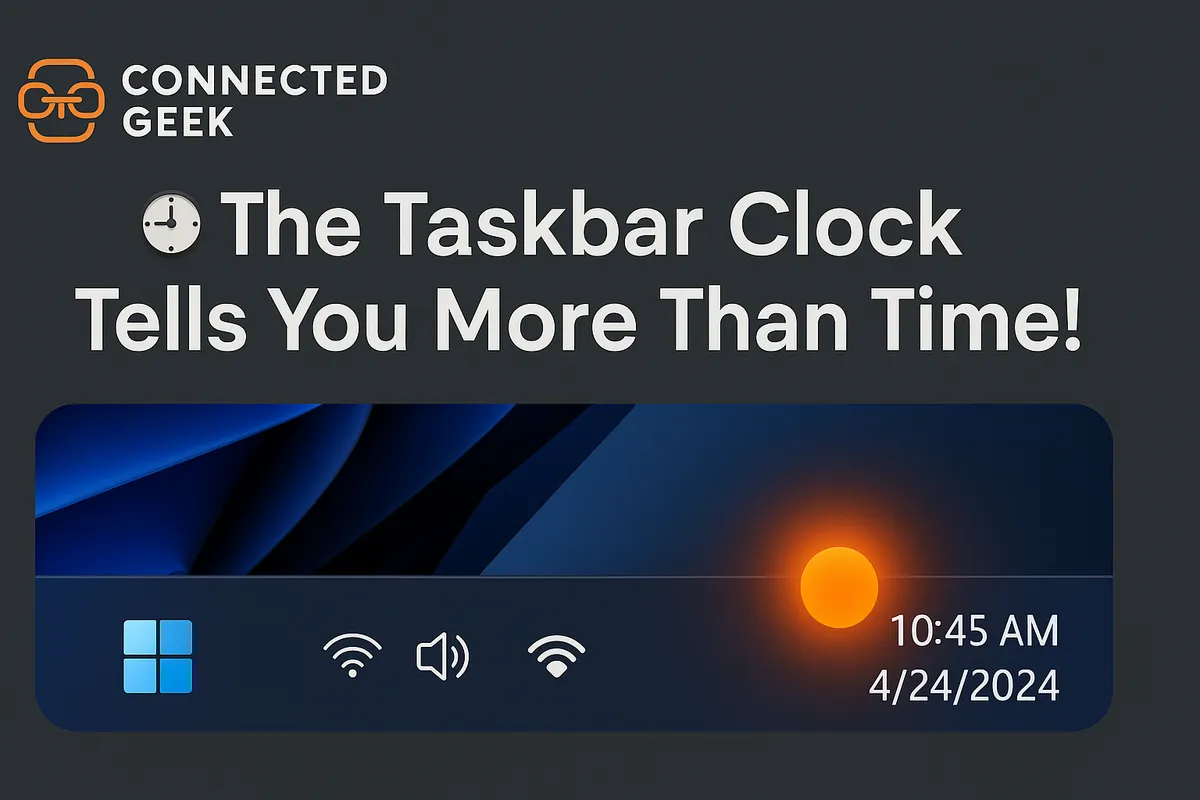
Understanding the Dot on Windows 11 Taskbar Clock
Windows 11, Taskbar Tips, Notifications
What Does the Little Dot on the Windows 11 Taskbar Clock Actually Mean?
If you have ever glanced at the bottom-right corner of your Windows 11 desktop and spotted a tiny dot next to the clock, you are not alone in wondering what it is. It is easy to ignore, but that little dot is actually a handy clue about what is happening on your PC. Once you know what it means, you can use the clock area as a surprisingly powerful shortcut hub, not just a place to check the time.
The Dot Next to the Clock: A Quiet Notification Badge
In Windows 11, the dot that appears next to the Taskbar clock is a subtle badge telling you that you have unread notifications. Instead of flashing pop-ups or loud alerts, Windows gives you this calm visual hint that something in the background needs your attention. It might be an app notification, a system message, or an email alert that you have not opened yet.
If the dot is visible, it simply means: there is at least one notification waiting for you. When you clear your notifications, the dot disappears again, letting you know you are all caught up. It is a small detail, but once you recognise it, you will start to spot it all the time.
Click the Clock to Open Notification Centre Instantly
The clock is more than just a time display; it is also a shortcut into Notification Centre. Whenever you see that dot, you can simply click directly on the clock area to open your notifications panel. No need to hunt for icons or menus elsewhere on the Taskbar.
Notification Centre slides out from the right side of the screen and shows you a tidy list of everything you have missed. From there, you can read messages, dismiss alerts, or jump straight into the apps that sent them. It is a friendly way to catch up on activity at a time that suits you, instead of being interrupted in the middle of your work or browsing.
Hover Over the Clock to See the Full Date at a Glance
The Taskbar clock also hides another small convenience: a quick way to see the full date. If you are not sure what day of the week it is, or you need to double-check the exact date, just hover your mouse over the clock. After a brief moment, a small tooltip pops up showing the full date, including the day, month, and year.
This is especially handy if you keep your Taskbar narrow or use a layout where only the time is visible. Instead of opening the calendar app or clicking around, you get the information you need in a second, simply by pausing your cursor over the clock area.
Right-Click the Clock for Fast Date, Time, and Notification Settings
There is still more tucked into this tiny corner of your screen. If you right-click the clock, Windows 11 offers quick shortcuts to useful settings. From this menu, you can jump straight to date and time settings, where you can change your time zone, adjust the format, or sync your clock if it looks a little off.
You can also access notification settings from here, making it easy to decide which apps are allowed to alert you and how those alerts appear. If you find the dot showing up too often, or you prefer a quieter desktop, this is the quickest way to tame noisy apps and customise your notification style without digging through long menus.
A Small Dot with More Power Than It Looks
Once you know what the dot on the Windows 11 Taskbar clock means, that corner of your screen becomes much more useful. It quietly tells you when you have unread notifications, lets you open Notification Centre with a single click, reveals the full date when you hover, and offers fast access to both date and time settings and notification controls when you right-click. For such a small detail, there is a lot packed into it, and it can genuinely make your everyday Windows experience smoother and friendlier.
SEO Title: What the Dot on the Windows 11 Taskbar Clock Means (and How to Use It)
Meta Description: Learn what the dot next to the Windows 11 Taskbar clock means, how to open Notification Centre, see the full date, and quickly access date, time, and notification settings from the clock area.
