Windows 11 Startup Apps: Fix Slow Boot Times by Disabling These
Windows 11, Performance, Startup Apps
How to Manage Windows 11 Startup Apps to Fix Slow Boot Times
If your Windows 11 PC feels sluggish every time you turn it on, there is a good chance startup apps are to blame. The good news is that you do not need advanced technical skills to fix this. By spending ten minutes in the Startup settings, you can cut your boot time, reduce background clutter, and make your system feel noticeably snappier throughout the day.
Finding the Startup Settings in Windows 11
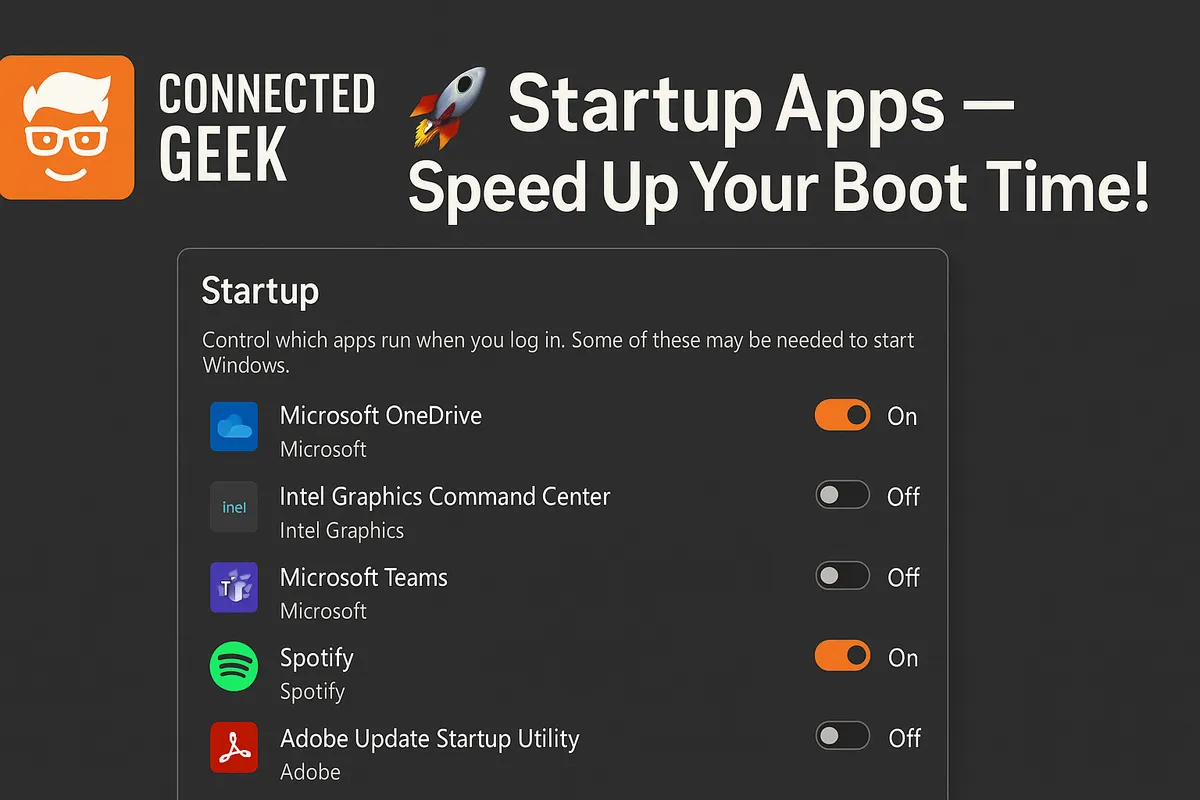
Windows 11 puts startup control in a straightforward place: Settings → Apps → Startup. To get there, click the Start button, choose Settings, then select Apps from the left-hand menu. In the Apps section, click Startup. You will see a list of programs that are allowed to start automatically when you sign in, each with a toggle switch to turn it on or off. This list is your main control panel for speeding up boot times without uninstalling anything.
Think of this page as a set of light switches for background apps. Turning a switch off does not remove the program from your PC; it simply stops that app from launching every time you log in. You can still open it manually whenever you need it, which is the key to balancing speed and convenience.
What the Impact Ratings Mean: High, Medium, and Low
Next to many apps in the Startup list, Windows 11 shows an impact rating such as High, Medium, or Low. These labels estimate how much that app slows down your startup and how many system resources it uses while loading. They are not perfect, but they are a very useful guide when you are deciding what to disable.
- High impact: These apps noticeably increase startup time and often keep using memory and CPU in the background. Disabling a few high impact items usually delivers the biggest improvement.
- Medium impact: These have a moderate effect. Turning some of them off helps, especially on older or budget hardware.
- Low impact: These barely affect startup. You can usually leave them alone unless you are trying to keep things extremely lean.
As a practical rule, start by reviewing anything marked High. If you do not need that program running instantly when Windows loads, it is a strong candidate to disable. Then move on to Medium items if your PC still feels slow.
Common Startup Apps You Can Safely Disable
Many popular programs add themselves to startup by default, even if you only use them occasionally. Turning these off will not break anything; it just means they will open when you actually click them instead of preloading every time you sign in.
- Spotify: Unless you want music to start the moment you log in, you can disable Spotify in Startup. The app will launch normally when you open it from the Start menu or taskbar.
- Discord: Gamers often install Discord and accept its default setting to start with Windows. If you are not always in a voice channel, turning off its startup entry can free up memory and reduce background CPU usage.
- Steam: Steam likes to run at startup to check for updates and notifications. For most people, this is unnecessary. Disable it and simply open Steam when you plan to play a game.
- Slack and similar collaboration tools: If you only use Slack or similar apps (like Teams alternatives) during specific work hours, you can disable their automatic startup and launch them manually when your workday begins. This is especially helpful on a personal PC that doubles as a work machine.
- Manufacturer utilities: Many laptops come with vendor tools from Dell, HP, Lenovo, and others. Some provide useful firmware updates or battery controls, but many are just branded launchers, shopping links, or performance dashboards you rarely open. If a manufacturer app does not clearly handle updates, drivers, or hardware controls, it is usually safe to disable its startup entry.
When in doubt, search the app name plus “startup” in your browser. If it is nonessential, you will usually find plenty of confirmation from other users who have disabled it without issues.
What You Should Keep Enabled at Startup
Not everything should be turned off. Some background tools genuinely need to start with Windows to keep your system secure, synced, and ready for work. The goal is to trim the fat, not cut into essentials.
- Windows Defender or your main antivirus: Security software must start with Windows to provide real-time protection. If you see Microsoft Defender or another trusted antivirus listed, leave it enabled so it can monitor threats from the moment you log in.
- OneDrive (if you actively use it): If you rely on OneDrive for document syncing or backup, keeping it enabled ensures your files stay up to date automatically. If you rarely use it, you can disable it, but most people benefit from having cloud storage start with Windows.
- Essential communication apps: If your workday depends on Microsoft Teams, Slack, Zoom, or similar tools, it can be practical to leave one or two of them enabled so you do not miss calls and messages. The key is to be selective. You do not need every chat and meeting app starting at once; prioritize the one you truly rely on daily.
In general, anything related to security, backup, or core hardware drivers should stay on. If turning something off makes you wonder whether you are disabling protection or updates, it is safer to leave that specific entry enabled unless you are sure.
The Real-World Difference: What You Can Expect
Cleaning up startup apps delivers benefits you can actually feel, not just read about. On a typical home or office PC that has accumulated a mix of gaming clients, chat tools, cloud services, and vendor utilities, trimming startup entries can shave 20–40 seconds off boot time, sometimes more on older hard drives. Instead of waiting for your desktop to become responsive, you can start working or browsing almost immediately after logging in.
The gains are not limited to boot speed, either. Fewer background apps mean more free memory and less CPU activity, which translates into smoother multitasking, fewer random slowdowns, and sometimes even better battery life on laptops. You may notice that your fans spin up less often, and apps open more quickly because your system is not already busy with a pile of unnecessary tasks that launched at startup.
The practical approach is simple: visit Settings → Apps → Startup, review the impact ratings, disable obvious extras like Spotify, Discord, Steam, Slack (if nonessential), and redundant manufacturer tools, while keeping Windows Defender, OneDrive, and your key communication app enabled. Then restart your PC and see how it feels. If you miss something, you can always turn it back on. In most cases, though, you will find that a leaner startup makes Windows 11 feel far more responsive with almost no downside.
