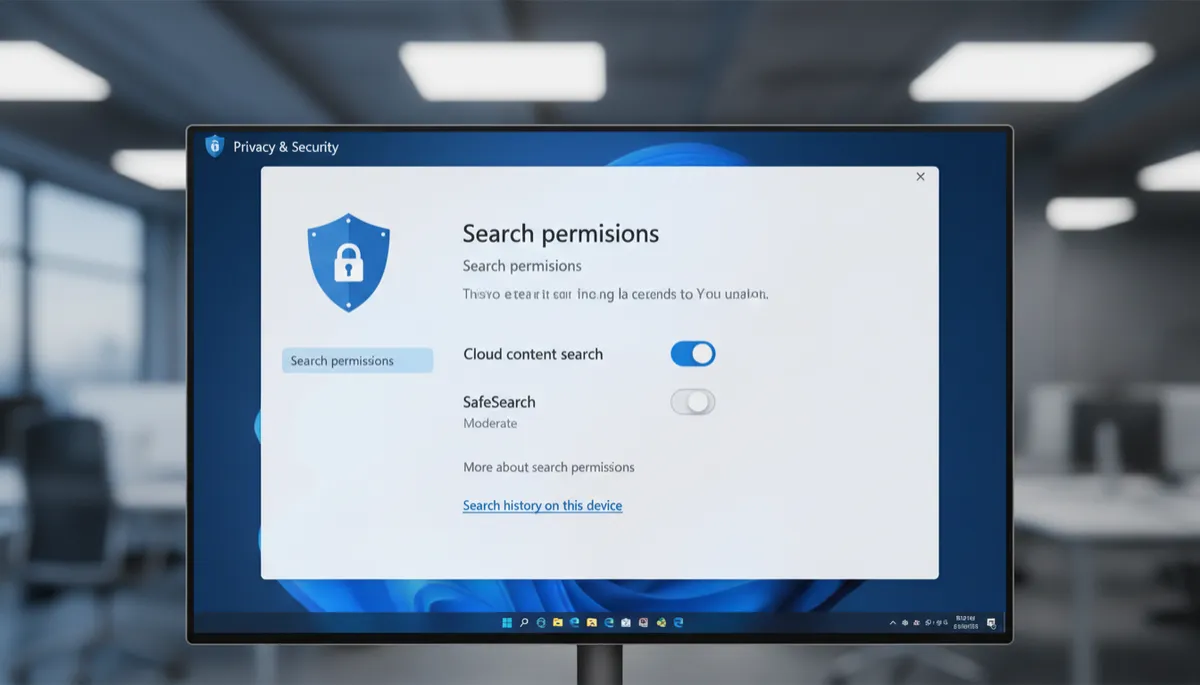
Windows 11 Search History: How to View and Delete It
Windows 11 Saves What You Search For
By default, Windows 11 keeps a local history of your recent Search bar queries — so it can suggest them again and improve autocomplete. If you'd rather it didn't, here's how to view, clear, and disable that history.
How to Clear Your Device Search History
- Go to Settings → Privacy & Security → Search permissions
- Scroll to the History section
- Click Clear device search history
- Confirm — all locally stored search queries are deleted immediately
How to Stop Windows Saving Future Searches
- In the same History section
- Toggle off Search history on this device
- Windows will no longer record or display your past searches
Clearing Bing Search History (Web Searches)
Web queries typed into the Search bar are sent to Bing. To clear that history separately:
- Visit bing.com/profile/history in a browser
- Sign in with your Microsoft account
- Clear search history from there
Or go to account.microsoft.com → Privacy → Search history to view and delete Bing search history tied to your account.
Activity History — A Separate Setting
Windows also has an Activity History feature (Settings → Privacy & Security → Activity history) that tracks apps you've used and files you've opened — separate from Search history. Toggle this off and click Clear history to wipe it if you want a clean slate.
