Screensavers in Windows 11: Find, Set, Secure
Windows 11, Screensavers
Meta Title: Screensavers in Windows 11: How to Find, Set, and Secure Them
Meta Description: Yes, Windows 11 still has screensavers. Learn exactly where to find Screen saver settings, explore Bubbles, Mystify, Ribbons, and Photos, set idle timeouts, and use password protection for extra security and nostalgia.
Screensavers in Windows 11: Still Here, Still Fun, Still Useful
If you grew up watching colorful shapes dance across old PC monitors, you might wonder whether screensavers survived the jump to Windows 11. The answer is a cheerful yes: screensavers are still very much alive, just a little more tucked away than before. They are not only a nostalgic treat, but can also play a helpful role in keeping your PC more secure.
Where to Find Screensavers in Windows 11
Windows 11 hides screensavers a bit deeper in the menus, so it is easy to assume they are gone. To reach them, follow this path:
- Open Settings from the Start menu or by pressing Windows + I.
- Click Personalisation in the left sidebar.
- Select Lock screen.
- Scroll down and click Screen saver settings.
This opens the classic Screen Saver Settings window you might remember from earlier versions of Windows, complete with a preview box and drop‑down menu. It feels a bit like stepping back in time, in the best possible way.
The Classic Screensaver Options: Bubbles, Mystify, Ribbons, and Photos
In the Screen Saver drop‑down, you will see a handful of familiar options:
- Bubbles: Floating, translucent bubbles drift across your desktop, gently bouncing around in a soothing animation.
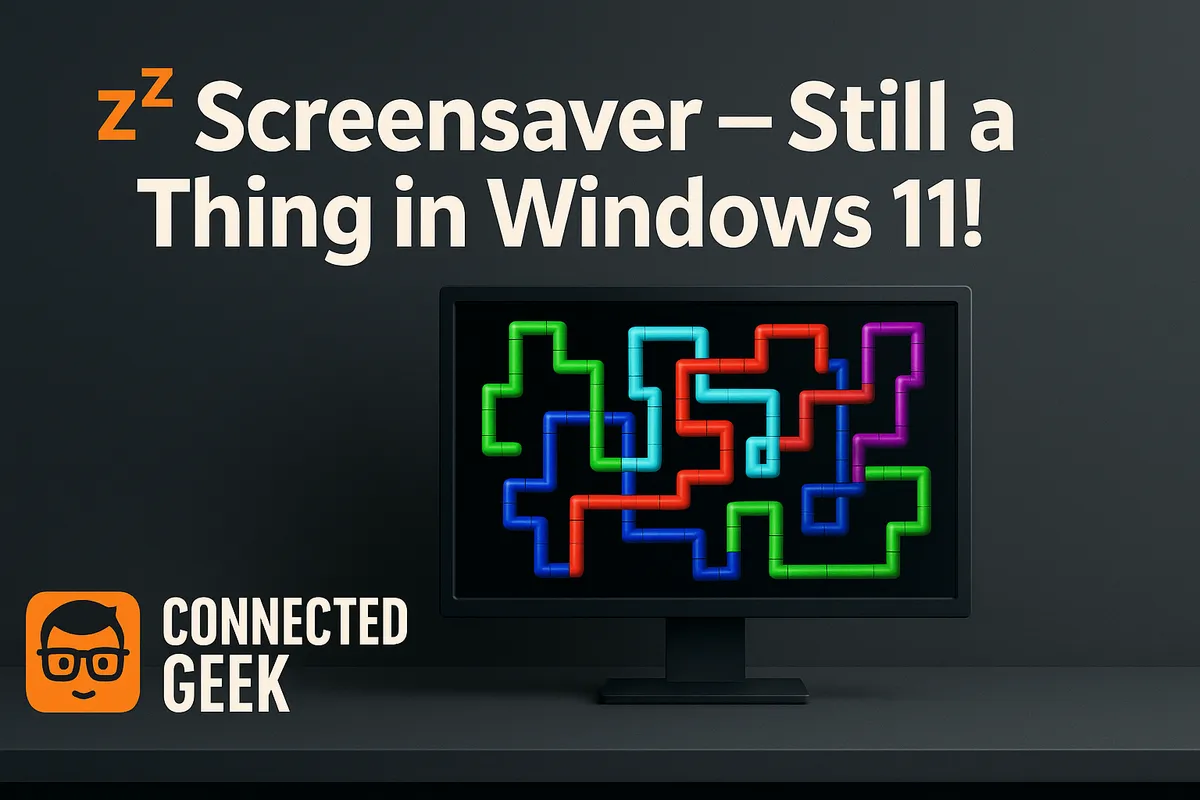
- Mystify: Colorful lines twist and weave across the screen, creating soft, abstract patterns that feel almost hypnotic.
- Ribbons: Flowing ribbons of color glide and curl, giving your idle display a lively, modern look.
- Photos: A slideshow of pictures from a chosen folder, perfect for turning your PC into a rotating gallery of family photos, holiday snaps, or favorite wallpapers.
You can click Settings (when available) to fine‑tune options, especially for the Photos slideshow, such as which folder to use and how quickly images change. It is a simple way to make your computer feel more personal and welcoming.
Setting an Idle Timeout and Adding Password Protection
Beneath the screensaver selection, you will find the Wait box. This is where you set the idle timeout — the number of minutes your PC must be inactive before the screensaver kicks in. A shorter timeout means your screen (and potentially your information) is hidden more quickly when you step away.
For extra security, tick the checkbox labeled On resume, display logon screen. With this turned on, Windows 11 will require your password, PIN, or other sign‑in method when you dismiss the screensaver. It is a friendly, low‑effort way to keep prying eyes away from emails, documents, and open apps if you regularly leave your device unattended at home or in the office.
Why Screensavers Still Matter: Security and Nostalgia
In the age of modern monitors, screensavers are no longer about preventing burn‑in, but they are far from pointless. Used with a password on resume, they become a gentle form of security, covering your desktop and locking it after a short period of inactivity. It is a simple habit that can protect sensitive information without you having to remember to lock your PC every single time.
And then there is the nostalgia factor. Turning on Bubbles, Mystify, or Ribbons can feel like revisiting an earlier era of Windows, when screensavers were a small daily delight. Pair that with a Photos slideshow of your favorite memories, and your Windows 11 device can feel both modern and comfortingly familiar. Screensavers may be hidden away, but they are still a charming blend of fun, personality, and practical protection.
