Windows 11 Privacy & Security Hub: A Complete Guide to Every Setting
Windows 11, Privacy & Security
A Friendly Walkthrough of Windows 11 Privacy & Security Settings
Windows 11 packs a lot of privacy controls into one convenient hub, but most of us only see it during setup and never go back. Spending just five minutes there can make a real difference to how much data you share and which apps can peek into your digital life. Let’s walk through the key sections together so you can quickly decide what you’re comfortable with—and what you’d rather turn off.
How to Open the Privacy & Security Hub
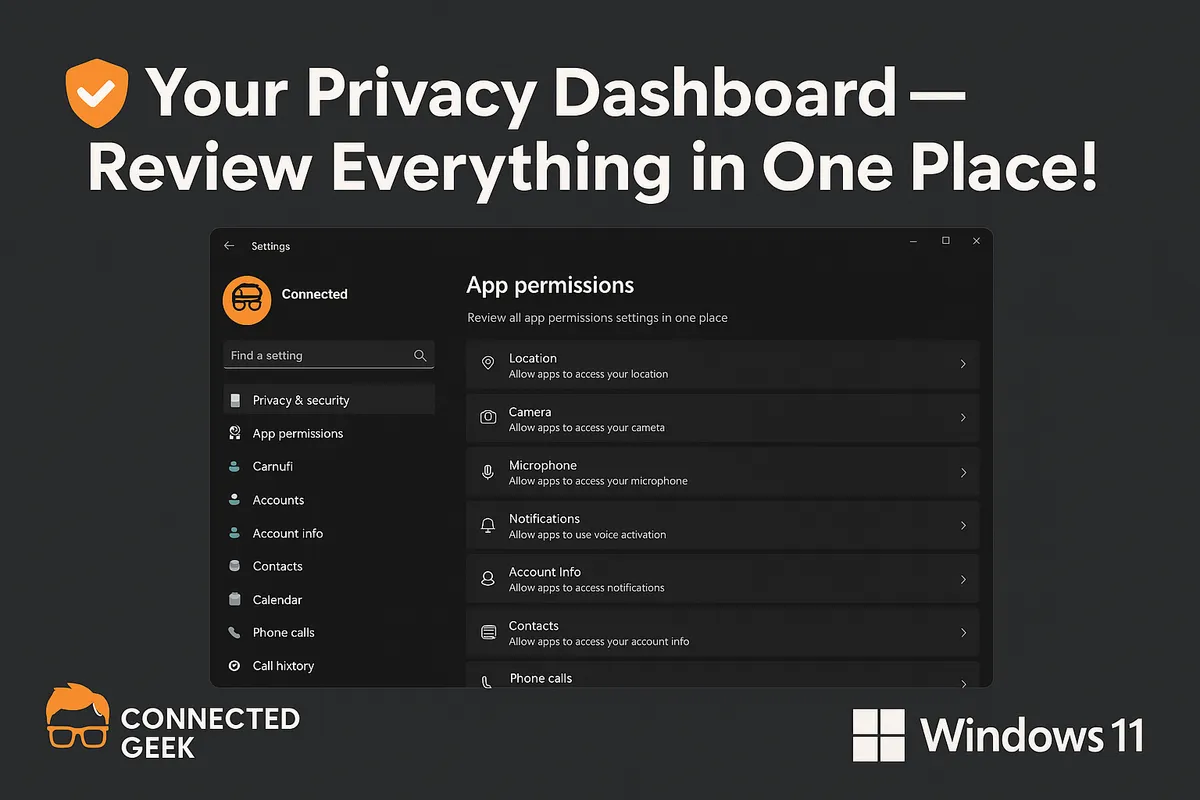
First, open Settings by pressing Windows key + I or clicking the Start button and choosing the gear icon. On the left, select Privacy & security. You’ll see a list of sections under “App permissions” and other headings. We’ll focus on the ones most worth your time: Location, Camera, Microphone, Contacts, Calendar, Phone calls, Messages, Notifications, Account info, Background apps, and Diagnostics.
Location: Who Knows Where You Are?
The Location section controls whether Windows and your apps can see where your device is. This can be useful for weather apps, maps, or finding a lost laptop, but you may not want every app knowing your whereabouts. You can:
- Turn location access on or off for the entire device.
- Scroll down and toggle location per app, such as Maps, Weather, or your browser.
A quick review here helps you keep location only where it genuinely adds value, instead of everywhere by default.
Camera: Managing Your Webcam Access
Under Camera, you decide which apps can use your webcam. Video meeting tools obviously need it, but many other apps do not. You’ll see a master switch for camera access, and below that, individual toggles for apps like Teams, Zoom, or your browser. Turning off camera access for apps you don’t recognize is a simple way to reduce the risk of accidental (or unwanted) video use while keeping your trusted apps working smoothly.
Microphone: Controlling Who Can Listen In
The Microphone section works very much like Camera. You can disable microphone access entirely or allow it only for specific apps. Voice chat, video calls, and voice typing need your mic; a random game or utility usually doesn’t. Taking 30 seconds to flip off a few unnecessary toggles can give you peace of mind that no app is listening when it shouldn’t be.
Contacts: Protecting Your Address Book
In Contacts, you’ll see which apps want access to the people stored in your address book—names, phone numbers, email addresses, and more. Some communication apps need this to suggest people or sync your phone contacts, but others might just be gathering data. Turn access off for any app that doesn’t clearly benefit from seeing your contacts, and you’ll be doing your friends and colleagues a favor too by limiting how often their details are shared.
Calendar: Deciding Who Sees Your Schedule
The Calendar section lets you control which apps can read or add to your calendar. Email and scheduling apps often need this to show events or send reminders. But if a game or unrelated tool is listed, it’s worth asking why. Limiting calendar access helps keep your appointments and personal plans from becoming just another data point for apps to analyze.
Phone Calls: Managing Calling Permissions
If your PC can make or receive calls—often through apps that link to your smartphone—the Phone calls section is where you manage that access. Here, you can allow or block apps from placing and managing calls. Communication apps may need this, but most others won’t. Reviewing this list ensures that only trusted apps can handle something as sensitive as your phone conversations.
Messages: Texts and Chat Access
The Messages section covers apps that can read or send your text messages, usually when your PC is linked to your phone. Again, a companion app from your phone manufacturer might need this, but not much else. Because messages can contain private conversations, codes, and personal details, it’s worth restricting access to the bare minimum of apps you actually use for messaging.
Notifications: Controlling What Pops Up (and When)
In Notifications under Privacy & security, you can decide how much information appears in your app notifications. For example, you might allow notifications but hide sensitive content on the lock screen. This is especially handy if you share your device or use it in public places. A quick review here keeps you informed without broadcasting private emails, messages, or reminders to anyone walking past your screen.
Account Info: Your Profile, Your Rules
The Account info section controls which apps can see details like your name, picture, and other basic account data. Some apps use this to personalize your experience, but many can work just fine without it. If you prefer to share as little as possible, this is an easy place to trim access while still keeping your main apps functioning normally.
Background Apps: Stopping Silent Activity
In Background apps (sometimes labeled “Background app permissions”), you choose which apps are allowed to run when you are not actively using them. This matters for both privacy and performance. Fewer background apps mean less data quietly flowing in the background and often better battery life on laptops. Turn off background access for apps you rarely use, and keep it only for those that genuinely need to stay up to date, like email or cloud storage tools.
Diagnostics: What You Share with Microsoft
Finally, the Diagnostics (or “Diagnostics & feedback”) section controls what information Windows sends back to Microsoft. Here you can adjust how much diagnostic data is shared, manage tailored experiences based on that data, and control things like inking and typing data. If you prefer a more private setup, you can reduce what’s sent and limit personalized tips and ads. It only takes a moment, but it gives you clearer control over the data flow between your PC and Microsoft’s servers.
Five Minutes Well Spent
Walking through these sections—Location, Camera, Microphone, Contacts, Calendar, Phone calls, Messages, Notifications, Account info, Background apps, and Diagnostics—takes only a few minutes, but it puts you firmly back in charge of your Windows 11 privacy. Think of it as a quick tune-up: once you’ve set things the way you like, you can forget about it for a while, knowing your PC is working more on your terms and less on autopilot.
