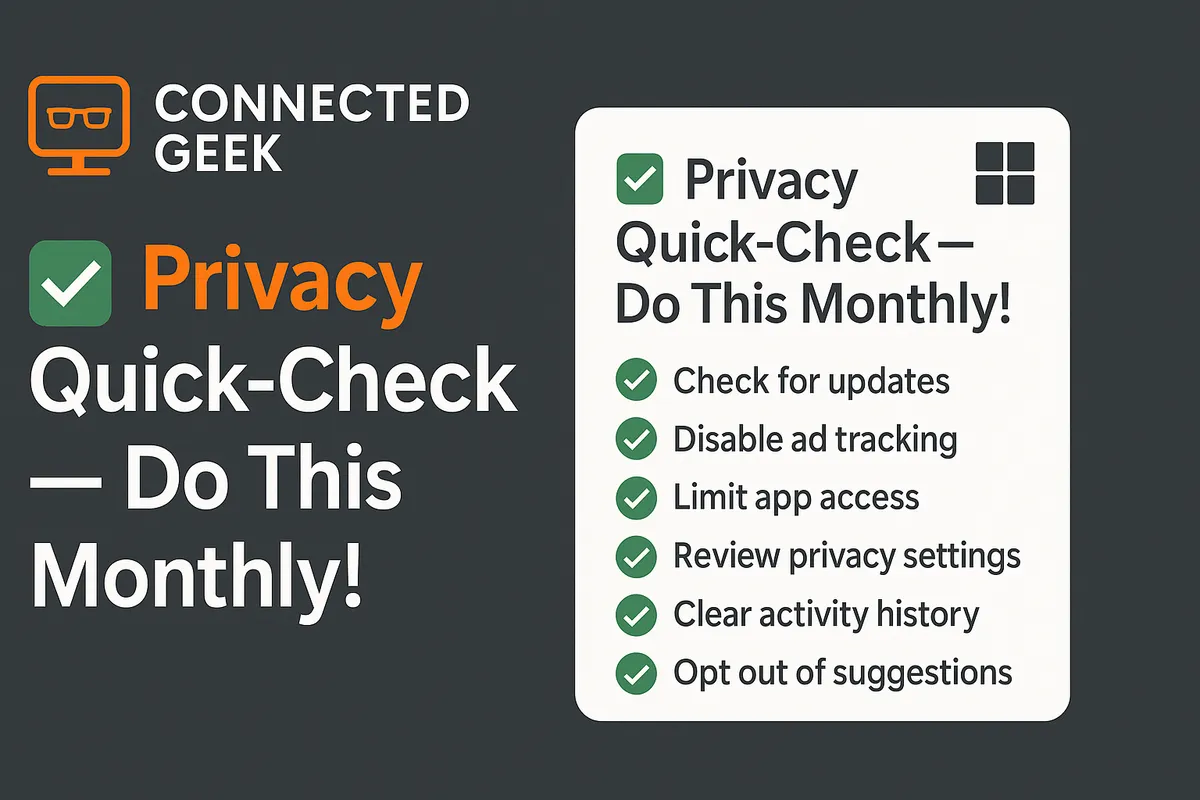
Windows 11 Privacy Monthly Checklist: 6 Settings to Review Every Month
Windows 11, Privacy, Security, Step-by-Step Guide
Your Windows 11 Monthly Privacy Checklist: 6 Quick Settings to Review
Treating your privacy like a regular health check for your PC is one of the easiest ways to stay in control of your data. This friendly monthly checklist for Windows 11 walks you through six key settings to review: camera app access, microphone app access, location permissions, ad personalisation, activity history, and diagnostics data. None of these steps are complicated, and once you have done them a couple of times, you will be able to breeze through the whole routine in just a few minutes each month.
How to use this monthly privacy check-up
The idea is simple: once a month, maybe on the first Monday or alongside your other digital chores, walk through each of the six sections below. You will mainly be using the Windows Settings app, which you can open quickly by pressing Windows key + I on your keyboard or by clicking the Start button and choosing Settings. From there, you will mostly be in the Privacy & security area. Let us start with the most sensitive hardware: your camera and microphone.
1. Check camera app access each month
Your webcam is one of the most personal devices on your computer. It is worth double-checking which apps can use it, especially if you have installed new software recently. To review this:
- Open Settings and go to Privacy & security.
- Scroll to App permissions and click Camera.
- Make sure Camera access and Let apps access your camera are on only if you actually use them.
Below that, you will see a list of apps with individual switches. Leave access enabled for things like Teams, Zoom, or your browser if you use video calls, and feel free to turn it off for any app you do not recognise or no longer use. This monthly tidy-up keeps surprise camera requests to a minimum and gives you peace of mind that only trusted apps can see through your lens.
2. Review microphone app access for better control
Your microphone is just as sensitive as your camera, but it is easy to forget which apps can listen. While you are already in Privacy & security, it only takes a moment to check:
- Under App permissions, click Microphone.
- Confirm that Microphone access is on only if you use voice calls, dictation, or voice assistants.
- Scroll through the app list and switch off access for apps you do not need listening in.
A handy monthly habit is to ask yourself, “Do I remember using the microphone with this app in the last month?” If the answer is no, you can safely turn its access off. You can always switch it back on later if something stops working and needs the microphone again.
3. Tighten or relax location permissions as needed
Location data can be incredibly useful for weather apps, maps, or finding your device, but you might not want every program knowing where you are. Windows 11 gives you fine-grained control, and a monthly review keeps that control in your hands.
- In Privacy & security, choose Location under App permissions.
- Decide whether to keep Location services turned on globally or only when you really need it.
- Review the list of apps and turn off location access for anything that does not require it to function properly.
While you are here, you can also clear your device’s location history if you prefer not to keep a record. Doing this once a month helps you balance convenience with privacy, instead of letting old permissions pile up unnoticed.
4. Turn off ad personalisation for a calmer experience
Ad personalisation does not remove ads, but it does control how much your activity is used to tailor them. If you prefer fewer personalised profiles being built about you, you can reduce this in just a couple of clicks.
- In Privacy & security, scroll to General.
- Look for the option that mentions Let apps show me personalised ads by using my advertising ID.
- Turn this setting Off if you would rather not have Windows and apps build an ad profile based on your usage.
Make it a habit to confirm this setting each month, especially after major Windows updates, which can sometimes tweak privacy defaults. It is a small step that helps keep your digital life feeling a little less tracked and a little more private.
5. Clear your activity history regularly
Activity history can include things like apps you use and services you access, which helps Windows offer recommendations and pick up where you left off. If you prefer a cleaner slate, clearing it monthly is a simple habit to build.
- In Settings, go to Privacy & security and select Activity history if available.
- Review any check boxes that control whether Windows stores your activity history on the device or sends it to Microsoft, and adjust them to your comfort level.
- Use the option to Clear your activity history for the account you are using.
Think of this like tidying your browser history or clearing old notes. It keeps your device from hanging onto more details about your habits than you are comfortable with, while still letting you choose the level of convenience you want.
6. Set diagnostics data to “Required only”
Finally, it is worth checking what diagnostic data your PC sends to Microsoft. Windows 11 uses this information to keep your device secure and up to date, but you can usually limit it to the essentials without losing important features.
- In Privacy & security, choose Diagnostics & feedback or a similarly named option.
- Look for a setting that lets you choose between different levels of diagnostic data and select Required only (sometimes called Required diagnostic data).
- While you are here, you can also reduce optional tailored experiences or suggestions that rely on extra diagnostic data.
Reconfirming this setting monthly helps you ensure that only the minimum necessary data is being shared, which is a comfortable default for most privacy-conscious users.
Make privacy check-ins part of your digital routine
None of these steps are dramatic, but together they add up to a healthier, more private Windows 11 experience. By checking camera and microphone access, reviewing location permissions, turning off ad personalisation, clearing activity history, and setting diagnostics to Required only, you give yourself a quick monthly reset button for your data. Add a reminder to your calendar, pair it with another small task like backing up your files, and you will soon find this privacy checklist feels as natural as locking your front door at night.
