Windows 11 Privacy Dashboard: Your Complete Guide
Your Privacy, Your Control
Windows 11's Privacy settings hub — found at Settings → Privacy & Security — gives you granular control over what Windows collects, what apps can access, and how your data is used. Most people never open it. Here's what's inside and what's worth changing.
Windows Permissions (Top Section)
- General: Advertising ID (turn off to stop personalized ads), suggested content, app launch tracking, website language access
- Speech: Online speech recognition — used by Cortana and some apps. Turn off if you don't use voice features.
- Inking & typing personalization: Builds a local user dictionary from your typing. Turn off if you prefer no local language modeling.
- Diagnostics & feedback: Set to Required (minimum). Turn off tailored experiences and feedback reminders.
- Activity history: Tracks what you've done across devices. Turn off and clear history.
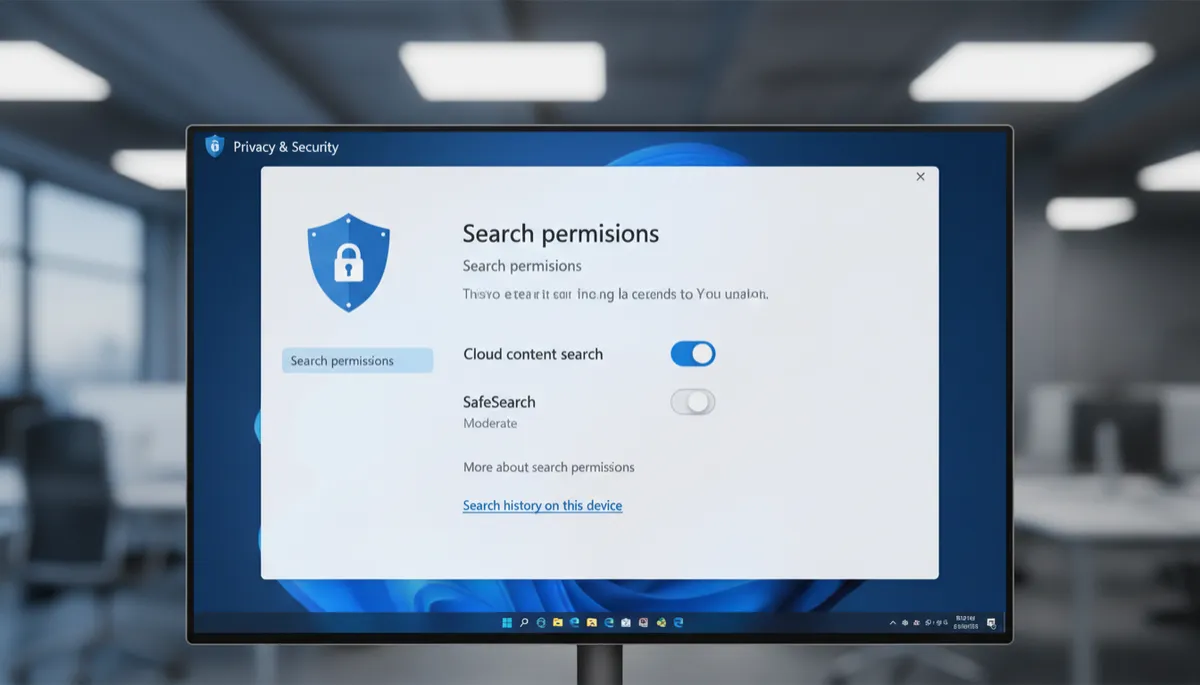
- Search permissions: Search history, cloud content, SafeSearch, search highlights — all covered in separate posts.
App Permissions (Lower Section)
This is where you control what individual apps can access:
- Location — which apps know where you are
- Camera — which apps can use your webcam
- Microphone — which apps can listen
- Contacts, Calendar, Email — which apps can read these
- Background apps — which apps can run and update in the background
For each category: toggle the master switch to allow or deny, then fine-tune individual app access below it.
The Most Impactful Changes
- Turn off the Advertising ID (General)
- Set diagnostic data to Required (Diagnostics & feedback)
- Clear and disable Activity history
- Review Camera and Microphone access — remove any apps that don't need it
