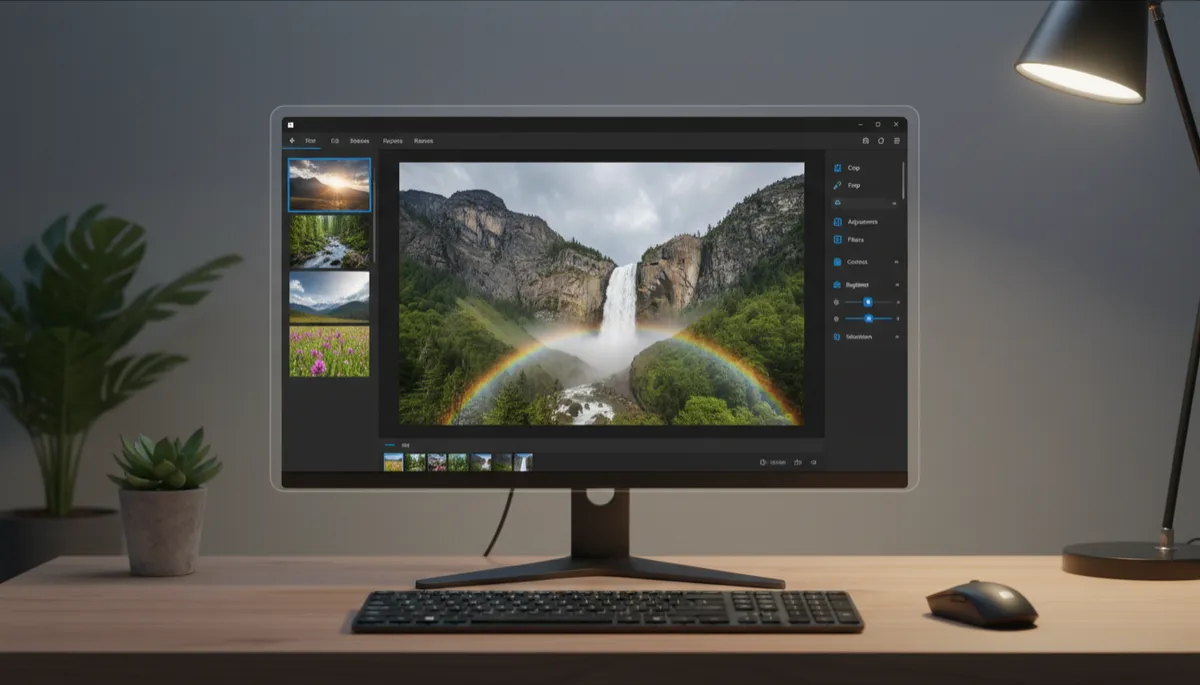
Windows 11 Photos App Tips and Tricks Most Users Miss
The Photos App Has More Under the Hood
Most people open Photos, view a picture, close it. But there's a lot more available — keyboard shortcuts, hidden tools, and smart features that make it genuinely useful for photo management and editing.
Keyboard Shortcuts That Save Time
- Arrow keys: Navigate between photos in the same folder
- Ctrl + E: Open the photo editor instantly
- F: Toggle fullscreen
- Ctrl + +/–: Zoom in / zoom out
- Ctrl + Z: Undo edits
- Delete: Delete the current photo (moves to Recycle Bin)
- Ctrl + C: Copy the current photo to clipboard
- Ctrl + P: Print the current photo
Right-Click for More Options
Right-clicking a photo in the gallery gives you: Open with (choose another app), Edit, Share, Set as desktop background, Copy, Print, Move to folder, Delete, and Info. Set as desktop background is faster than going through Personalization settings.
Use "Info" to See EXIF Data
Click the Info (i) icon on any photo to see full EXIF data: camera model, lens, aperture, shutter speed, ISO, date taken, GPS location, and file size. Useful for understanding what settings your phone or camera used.
Compare Before and After Edits
While in the editor, click the Compare button to see the original and edited version side by side. Helps you judge whether your edits are actually improving the photo before committing.
People View: Auto-Group by Face
The People tab uses face recognition to automatically group photos by person. You can name each person for easier searching — great for organizing large family photo libraries.
Pin Photos to Your Taskbar
If you use Photos daily, right-click it in the Start menu → Pin to taskbar. Single-click access from anywhere on your desktop.
