Windows 11 Optional Features: Free Hidden Apps You Might Not Know About
Windows, Productivity, Tips
Exploring Windows 11 Optional Features: Add Only What You Really Need
Windows 11 quietly includes a treasure chest of extra tools that are not installed by default. They sit behind a simple menu called Optional features, waiting for you to discover and switch on only what you actually want. If you have ever wished Windows felt a bit lighter, less cluttered, and more tailored to the way you work, this area of Settings is well worth a visit.
Where to Find Optional Features in Windows 11
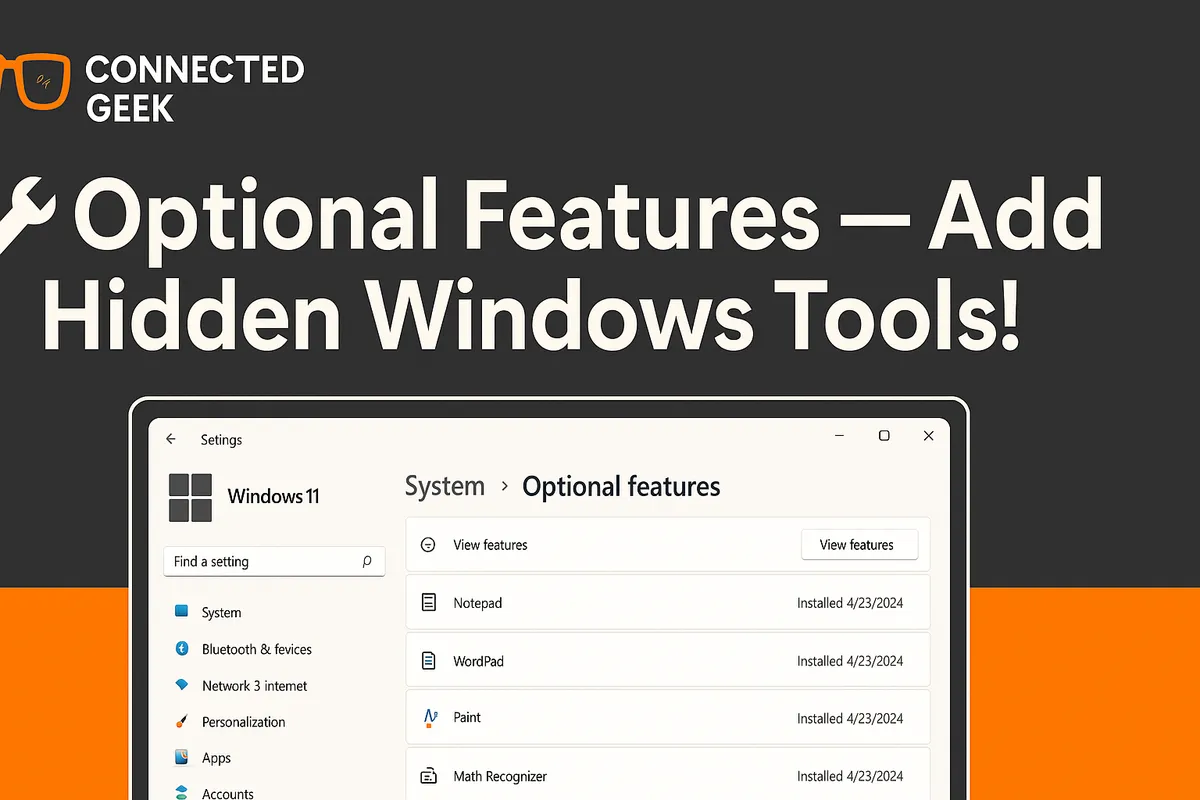
Everything starts in the Settings app. To get there, click the Start button and choose Settings, or press the Windows key + I on your keyboard. Once Settings is open, head to Apps → Optional features. This page is your control center for many of Windows 11’s built‑in extras, from classic utilities to handwriting tools and more technical components.
Near the top, you will see a list of features that are already installed. Scroll down a little and you will find an option labeled Add an optional feature. This is where the fun begins: you can browse, search, and pick exactly which tools to bring onto your system, instead of accepting a long list of pre‑installed apps you may never open.
Classic Apps You Can Add on Demand
Some of the best‑known Windows tools are now optional, so they are not forced on every device. Instead, you can add them from the Optional features screen whenever you like. Here are some familiar names you will spot in the list.
- Notepad — The simple, no‑frills text editor many people use for quick notes, code snippets, or cleaning up copied text. If you prefer lightweight writing tools, Notepad is still wonderfully fast and distraction‑free.
- WordPad — Think of WordPad as the middle ground between Notepad and a full word processor. It can handle basic formatting, fonts, and simple documents without the complexity of professional office software. If you only draft occasional letters or notes, WordPad might be all you need.
- Paint — A nostalgic favorite that is still handy for quick sketches, annotations, and simple image edits. Whether you are doodling or cropping screenshots, Paint remains surprisingly useful for everyday tasks.
Handy Utilities: Snipping Tool, Steps Recorder, and Media Player
Beyond the classic apps, Windows 11’s optional features include several small utilities that can make your daily computing smoother and more efficient once you know they exist.
- Snipping Tool — A friendly way to capture screenshots of your screen, a specific window, or a custom‑shaped area. It is perfect for sharing how‑to steps, saving receipts, or grabbing a quick snapshot of something you are viewing online.
- Steps Recorder — This clever little tool records the steps you take on your PC, complete with screenshots and descriptions. It is especially helpful when you need to show someone how to do something, or when you are trying to explain a problem to a friend, colleague, or support person.
- Windows Media Player — If you prefer a familiar, traditional media player for music and videos, you can bring back Windows Media Player through Optional features. It offers playlists, library management, and a straightforward interface that many people still enjoy.
More Advanced Extras: OpenSSH, Handwriting, and XPS Viewer
Optional features are not only about everyday apps. Windows 11 also offers more specialized tools that you can install when you need them, and ignore when you do not.
- OpenSSH Client — This feature lets you connect securely to other computers using the SSH protocol, right from the command line. It is especially useful if you manage servers, use remote terminals, or work with development environments, but it stays out of the way for everyone else.
- Handwriting — If you have a touchscreen or a digital pen, adding handwriting support lets you write directly on the screen and have Windows convert your handwriting to text. It can make tablets and 2‑in‑1 laptops feel much more natural and personal to use.
- XPS Viewer — XPS is a document format similar to PDF. If you ever receive an XPS file, you can install XPS Viewer to open and read it. Many people never need this, which is exactly why it is optional instead of being installed on every PC by default.
How to Add or Remove Optional Features
Managing these features is pleasantly straightforward. In Settings → Apps → Optional features, click Add an optional feature, then choose View features. A searchable list will appear. You can scroll through it, or simply type the name of what you want, such as “Notepad” or “OpenSSH Client”.
When you find the feature you want, tick the box next to it and select Next, then Install. Windows will quietly download and add the feature in the background. Some items install almost instantly, while a few may take a little longer. Once it is done, the app or tool will appear in your Start menu or be available where you expect it to be.
Removing features is just as friendly. Back on the main Optional features page, look through the list of installed items. Select the one you no longer need and click Uninstall. Windows will remove it, freeing up space and trimming down the list of apps on your system. You can always add it again later, so there is no pressure or risk in trying things out and then tidying up.
Why Optional Features Keep Windows 11 Lean and Flexible
By moving many tools into the Optional features area, Windows 11 avoids installing a huge collection of apps that only some people will ever use. This approach helps keep your system lean: fewer background components, less disk space taken up on day one, and a Start menu that is not crowded with shortcuts you never touch. Instead of guessing what every user might want, Windows lets you decide.
It also makes Windows feel more personal. A casual home user can keep things simple with just a handful of basics, while power users, creatives, and IT professionals can layer on more advanced tools like OpenSSH Client or handwriting recognition. You are not stuck with an all‑or‑nothing setup; you build your own mix over time as your needs change.
Next time you have a few spare minutes, open Settings → Apps → Optional features and explore. You may rediscover old favorites like Paint or WordPad, uncover helpful utilities such as Steps Recorder and Snipping Tool, or find specialized options like XPS Viewer and handwriting support. With Optional features, Windows 11 gives you a friendly way to keep your system tidy, capable, and truly your own.
