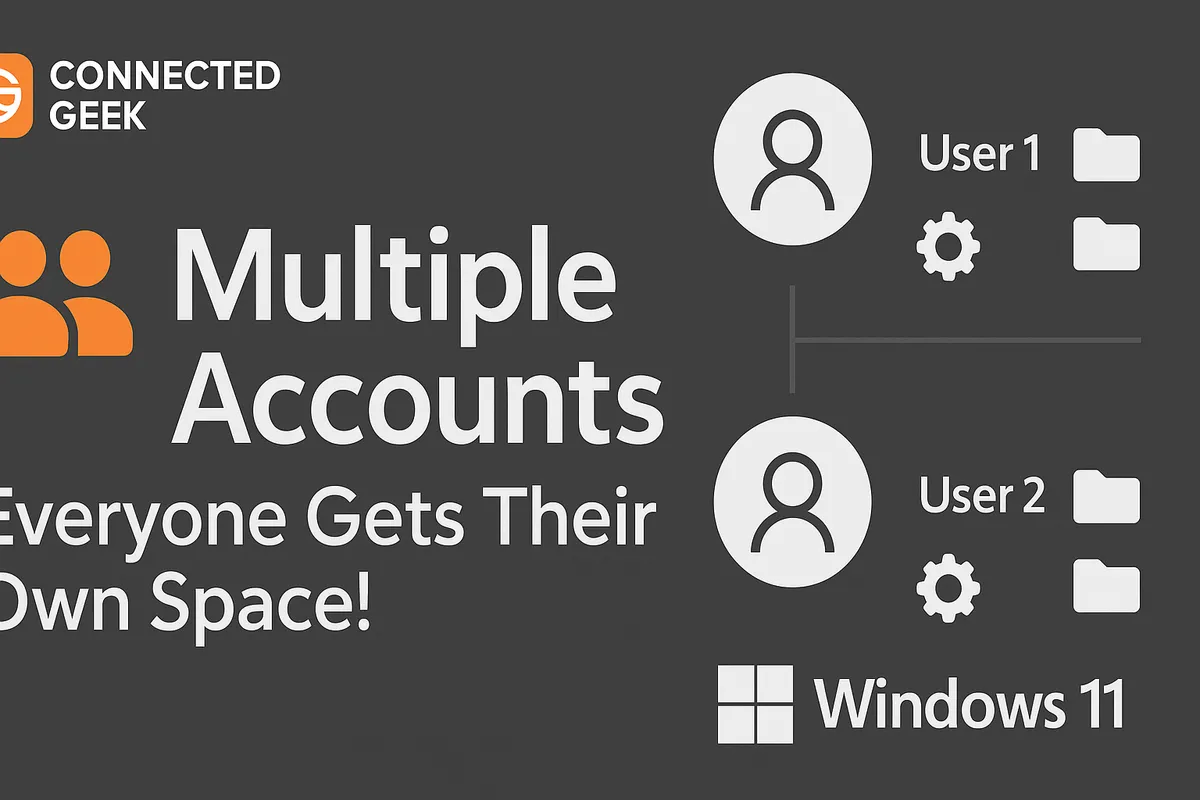
How to Set Up Multiple User Accounts in Windows 11 for Family or Housemates
Windows 11, Family Sharing, User Accounts
How to Set Up Multiple User Accounts on a Shared Windows 11 PC
Sharing a computer as a family can be convenient and budget‑friendly, but it can also get messy fast—overwritten homework, mystery browser tabs, and changed settings, to name a few. The good news is that Windows 11 makes it simple to give each person their own private space on the same PC. In this guide, you will learn how to use the Settings → Accounts → Family & other users page to set up separate accounts, switch between them quickly, and take advantage of helpful family features like screen time limits and content filters.
Why Use Separate Accounts on a Shared PC?
When everyone uses the same Windows account, it is easy for files to get mixed up and settings to be changed accidentally. By creating a dedicated account for each family member, you give them:
- Their own desktop layout and shortcuts
- Separate Documents, Pictures, and Downloads folders so files stay organized and private
- Individual browser history, favorites, and saved passwords
- Personalized app settings and notifications that match their own preferences
- Their own Windows Hello sign‑in options, such as PIN, fingerprint, or face recognition, for quick and secure access
In short, one PC can feel like several personal computers, all living side by side without stepping on each other’s toes.
Getting to “Family & other users” in Windows 11
Everything you need for managing users lives in one handy place. To open it:
- Click the Start button (the Windows logo on the taskbar).
- Select Settings (the little gear icon), or press Windows key + I on your keyboard.
- In the left‑hand menu, click Accounts.
- Choose Family & other users.
This page is your control center for adding new people, deciding who is part of your family group, and creating accounts for guests or occasional users.
Family Members vs. Other Users: What Is the Difference?
On the Family & other users page, you will notice two main sections: Your family and Other users. They both create separate accounts, but they work a little differently and are designed for different situations.
Adding family members (Microsoft account required)
The Your family section is ideal for parents and kids who use Microsoft services regularly. To add someone here, they need a Microsoft account (an email that you sign in with for Outlook, Xbox, OneDrive, and so on). When you click Add a family member, you will be asked for their Microsoft email address. You can choose whether they are an Organizer (usually an adult) or a Member (often a child or teen).
Once they accept the invitation, Windows 11 creates a user account for them on the PC, and they become part of your Microsoft family group. This connection unlocks extra tools, like screen time limits and content filters, which we will explore in a moment.
Adding other users (Microsoft or local account)
The Other users section is more flexible and is great for guests, roommates, or anyone who does not need parental controls. Here, you have two choices:
- Create an account that signs in with a Microsoft account, just like in the family section.
- Or set up a local account that uses only a username and password on this PC, with no Microsoft email attached.
A Microsoft account is helpful if the person wants apps from the Microsoft Store, cloud backup with OneDrive, or syncing settings between devices. A local account is simpler and keeps everything limited to this one computer, which some families prefer for guests or younger children.
What Each User Account Gets: A Personal Space on the Same PC
No matter how you add someone—through Your family or Other users, with a Microsoft account or a local account—each person receives their own secure profile. That means:
- A unique desktop, wallpaper, and taskbar layout
- Separate user folders for documents, pictures, music, and more
- Individual browser history, cookies, and favorites, so one person’s searches do not clutter another’s
- Personalized app settings, themes, and notification choices
- Their own Windows Hello sign‑in method, such as a PIN, fingerprint, or face unlock, depending on the device’s hardware
This setup helps keep schoolwork, work files, and personal photos separate and safer, while making the computer feel familiar and welcoming to each person who logs in.
Fast User Switching from the Start Menu
Families often share a PC in short bursts—one child finishes homework, a parent quickly checks email, then another child hops on for a game. Windows 11 supports fast user switching, so you do not have to sign out completely each time someone else wants to use the computer.
- Click the Start button.
- Select your profile icon (usually at the bottom left of the Start menu).
- Choose another user’s name from the list to switch accounts.
Windows will take you to the sign‑in screen for that person, and your own apps and documents can stay open in the background. It is a smooth way to share a PC without constantly closing everything down.
Extra Benefits for Family Accounts: Screen Time, Filters, and More
When you add children as family members using their Microsoft accounts, you unlock a set of tools designed to help parents guide and protect younger users. These settings are managed through your Microsoft family group, and they can apply across Windows PCs, Xbox consoles, and even mobile devices that use Microsoft apps. Key features include:
- Screen time limits: Decide how many hours per day your child can use the PC and set allowed time ranges, such as after homework and before bedtime.
- Content filters: Block age‑inappropriate websites and apps, and keep web browsing safer by filtering out adult content.
- Spending limits: Add money to your child’s Microsoft account and control what they can buy in the Microsoft Store, with optional purchase approval requests.
- Location sharing: If your child signs in on a supported mobile device, you can see their approximate location as part of your family safety tools.
These features are not about spying; they are about creating healthy digital habits and giving parents peace of mind while kids explore and learn online.
Bringing It All Together
With a few minutes in Settings → Accounts → Family & other users, your shared Windows 11 PC can transform from a chaotic, one‑size‑fits‑all device into a calm, organized space where everyone has their own room. Separate accounts keep files tidy, browsing private, and settings personal, while fast user switching makes it easy to hand the computer back and forth. And if you choose to create family accounts, you gain extra tools to guide your children’s screen time and online experiences. It is a small setup task that can make everyday family life with technology feel much smoother and more enjoyable.
