Windows 11 File System Access: Which Apps Should Actually Have Permission?
Windows 11, Privacy, File Permissions
Take Control of Windows 11 File System Access Permissions
Windows 11 gives you powerful tools to decide which apps can see your files. When you understand what file system access really means, you can confidently protect your privacy while still letting the apps you trust do their jobs.
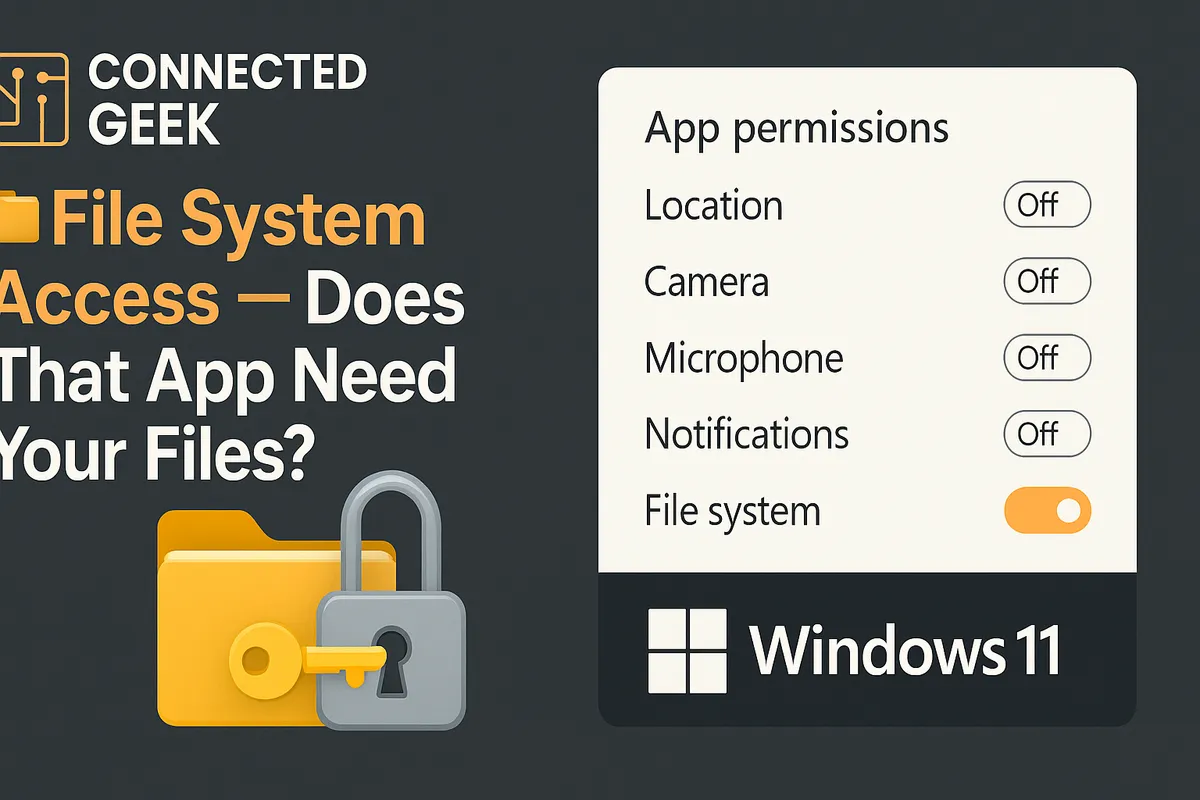
One of the most important settings lives at Settings → Privacy & security → File system. This single toggle can grant an app the keys to your entire digital house, or keep those keys firmly in your own hands. Learning how it works is a simple step that puts you firmly in charge of your data, not your apps.
What “File System” Access Really Allows
In Windows 11, file system access is not just another small permission. When an app has this access, it can browse almost anywhere on your PC: your Documents, Downloads, Desktop, Pictures, and most other folders in your user profile. In practical terms, it can scan, open, and read a huge portion of your personal files without asking you each time. That includes work documents, tax records, photos, and anything else you keep on your machine. This level of access can be useful, but it also carries real privacy implications if you grant it casually or without understanding what it means.
Think of it like handing an app a master key. Instead of saying, “You may open this one drawer,” you are saying, “You may walk through the whole house and open almost any drawer you like.” If you would not give that kind of freedom to a stranger in your home, you probably should not give it to a random app on your PC. Recognizing that power is the first step toward using it wisely and protecting the privacy of the files that matter most to you.
How This Differs from Specific Folder Permissions
Windows 11 also supports more limited permissions, where an app only gets access to certain folders or file types. You might see prompts asking whether an app can access your Pictures library, your Videos, or a specific folder you choose. This is a much more privacy-friendly approach because you stay in control of exactly what an app can see. Instead of giving away your entire file system, you share only what is necessary for that app to function. For example, you might allow a photo editor to reach your Pictures folder but not your business documents or personal archives in other locations.
The difference is similar to lending someone a single key versus giving them a full key ring. Specific folder permissions keep your exposure narrow and intentional. If an app only needs access to music, it should not be roaming through your spreadsheets. By favoring these narrower permissions whenever possible, you dramatically reduce the risk of apps quietly collecting more information than you ever intended to share. This approach lets you benefit from useful features while maintaining a strong, deliberate boundary around your private data.
Who Legitimately Needs Full File System Access?
Not every app deserves a master key, but a few types genuinely do. Knowing who belongs on this short list helps you make confident, informed choices instead of guessing. When you see a request for full file system access, pause and ask whether the app’s purpose truly requires it. If the answer lines up with the categories below, granting access may be reasonable as long as you trust the developer and downloaded the app from a reputable source such as the Microsoft Store or the vendor’s official website.
- File managers and explorer replacements: Tools designed to browse, organize, copy, and move files across your system obviously need broad access. Their whole job is to work with many folders at once, so limiting them too tightly can break their core features.
- Backup and imaging software: Programs that create full-system backups or protect your data against loss must see most of your files to do that job. If they could only read a single folder, your backup would be incomplete and potentially useless when you need it most.
- Antivirus and security suites: Security tools scan your system for threats hiding in any folder, not just one or two. Restricting them too heavily can leave blind spots where malware could lurk unnoticed. Full access allows them to protect you more effectively.
- Cloud sync and storage apps: Services like cloud drives and sync clients often mirror large parts of your file structure. To keep documents and photos synchronized between devices, they may need to monitor and upload files from multiple folders across your PC.
When an app clearly fits one of these categories, full file system access can be appropriate. The key is that the access aligns with the app’s obvious purpose, and you understand why it is needed. You remain in charge by granting that power intentionally, not by default.
Who Probably Does Not Need It?
Many apps ask for more than they truly need. This is where your awareness becomes a powerful privacy tool. When you see a request for full file system access from an app that does not obviously require it, you are completely justified in saying no. You are not being paranoid; you are exercising responsible control over your personal information.
- Games: Most games only need access to their own save folders or perhaps a small area for configuration files. They should not need to browse your tax returns or family photos. If a game asks for full file system access, treat that as a red flag and consider denying it.
- Media players: A media player may reasonably request access to your Music or Videos folders, but it rarely needs to scan your entire PC. You can usually point it to specific libraries rather than allowing it to roam through every directory you own.
- Social media apps: These apps might ask for access to your Pictures folder so you can upload photos, but they do not need your full file system. Limiting them to specific folders prevents them from quietly analyzing unrelated documents or archives.
- News and reading apps: Their job is to show you articles, not inspect your files. If a news app requests full file system access, you can confidently decline and still enjoy its core features, or choose a more respectful alternative.
How to Review and Adjust Your Settings Today
You do not need to be an expert to reclaim control. Open Settings → Privacy & security → File system and review which apps currently have access. If something on the list surprises you or no longer makes sense, simply toggle its access off. Windows lets you change your mind at any time, so you can always re-enable access later if you discover that an app truly needs it. This simple checkup only takes a few minutes, but it can significantly reduce how much of your digital life is exposed to software you barely use or no longer trust.
By understanding what Windows 11 file system access does, distinguishing it from specific folder permissions, and recognizing which apps genuinely need that power, you put yourself back in the driver’s seat. Your files tell a detailed story about your life. With a few thoughtful choices in your privacy settings, you ensure that only the right apps get to read that story, and only on your terms.
