Windows 11 File Associations Explained: What They Are and How to Change Them
Windows 11, File Associations, Beginner Guide
What Are File Associations in Windows 11? A Simple Guide for Everyday Users
If you have ever double‑clicked a photo and it opened in one app yesterday but a different app today, you have already met file associations in Windows 11. You might not know the term, but you use this feature every time you open a document, song, video, or picture. Understanding how file associations work can save you confusion and give you more control over how your PC behaves.
The Basic Idea: Every File Type Has a “Preferred” App
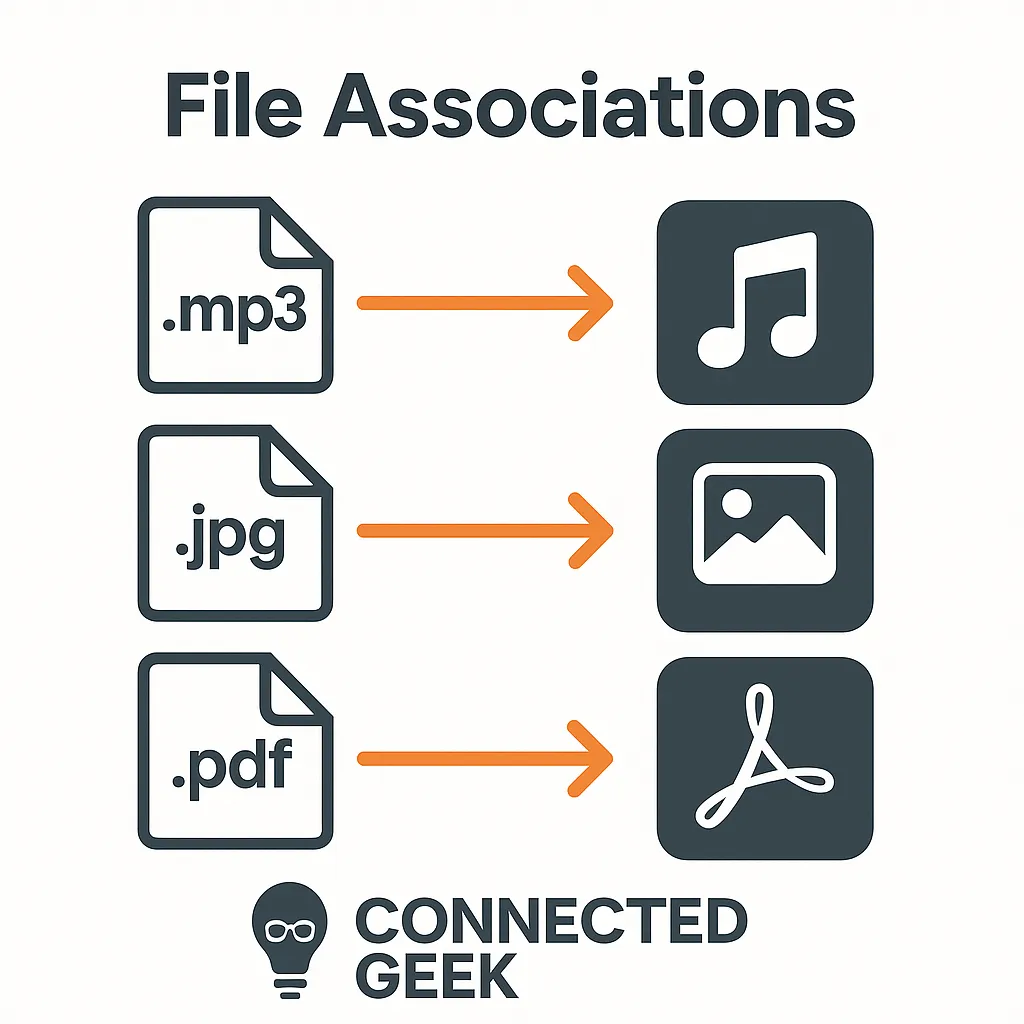
A file association is simply a link between a file extension and a default app. The file extension is the part at the end of a file name, such as .mp3, .jpg, or .docx. Windows 11 uses that extension to decide which app should open the file when you double‑click it or tap it in File Explorer.
For example:
- .mp3 music files might open in Windows Media Player or Spotify.
- .jpg photos might open in the Photos app or another viewer you installed.
- .docx documents might open in Microsoft Word or another word processor.
The association is what tells Windows, “When I see this kind of file, use that particular app.” Without these links, your computer would constantly be asking you what to do every time you opened something.
A Beginner‑Friendly Analogy: Labels on Mailboxes
Imagine your computer as a small town, with different houses representing your apps: one house for your music player, one for your photo viewer, one for your web browser, and so on. Files are like letters being delivered around town. The file extension is the label on the envelope that says what kind of letter it is, such as “music,” “photo,” or “document.”
A file association is like a rule at the post office: “All letters labeled ‘.mp3’ go to the music house; all letters labeled ‘.pdf’ go to the PDF house.” When you double‑click a file, Windows is the post office clerk quickly checking the label and sending it to the correct house. If the labels or rules change, the letters start arriving at a different house, which is exactly how it feels when your files suddenly open in a new app.
What Windows 11 Does Behind the Scenes
Behind the friendly icons and menus, Windows 11 keeps a big internal list that maps each file extension to a specific program. This information is stored in the system’s settings so that Windows can quickly look it up every time you open a file. You do not see this list directly, but you interact with it constantly.
When you double‑click a file, Windows checks the extension, consults its list, and then:
- Starts the default app if it is not already running.
- Hands the file over to that app so it can display or play it.
This process is usually instant and invisible, which is why it is easy to forget anything special is happening. But that quiet lookup is the heart of file associations.
Why File Associations Sometimes Change Unexpectedly
Many people first learn about file associations when something goes wrong. You install a new app, and suddenly your music, photos, or PDFs start opening in it instead of the app you are used to. This can be annoying, but it usually has a simple cause: the new app has changed the rules at the “post office.”
When you install certain programs, they may ask to become the default for specific file types. For example, a new music player might want to handle .mp3 and .wav files. Sometimes you see a clear prompt and click “Yes” or “No.” Other times, the option might be checked by default, and you click through without noticing. Once that happens, Windows updates its internal list, and your files start opening in the new app instead.
The good news is that this change is not permanent or dangerous. You can always switch the defaults back to the apps you prefer using Windows 11’s settings, which we will look at next.
Where to Find and Manage File Associations in Windows 11
Windows 11 gives you a central place to review and change which apps open which file types. You can get there in a few steps:
- Open Settings (you can press the Windows key + I on your keyboard).
- Click Apps in the left‑hand menu.
- Choose Default apps.
In this section, you have two main ways to manage associations. You can search by app (for example, click on Spotify or Adobe Acrobat and see which file types it can open), or you can search by file type (for example, type .pdf or .mp3 into the search box and choose which app should be the default for that extension). Changing a default here updates the internal list, so from that point on, double‑clicking those files will use your chosen app.
Everyday Examples: Music, Photos, and PDFs
To make file associations more concrete, here are a few common situations you might recognize:
- Music files (.mp3): By default, Windows 11 might open them in Windows Media Player or the built‑in Groove Music replacement. If you install Spotify or another music app and set it as default, double‑clicking an .mp3 file will launch that app instead.
- PDF files (.pdf): Windows 11 often opens PDFs in Microsoft Edge, its built‑in browser, which has a simple PDF viewer. If you prefer Adobe Acrobat Reader, you can change the default so every .pdf file opens there instead of in Edge.
- Photos (.jpg, .png): These usually open in the Photos app. If you install another program, such as a photo editor, and set it as default, your pictures will start opening there instead.
In each case, the files themselves do not change. Only the rule about which app should open them is updated.
Taking Control of How Your Files Open
File associations in Windows 11 might sound technical, but they are really just simple rules about which app handles which type of file. Every extension, from .mp3 and .jpg to .docx and .pdf, is linked to a default program. Windows quietly uses these links behind the scenes whenever you open something, and new apps can change them when they are installed. By visiting Settings → Apps → Default apps, you can review and adjust those rules whenever you like, so your files always open in the apps that make the most sense for you.
