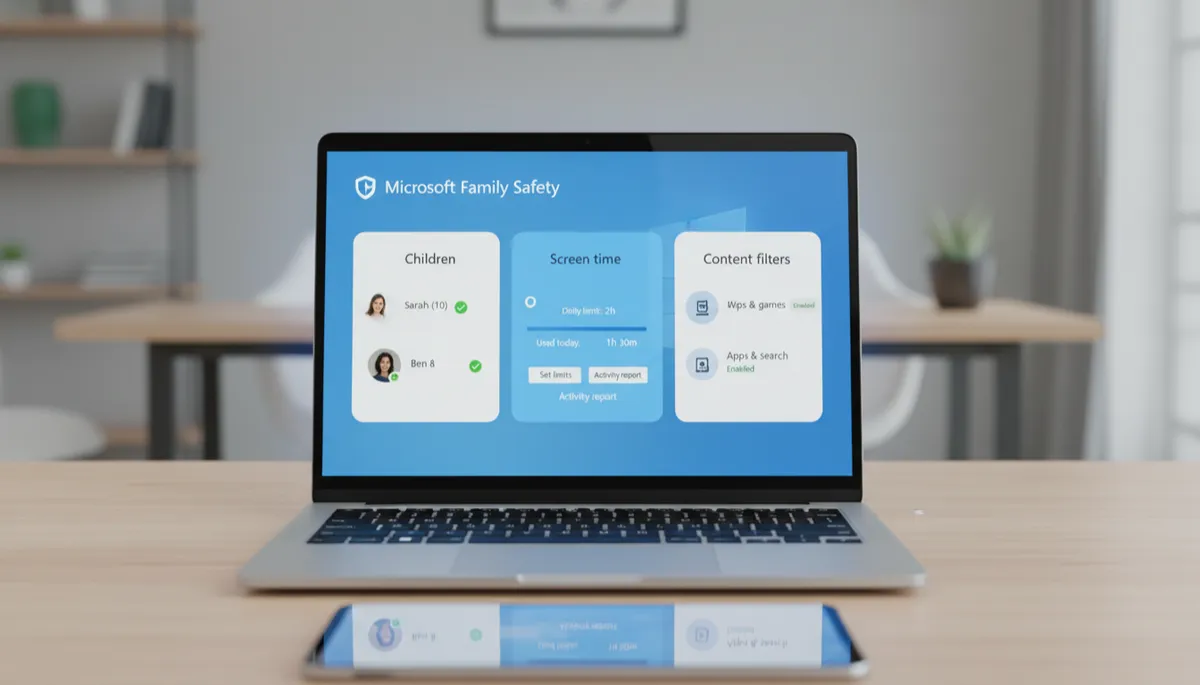
How to View Activity Reports for Your Child's PC in Family Safety
See Exactly What Your Child Does on Their PC
Microsoft Family Safety generates weekly activity reports for each child in your family group. These show which websites they visited, which apps they used, how long they used each one, and any content that was filtered or blocked.
How to View Activity Reports
- Go to family.microsoft.com or open the Family Safety app
- Select your child's name
- Click Activity or Weekly activity report
The report shows data from the past 7 days, broken down by day and category.
What the Report Shows
- Top apps and games: Which apps were used most and for how long
- Websites visited: Sites accessed through any browser on the Windows PC
- Blocked content: What was blocked by content filters — useful for understanding what your child tried to access
- Screen time summary: Total daily usage vs. their allowed limit
- Search terms: What your child searched for (if search activity reporting is enabled)
Weekly Email Reports
Enable automatic weekly email summaries in Family Safety settings — look for Weekly activity email and toggle it on. The email arrives every week with a snapshot without you having to log in.
Using Reports for Conversations
Activity reports are most valuable not as surveillance tools but as conversation starters. If you see a pattern — too much gaming, unusual websites — it gives you something specific to discuss constructively.
