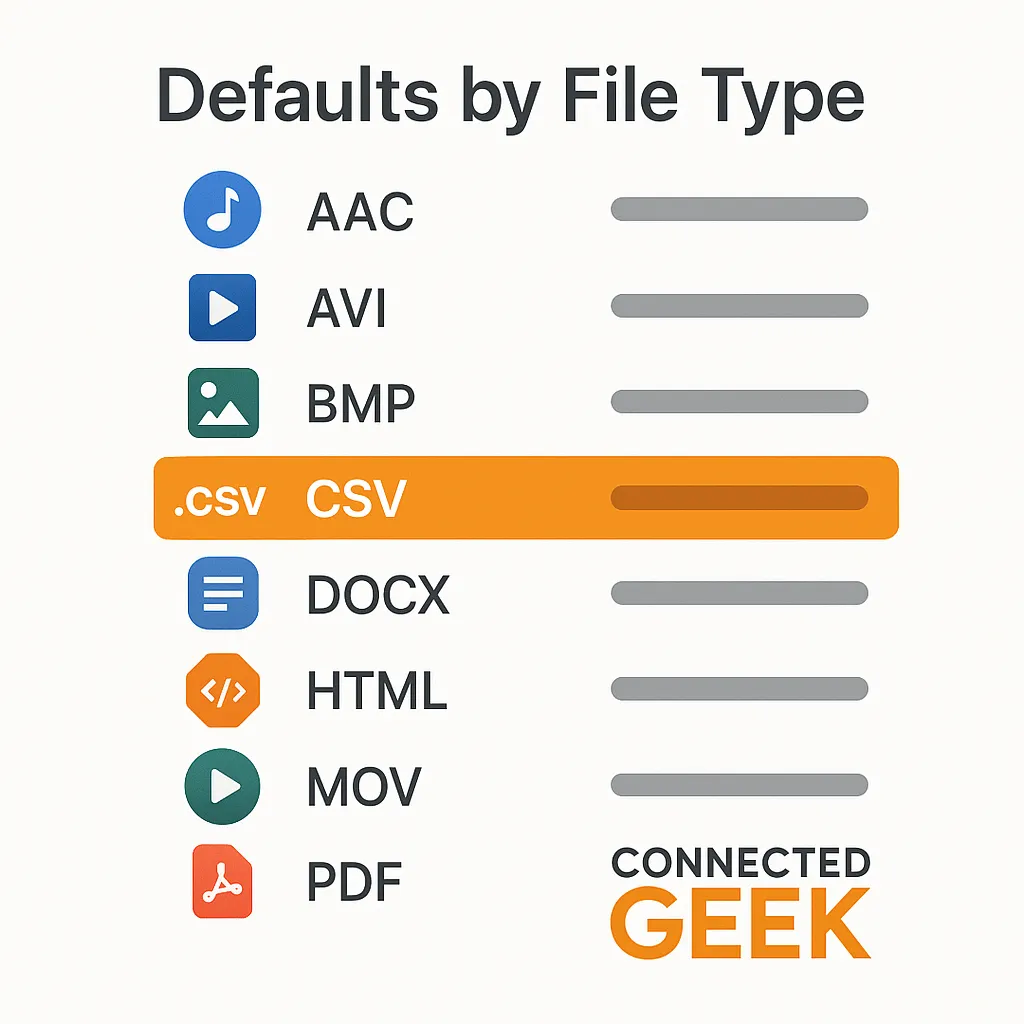
Set Windows 11 Default Apps by File Type: The Complete Extension Guide
Windows 11, Default Apps, File Extensions
Take Back Control of Windows 11 Defaults with the A–Z File Type List
If you care about what opens when you double‑click a file, the usual Windows 11 “Default apps” screen is only half the story. The real power lives one level deeper: the complete A–Z list of every file extension on your PC, and which app owns each one. Once you start using it, you’ll never accept mystery app takeovers again.
Getting to the A–Z File Extension View in Windows 11
Skip the scattered right‑click menus and go straight to the control panel that actually matters. Here is the exact path:
- Open Settings (Win + I is fastest).
- Go to Apps in the left sidebar.
- Click Default apps.
- Scroll all the way down and select Choose defaults by file type.
This is the goldmine: an alphabetical list of every file extension Windows knows about on your system, from .3gp to .zip. Next to each extension, you will see the app currently associated with it, or a “+ Choose a default” link if nothing is claimed yet.
Power‑User Trick: Use the Search Box to Jump Straight to Any Extension
Scrolling through hundreds of entries is a waste of time. At the top of the “Choose defaults by file type” page, there is a search box. This is not just for app names; it understands file extensions directly.
- Type .pdf and it will instantly jump to the
.pdfentry. - Type .mp and you will see clusters like
.mp3,.mp4, and others grouped together.
You do not have to include the dot, but doing so narrows things down quickly. This search box is your shortcut for targeted fixes: when a single file type is misbehaving, you can be at its entry in seconds, not minutes.
Why the File‑Type View Beats the App‑Based View
The default “by app” screen looks friendly: pick an app, then pick which file types it should handle. The problem is simple: not every app shows up there, and even when it does, you often see only the “popular” types Windows thinks you care about.
In contrast, the A–Z file‑type list is complete and brutally honest. If some obscure archiver or media player silently claimed a format during installation, it will appear here even if the app itself is invisible on the app‑based screen. Power users prefer this view because it shows:
- Every extension Windows knows about, not just the common ones.
- Every association, including those set by old installers or portable tools.
- Gaps where no default is set, so you can clean up “Open with…” chaos.
Practical Walkthroughs: Fixing Your Most Important File Types
1. .pdf – Lock PDFs to Your Preferred Viewer
In the search box, type .pdf. Click the app name next to the extension (maybe Microsoft Edge, maybe something else). Choose your preferred PDF tool—Adobe Acrobat, SumatraPDF, your browser of choice—and confirm. From now on, double‑clicking any PDF will respect this setting, regardless of what browser or office suite tries to hijack it later.
2. .mp3 – Separate Music from Miscellaneous Audio
Search for .mp3. Maybe it currently opens in Groove Music or another player you never use. Change it to your real daily driver—VLC, MusicBee, or whatever matches your workflow. While you are there, scan nearby entries like .wav and .flac so your audio handling is consistent.
3. .jpg – Choose Your Default Image Viewer
Type .jpg. If you do quick reviews, the built‑in Photos app might be enough. If you batch‑edit or inspect metadata, you may prefer IrfanView, XnView, or another tool. Set .jpg to that app, then repeat for .jpeg, .png, and .gif while you are in that neighborhood.
4. .html – Decide Where Web Files Open
When you double‑click an .html file, do you want your default browser or your editor? Search for .html and set it accordingly: browser for casual viewing, or VS Code/Notepad++ if you live in source view. Power users often send .htm and .html to different apps to separate “browse” from “edit” workflows.
5. .docx – Keep Office Documents Where You Expect Them
Type .docx. If you run multiple office suites—Microsoft 365, LibreOffice, WPS—installers love to steal Word documents. Use this view to enforce your preference. Set .docx to Word, then quickly check .xlsx and .pptx so your entire Office workflow is aligned.
6. .7z – Tame Archive Tools and Shell Integrations
If you juggle WinRAR, 7‑Zip, and other archivers, associations can get messy. Search for .7z. Set it to your preferred tool, then scan nearby entries like .zip, .rar, and .tar. This is the cleanest way to ensure one archiver owns your workflow instead of three fighting for it.
Auditing: See Which Apps Have Taken Over Your File Types
Use the A–Z list as an audit dashboard, not just a one‑off fix. Scroll slowly from top to bottom once, paying attention to patterns:
- Look for clusters where the same app owns a whole block of extensions it should not, often after a recent install.
- Note any “Choose a default” entries for formats you actually use; set them now to avoid prompts later.
- Use the search box to spot‑check families: try .ps for image and PostScript formats, .mk for media, or .od for OpenDocument files.
Once you start using the full A–Z extension list and its search box, Windows 11’s default‑apps story stops feeling random. You are no longer reacting to whatever an installer decided; you are deliberately mapping each important file type to the exact tool you trust. That is the difference between using Windows and actually owning your workflow.
