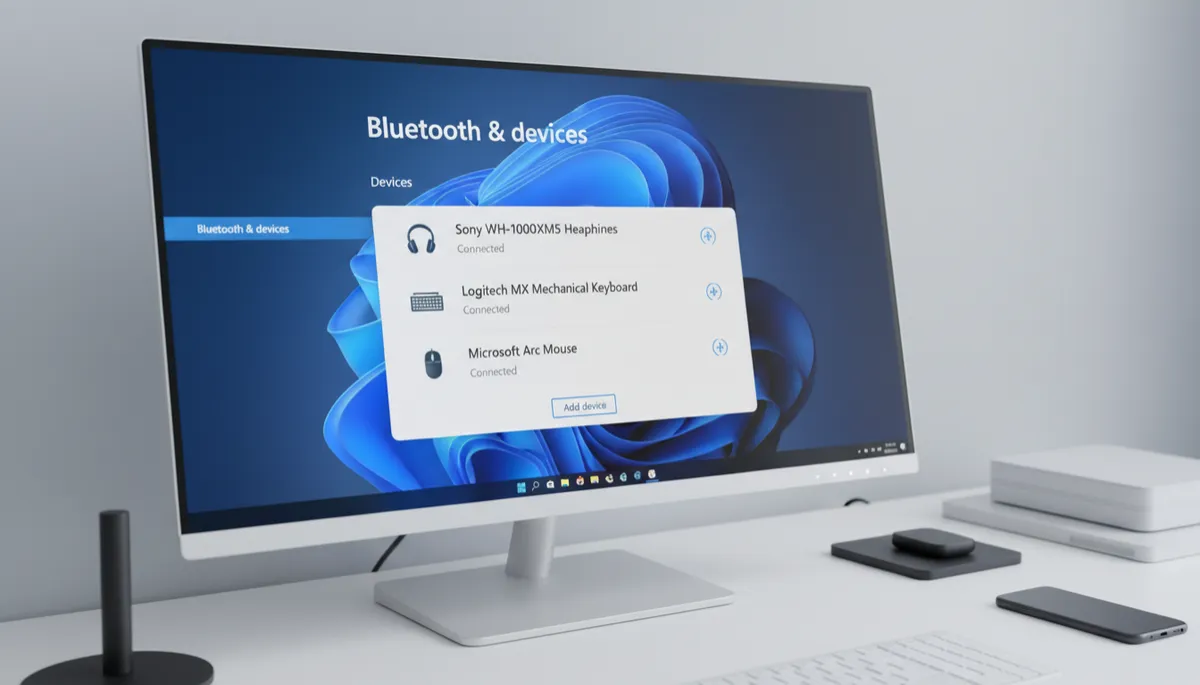
How to Fix Bluetooth Not Working on Windows 11
Bluetooth Not Working? Start With These Fixes
Fix 1: Toggle Bluetooth Off and Back On
Press Win + A → click the Bluetooth tile to turn it off → wait 5 seconds → click again to turn it back on. Simple but effective for minor connection glitches.
Fix 2: Put the Device Back in Pairing Mode
If your device isn't appearing or connecting, put it back in pairing mode (hold the pairing button until the light flashes) and reconnect from Settings → Bluetooth & devices → Add device.
Fix 3: Remove and Re-Pair the Device
- Go to Settings → Bluetooth & devices
- Find the device → click the three-dot menu → Remove device
- Put the device in pairing mode
- Click Add device and pair fresh
Fix 4: Run the Bluetooth Troubleshooter
- Go to Settings → System → Troubleshoot → Other troubleshooters
- Find Bluetooth → click Run
- Windows detects and attempts to fix common Bluetooth issues automatically
Fix 5: Update or Reinstall the Bluetooth Driver
- Right-click Start → Device Manager
- Expand Bluetooth
- Right-click your Bluetooth adapter → Update driver → Search automatically
- If that fails: right-click → Uninstall device → restart your PC — Windows reinstalls the driver automatically
Fix 6: Check for Windows Updates
Bluetooth driver fixes are often delivered via Windows Update. Go to Settings → Windows Update → Check for updates and install anything pending.
