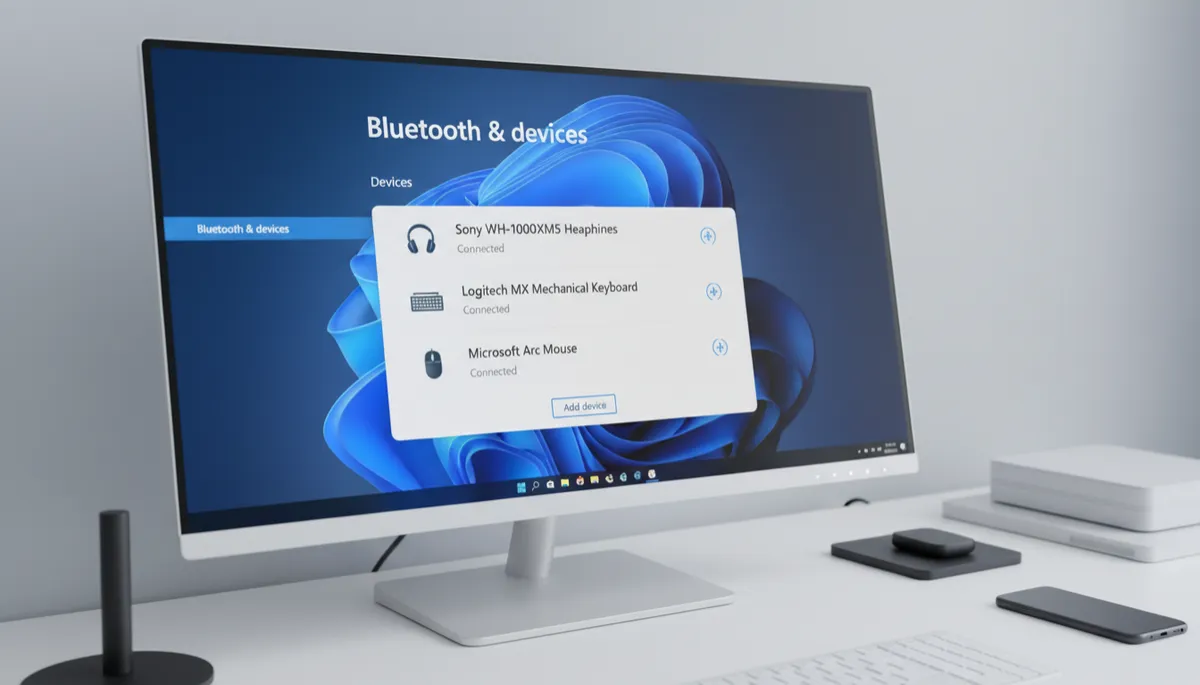
Bluetooth Audio on Windows 11: How to Get the Best Sound Quality
Bluetooth Audio Quality — What Actually Matters
Bluetooth audio quality on Windows 11 depends on the audio codec being used, your headphone's firmware, and a few settings. Here's how to get the best sound from your wireless headphones.
Understanding Bluetooth Audio Codecs
- SBC: The baseline — every Bluetooth audio device supports it. Adequate but not the best quality.
- AAC: Better quality, commonly used by Apple devices. Some Windows Bluetooth adapters support it.
- aptX / aptX HD: Higher quality, lower latency — supported by Qualcomm Bluetooth chips. Check if your headphones support aptX.
- LDAC: Sony's high-resolution codec — excellent quality but requires compatible hardware on both ends.
Why Call Audio Sounds Worse Than Music
When you use Bluetooth headphones for calls on Windows 11, they sometimes switch to a lower-quality "hands-free" audio profile (HFP) — this is why call audio can sound worse than music. For best music quality, use the headphones in A2DP stereo mode and not as a microphone simultaneously.
Reduce Interference for Better Stability
- Keep your headphones within 5–10 meters of your PC for best signal
- Connect to 5 GHz Wi-Fi instead of 2.4 GHz — both 2.4 GHz Wi-Fi and Bluetooth share the same frequency band, causing interference
- Charge your headphones — low battery degrades audio quality on some devices
Use a Better Bluetooth Adapter
If your PC's built-in Bluetooth chip is older, a USB Bluetooth 5.0 or 5.3 dongle with aptX HD support can meaningfully improve audio quality and connection stability for compatible headphones.
