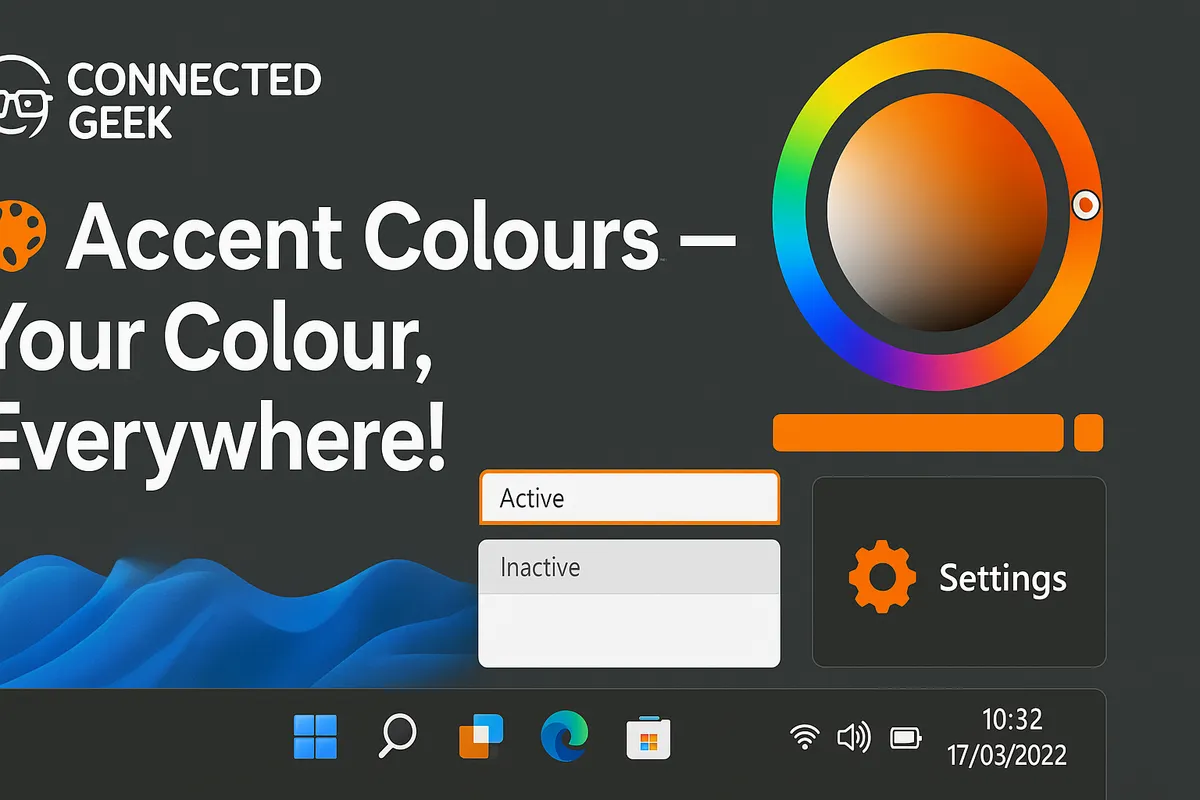
Windows 11 Accent Colours: Give Your PC a Personal Signature Look
Windows 11, Personalisation, Accent Colours
Windows 11 Accent Colours: Give Your PC a Signature Look
Your Windows 11 PC is more than just a screen full of apps and icons; it is a space you visit every single day. Accent colours are one of the simplest, most satisfying ways to make that space feel like it is truly yours. With a few clicks, you can wrap your Start menu, taskbar, buttons, and windows in a colour that matches your mood, your style, or even your favourite wallpaper.
Finding the Accent Colour Settings in Windows 11
Windows 11 hides a lot of its personality in the Settings app, and accent colours live right at the heart of its personalisation tools. The path sounds a little long at first, but once you have done it once or twice, it becomes second nature. Here is how to get there, step by step, at a relaxed, everyday pace:
- Click the Start button on your taskbar, then select Settings. You can also press Windows key + I on your keyboard to open Settings instantly if you prefer shortcuts.
- In the left-hand menu, choose Personalisation. This is the cosy corner of Windows 11 where you control backgrounds, themes, colours, and more.
- In the main Personalisation panel, click on Colours. This is where the overall look and feel of your system starts to come together.
- Scroll down until you see the section labelled Accent colour. This is the control centre for the colourful details that run through Windows 11.
Once you are on this page, you are in the right place to set the tone for your PC, whether that means calm blues, bold reds, or a soft pastel that quietly glows around your apps and menus.
Three Ways to Choose Your Accent Colour in Windows 11
Windows 11 gives you three different ways to pick your accent colour, each with its own personality. Think of them as three different moods: quick and easy, precise and custom, or automatic and effortless. You can switch between them anytime, so you are never locked into a single choice.
1. Pick from the Built-In Windows Colour Palette
The first and most straightforward option is to choose from Windows 11’s own colour palette. Think of this like walking into a paint store where the best swatches are already laid out for you, neatly arranged and ready to test on your digital walls.
- Under Accent colour, look for the grid of coloured squares. These are curated shades that Microsoft has tested to work well with the overall Windows 11 design, so they tend to look good right away.
- Click on any of these squares and watch as your system instantly updates. The Start menu, taskbar (if enabled), buttons, and other elements will quietly shift to match your new choice.
This option is ideal if you want something that “just works” without fuss. Maybe you are in the mood for a deep navy that feels professional, or a bright teal that wakes you up with a hint of energy every time you open your laptop. The palette is there to give you quick, reliable options that still feel personal.
2. Enter a Custom Hex Colour Code for a Perfect Match
Sometimes the default palette is not enough. Maybe you have a favourite shade from your brand, a colour that matches your phone case, or a specific tone you found on a website. That is where custom hex colour codes come in, letting you dial in a colour down to the exact pixel-level shade.
- In the Accent colour section, look for an option to add or edit a custom colour. When you open it, you will see a colour picker and a space to type a hex code, which is a six-digit combination of letters and numbers like #FF5733 or #1F4E79.
- Type in your chosen hex code, or use the sliders and picker to explore until you find something that feels exactly right. Once you confirm, Windows will apply that precise colour across the interface.
This is perfect if you are someone who loves consistency. You can match your PC to your favourite wallpaper, your company logo, or even the accent colour on your phone. It is like giving your digital world a carefully coordinated outfit instead of just grabbing the first jumper from the drawer.
3. Let Windows Automatically Pick a Colour from Your Wallpaper
If you prefer a more relaxed, hands-off approach, Windows 11 can do the creative work for you. With one setting, it will scan your current wallpaper and choose an accent colour that complements it. The result feels cohesive, as if your wallpaper and interface are part of one continuous design.
- In the Accent colour section, look for the option that says something like Automatically pick an accent colour from my background and turn it on.
- As you change wallpapers, Windows will quietly adjust the accent colour to match. A sunset photo might pull out warm oranges; a forest scene might give you deep greens; a minimalist black and white background could lead to a subtle grey or cool blue.
This setting is especially fun if you like to rotate wallpapers or use a slideshow. Your PC’s look will gently evolve over time, keeping things fresh without you needing to tweak anything manually. It is like having a built-in stylist for your desktop.
Where Your Accent Colour Shows Up in Windows 11
Choosing an accent colour is only half the story; the real magic is in where it appears. Windows 11 sprinkles your chosen shade across the system in lots of subtle, satisfying places. These colourful touches are small on their own, but together they make your PC feel like a carefully designed space rather than a generic screen.
Start Menu Header Elements
Open your Start menu and take a slow look at the top area. Depending on your theme and settings, you will notice your accent colour highlighting header elements, selection highlights, and subtle lines. It could be a gentle bar of colour, the glow around selected items, or the way focus indicators appear as you move through your apps.
When your accent colour is well chosen, the Start menu feels like a neat little dashboard dressed in your favourite shade. Every time you tap the Windows key, that colour quietly greets you, like a friendly accent wall in your living room.
Taskbar (When Accent Colour Is Enabled)
Your taskbar is the strip of screen you see most often, so when it picks up your accent colour, the whole experience feels more immersive. Instead of a neutral bar sitting at the bottom of your display, it becomes a colourful base that anchors your apps and windows in place.
Depending on your theme, the accent colour might appear as a tinted background, a glow around active icons, or subtle highlights when you hover over items. It is not loud or overwhelming; it is more like a soft wash of colour that gently frames your work and play.
Toggle Switches and Buttons
Head back into Settings, and you will see your accent colour working hard in small but important ways. Toggle switches, sliders, and key buttons often adopt your chosen shade, especially when they are turned on or selected. Every time you flip a setting, that little burst of colour confirms your action with a visual nod.
These tiny touches make the system feel more alive and interactive. Instead of grey switches that all look the same, you get a sense of movement and personality as your accent colour lights up the controls you are using most.
Highlighted Text and Selection Areas
Try selecting a block of text or choosing items in a list, whether in File Explorer, Settings, or certain apps that follow the Windows design language. Often, your accent colour will appear as the highlight shade behind the selected text or around the selected item, like a digital highlighter pen chosen just for you.
This makes everyday actions feel more intentional and visually clear. You are not just clicking randomly; you can see exactly what is active and selected, framed by a colour that feels familiar and comfortable.
Progress Bars and Activity Indicators
Whenever Windows 11 is doing something for you in the background, such as installing updates, copying files, or downloading apps, you will often see progress bars filling up across the screen. Many of these bars borrow your accent colour, turning routine waiting time into a more visually pleasing moment.
Watching a deep teal or a warm gold slowly stretch across the bar feels more satisfying than a plain grey line. It is a small detail, but it adds up, especially if you spend a lot of time managing files or installing software.
Window Borders and Title Bars
Look closely at the edges of your open windows, especially when a window is active or in focus. Depending on your settings, your accent colour can appear as a thin border or as part of the title bar, giving each window a subtle frame. This makes it easier to spot which window is currently active, and it adds a gentle splash of colour to every corner of your desktop.
When multiple windows overlap, the one on top can feel like it is outlined in your chosen shade, almost like a picture frame around the work you are focusing on right now. It is a quiet but effective way to keep your digital space organised and visually appealing.
Folder Icons in File Explorer
Open File Explorer and browse through your folders and files. As you select items, you will notice the accent colour stepping in again, often appearing in selection highlights, focus rectangles, and certain interactive elements. The effect is especially noticeable when you click on a folder or file and see it stand out against the rest, framed in your chosen colour.
This makes managing files feel a bit more tactile, almost like placing a coloured sticky note on the items you are working with. Your accent colour turns File Explorer from a plain filing cabinet into something closer to a colour-coded workspace.
Turn On “Show Accent Colour on Start and Taskbar” for the Full Effect
If you really want your accent colour to shine, there is one setting you should definitely not skip: Show accent colour on Start and taskbar. Without it, your colour choices can feel a bit hidden, like a great outfit under a dull coat. With it turned on, your Start menu and taskbar become the main stage for your chosen shade.
- Go back to Settings and then to Personalisation and Colours, just like before.
- Scroll down to the section that controls how your accent colour is used on surfaces like the Start menu, taskbar, and title bars. Look for the option labelled Show accent colour on Start and taskbar.
- Turn this option on. You may need to make sure your chosen mode (light, dark, or custom) supports accent colours on these surfaces, but once it is enabled, you will see your Start menu and taskbar transform to reflect your colour choice.
The difference can be dramatic in the best possible way. Your taskbar becomes a subtle band of colour running along the bottom of your screen, while your Start menu feels like a coordinated panel instead of a separate, floating window. It ties everything together, so your PC feels less like a collection of random parts and more like a thoughtfully designed space that belongs to you.
Making Accent Colours Part of Your Daily Routine
Once you start playing with accent colours, it is hard to stop. You might find yourself matching your PC to the season, your current project, or even your mood on a Monday morning. A soft blue for focus, a bright orange for motivation, a muted green for calm evenings; it is surprising how much these small shifts can change the feel of your workspace.
You do not need to be a designer to enjoy this. Just think about how you respond to colour in your everyday life. The colours you wear, the decor you choose, the backgrounds you save to your phone; all of these are clues. Bringing that same instinct into Windows 11 turns your computer from a neutral tool into a place that reflects who you are right now.
And because changing your accent colour only takes a few clicks, you can treat it like rearranging your desk or swapping out a favourite mug. It is a low-effort, high-impact way to refresh your digital environment whenever you feel like you need a small reset.
Over to You: What Colour Represents You in Windows 11?
Now that you know how to find the accent colour settings, the three ways to set them, and all the little places your colour shows up across Windows 11, it is your turn to experiment. Open Settings, wander over to Personalisation → Colours → Accent colour, and start exploring. Try the built-in palette, play with a custom hex code, or let Windows pull a shade straight from your wallpaper and see how it feels.
Most importantly, have fun with it. Your PC is a space you visit every day, so it deserves a look that makes you smile, focus, or relax, depending on what you need. So here is the question to leave you with, a little creative nudge for your next session at the keyboard:
If your Windows 11 accent colour had to represent you, right now, what colour would it be—and why?
