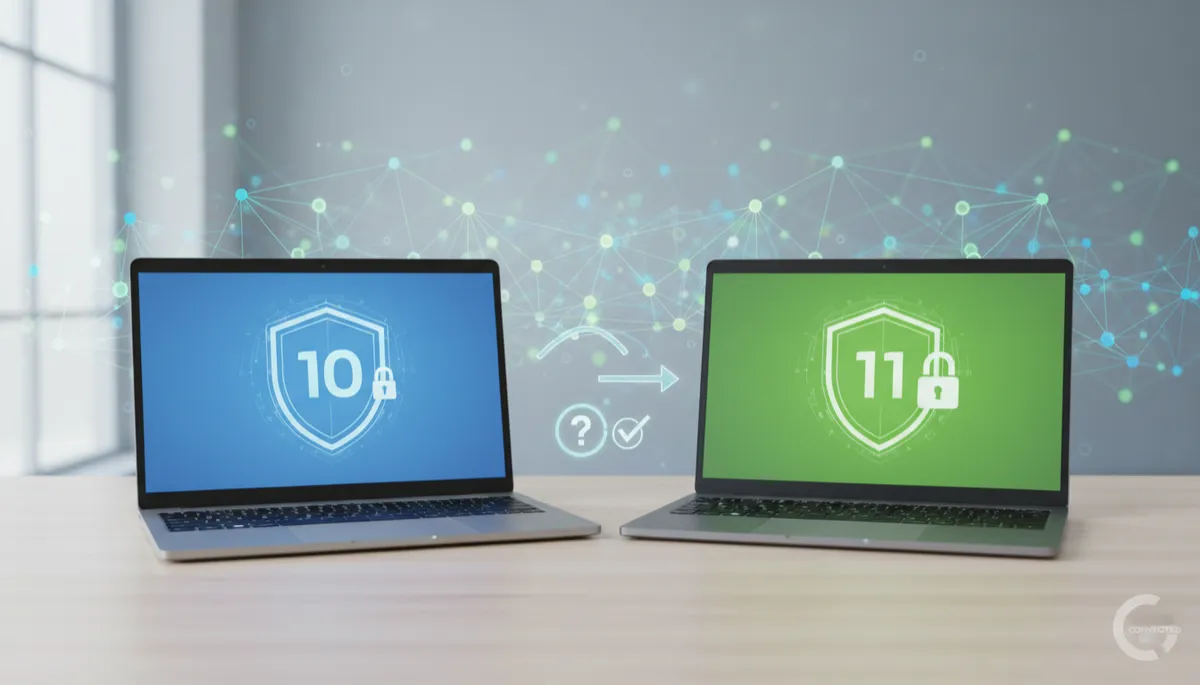
Windows 10 vs 11: Security Differences Explained
Computer Security, Windows 10 vs Windows 11, Madison Heights IT Support
Windows 10 vs. Windows 11: What the Security Difference Actually Means for You
If you live or run a small business in Madison Heights or around Southeast Michigan, you might be wondering: is my Windows computer still safe, and do I really need Windows 11? Let’s break down what’s actually changed, what still matters, and how to get a clear answer for your specific PC without any scare tactics or tech jargon.
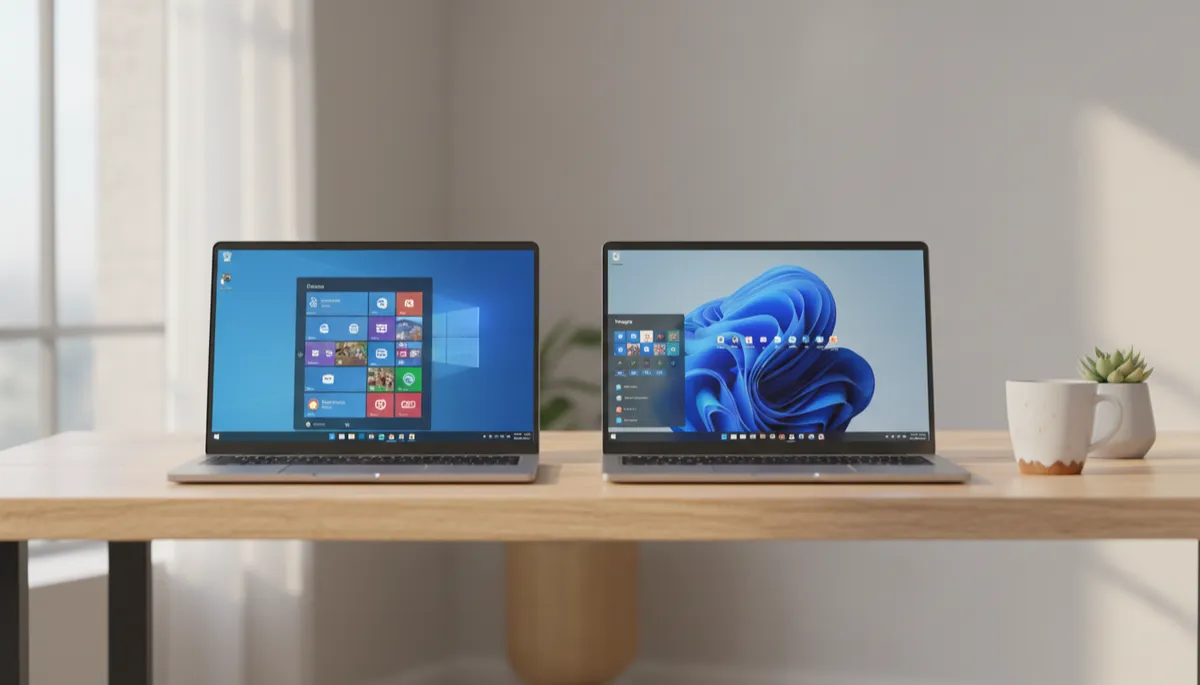
First, what actually changed with Windows 10 support?
Windows 10 had a good run, but Microsoft officially ended regular security support for it on October 14, 2025. That means:
- Your Windows 10 computer will still turn on, run your programs, and feel “normal.”
- But it no longer gets the regular security patches that fix new problems hackers discover.
Think of it like a car that still drives fine but no longer qualifies for safety recalls. It may feel okay today, but over time, more and more unpatched issues pile up in the background. That’s why security pros, and Microsoft itself, strongly recommend moving off Windows 10 when you can, especially if you use the computer for banking, business finances, or important family photos and documents.
So Windows 11 is the answer… right?
Mostly. From a pure “Windows 10 vs Windows 11” security difference standpoint, Windows 11 is built to be safer. It’s designed to work with newer hardware security features and is still getting regular updates and fixes from Microsoft. On paper, that makes it the better choice for computer security.
But here’s the catch that surprises a lot of homeowners and small business owners we talk to at Connected Geek: simply upgrading to Windows 11 does not automatically mean your computer is secure. The upgrade sets the stage, but some of the most important protections are often left turned off or half-configured afterward.
Two big Windows 11 protections that are often off by default
When we look at real systems in Southeast Michigan homes and offices, we regularly see two key Windows 11 security features sitting there unused:
- BitLocker: This is Microsoft’s built‑in drive encryption. In plain English, it scrambles the data on your hard drive so if your laptop is lost or stolen, a stranger can’t just plug the drive into another computer and read everything. After a Windows 11 upgrade, BitLocker is often still turned off, especially on older machines that were originally running Windows 10.
- Windows Hello: This is the feature that lets you sign in with your face, fingerprint, or a secure PIN instead of a simple password. It’s not just convenience; it’s a real security upgrade. But again, we see many upgraded systems where Windows Hello is available, yet never set up, leaving you on the same old password that’s easy to guess or reuse.
In other words, you can proudly say, “I’m on Windows 11,” and still be missing some of the protections you thought you were getting. That’s why having someone actually check the settings matters more than the version sticker on the box.
The hidden leftovers from your Windows 10 days
Another thing we see again and again: when you move from Windows 10 to Windows 11, your old Windows 10 files don’t just vanish. The upgrade usually leaves behind a big folder of previous system files and settings on your drive. That’s helpful if you need to roll back, but it also means:
- Extra clutter taking up valuable space, which can slow things down over time.
- Old drivers and programs that may not be updated, and could introduce new security gaps.
It’s a bit like renovating your kitchen but leaving the old wiring and pipes hidden in the walls. It looks fresh, but if nobody checks what’s behind the scenes, you can still have problems later.
What really matters more than Windows 10 vs Windows 11
The real question isn’t just, “Which version am I on?” It’s:
- Are my updates actually installing correctly?
- Is my drive encrypted with BitLocker?
- Am I using Windows Hello or still relying on one weak password?
- Do I have a good backup in place if something goes wrong?
Those answers look different for every household and every small business. A home laptop used for school and streaming has different needs than a small accounting office in Madison Heights with client data on it. That’s where a quick, focused checkup can save you a lot of stress later.
Connected Geek’s $50 Back to School Security Review: a clear picture, not a sales pitch
To make this simple for local families and small businesses, Connected Geek offers a $50 Back to School Security Review. It’s done over Zoom, usually in about an hour, so you don’t have to haul your computer across town or rearrange your whole day.
During the session, we:
- Run a diagnostic to see how healthy your system is overall.
- Perform a malware scan to check for hidden junk or infections.
- Clean up unnecessary startup programs that slow you down every time you boot up.
- Review your security and backup settings—including things like BitLocker, Windows Hello, and Windows Update—to see what’s actually turned on and working.
When we’re done, you get a short written summary in plain language: what’s good, what’s risky, and what we recommend next. No pressure, no scare tactics, and no surprise upsells. Just an honest view of where you stand, whether you’re still on Windows 10 or already on Windows 11.
Ready to stop guessing about your computer’s security?
If you’re in Madison Heights or anywhere in Southeast Michigan and you’re unsure whether your Windows version is really secure, you don’t have to figure it out alone. Whether you’re a busy parent getting kids ready for school or a small business owner trying to avoid downtime, a one‑hour checkup can give you peace of mind for the whole year.
Take the guesswork out of Windows 10 vs Windows 11 and the real security difference. Book your $50 Back to School Security Review with Connected Geek today at connectedgeek.net/backtoschool, and get clear, friendly answers about your computer security—no jargon required.
