Win+L: The One Windows 11 Security Habit That Could Save Your Data
Security, Windows 11, Workplace Privacy
The Win+L Habit: The Two-Second Move That Protects Everything on Your PC
One keyboard shortcut in Windows 11 can decide whether your data stays private or becomes tomorrow’s breach headline. That shortcut is Win+L—and turning it into a non‑negotiable habit is one of the simplest, most powerful security moves you can make.
Win+L: The Instant Lock That Closes the Door on Opportunistic Theft
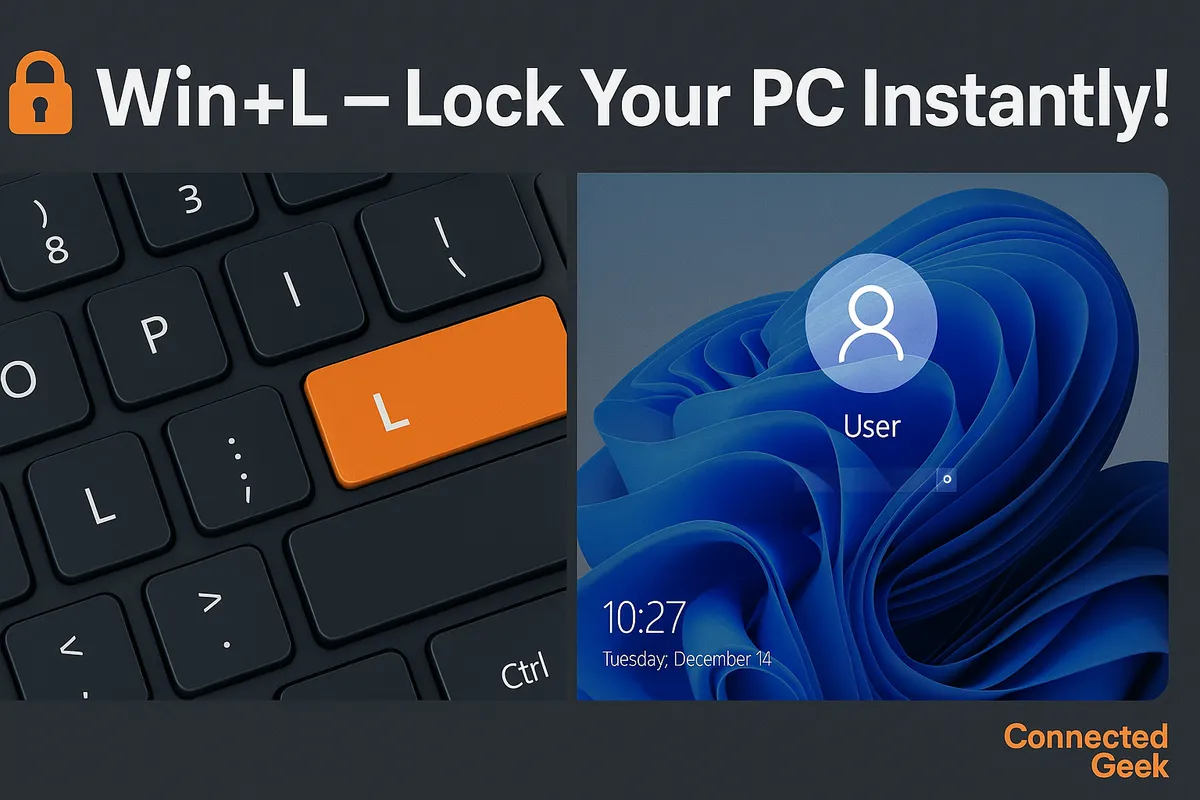
In Windows 11, pressing the Windows key and the L key together (Win+L) instantly locks your PC. No delay, no confirmation box, no “Are you sure?” prompt. Your session is frozen, your desktop is hidden, and the lock screen takes over in a fraction of a second. To anyone walking by, your files, emails, chats, and dashboards are now completely out of reach.
That speed matters. In a busy office, it only takes a moment for someone to glance at confidential data, forward an email, copy a file to a USB drive, or take a photo of sensitive information on your screen. An unlocked PC is an open door—and Win+L is the deadbolt you can throw in under a second, every single time you step away.
Unlocked PCs: The #1 Cause of Office Data Theft
Most people imagine data theft as a sophisticated hack from the outside. In reality, one of the most common sources of data loss is far more mundane: unattended, unlocked workstations. A colleague, a contractor, a cleaner, or even a visitor only needs a few unsupervised minutes with your open session to access customer databases, HR records, financial files, or internal documents you never intended to share.
Security teams routinely trace serious incidents back to a simple pattern: someone got up “just for a minute” and left their PC open. No password needed, no logging, no forensics required. The attacker simply sat down and helped themselves. That is why many organizations treat leaving a machine unlocked as a policy violation on the same level as sharing your password. The risk is that high—and the fix is that simple.
GDPR: Locking Your Screen Is a Legal Obligation, Not a Personal Choice
If you handle personal data of EU residents, the General Data Protection Regulation (GDPR) is not optional. It requires that organizations implement appropriate technical and organizational measures to protect personal data. Leaving a workstation displaying personal information unlocked and unattended is a direct violation of that principle of confidentiality and integrity.
Regulators and auditors increasingly expect to see clear policies that mandate screen locking whenever an employee steps away, even briefly. Many companies now enforce automatic lockouts after a short period of inactivity, but relying on timeouts alone leaves a dangerous gap. You might talk to a colleague for five minutes while your screen blazes sensitive customer details to anyone walking past. Using Win+L the instant you stand up closes that gap and demonstrates you are treating GDPR seriously at the individual level, not just on paper.
Windows Hello: Near‑Instant Unlock, So Security Has Zero Friction
A common excuse for not locking a PC is, “It’s annoying to log back in.” Windows 11, paired with Windows Hello, removes that excuse entirely. With facial recognition, fingerprint readers, or a secure PIN, unlocking your machine becomes almost instant. Look at the camera, touch the sensor, or tap your PIN, and you are back at your desktop in a second or two.
That means the Win+L habit carries virtually zero friction in your workday. You are not wasting time; you are buying protection. You gain strong session security with no meaningful productivity cost. If your device supports Windows Hello and you have not configured it yet, doing so is a security upgrade that pays off every time you lock and unlock your PC.
Turning Win+L into an Unbreakable Habit
To truly protect your data, Win+L cannot be something you do “most of the time.” It needs to be automatic. The rule is simple: every time you stand up, press Win+L—no exceptions. Going to grab a coffee? Win+L. Walking over to a colleague’s desk? Win+L. Heading into a meeting room? Win+L before you even push your chair back.
Build the habit by linking it to the physical action of standing. As your body moves, your fingers press the shortcut. You can reinforce it with small reminders: a sticky note on your monitor, a line in your team’s security guidelines, or a friendly culture of colleagues calling out, “Lock your screen!” during office walk‑throughs. After a couple of weeks, you will catch yourself hitting Win+L without even thinking about it—and that is exactly the level of reflex your security posture deserves.
Remote Workers and Video Calls: Hidden Risks, Same Simple Fix
Working from home or a co‑working space does not remove the obligation to protect data; it amplifies it. Family members, flatmates, cleaners, and visitors may all pass by your screen. In shared spaces or cafés, strangers can glance over your shoulder. An unlocked laptop on a kitchen table is just as dangerous as an unlocked desktop in an open‑plan office—sometimes more so, because people assume home is “safe” and let their guard down.
Video calls add another twist. You might mute your microphone and step away “for a second,” but your screen is still wide open. If you need to leave during a call, mute, turn off your camera if appropriate, and hit Win+L before you walk away. When you return, Windows Hello gets you back into the meeting almost instantly. For remote workers, combining the Win+L habit with a privacy‑aware home setup—angled screens, no sensitive material visible on camera, and strict use of separate workstations—creates a strong, compliant security posture even outside the office walls.
One Shortcut, Massive Impact
Security does not always require complex tools or expensive projects. Sometimes, it is a two‑key shortcut you can start using today. Win+L in Windows 11 gives you instant protection, aligns with GDPR expectations, and works hand‑in‑hand with Windows Hello to keep your workflow smooth. Treat unlocked PCs as the serious liability they are—and make locking your screen a reflex, not an afterthought. The next time you stand up, let your fingers move first: Win+L, then walk away.
