Ultimate Windows 11 Keyboard Shortcuts Guide
Windows 11, Keyboard Shortcuts, Productivity
The Ultimate Windows 11 Keyboard Shortcuts Cheat Sheet
If you’ve ever wished your Windows 11 PC felt faster without upgrading hardware, keyboard shortcuts are your secret weapon. This friendly cheat sheet gathers the most useful shortcuts in one place, so you can save it, share it, and keep it handy whenever you need a productivity boost.
Everyday Essentials You’ll Use Constantly
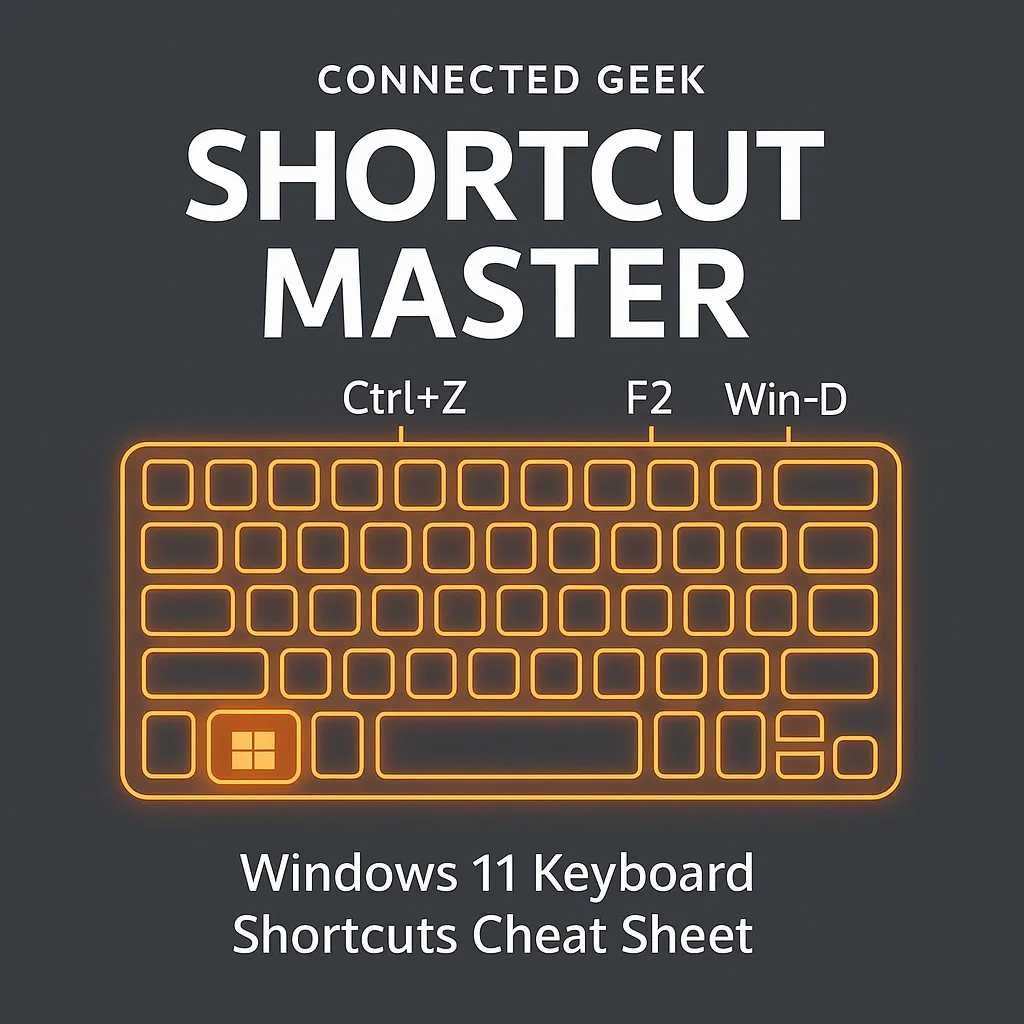
Win + D — Show Desktop
Buried under a pile of windows? Press Windows key + D to instantly minimize everything and jump straight to the desktop. Press it again to bring all your windows back, exactly how they were.
Win + L — Lock Your PC
Stepping away from your desk? Hit Windows key + L to lock your PC in a split second. It’s the easiest way to protect your work from curious eyes at home, in the office, or in a café.
Win + E — Open File Explorer
Skip double‑clicking icons and jump straight into your files with Windows key + E. You’ll land in Quick Access, so your recent and favorite folders are only a keystroke away.
Shortcuts That Fix Mistakes and Tidy Things Up
Ctrl + Z — Undo
The classic lifesaver. Made a typo, deleted the wrong file, or messed up a formatting change? Press Ctrl + Z to undo the last action in most apps, File Explorer, and many web tools. Tap it repeatedly to step back through your recent changes.
F2 — Rename Files and Folders
Instead of right‑clicking and hunting for “Rename,” select a file or folder and press F2. The name becomes editable instantly, letting you quickly clean up messy downloads or organize project folders.
F5 — Refresh
Need to see the latest version of a folder, web page, or list? F5 refreshes the current view in File Explorer and most browsers. It’s especially handy when you’re waiting for new files to appear in a shared folder.
Power Moves: Clipboard, Emojis, and Screenshots
Win + V — Clipboard History
Copy something, then copy something else, and realize you still need the first thing? Turn on and use Windows key + V to open clipboard history. You can paste from multiple recent items, pin favorites, and even sync across devices when enabled in Settings.
Win + . — Emoji, GIF, and Symbol Picker
Want to add a little personality to your emails or chats? Windows key + . (period) opens the emoji panel. From there you can insert emojis, GIFs, kaomoji, and symbols into almost any text field in Windows 11.
Win + Shift + S — Screenshot Tool
Need a quick screenshot of part of your screen? Windows key + Shift + S launches Snipping Tool’s capture bar. Drag to snip a region, window, or full screen, then annotate or save it. It’s perfect for sharing bugs, receipts, or meeting notes.
Bonus Shortcuts to Level Up Even More
- Win + Tab — Open Task View to see all windows and virtual desktops.
- Win + A — Open Quick Settings for Wi‑Fi, brightness, and more.
- Alt + Tab — Rapidly switch between open apps.
Save, Share, and Keep Learning
Try picking just three shortcuts from this cheat sheet and using them all day. Once they feel natural, add a few more. Bookmark this guide, save it as a PDF, or pin it to your notes app so it’s always within reach — and share it with friends or coworkers who want Windows 11 to feel smoother and more fun to use.
SEO Title: Ultimate Windows 11 Keyboard Shortcuts Cheat Sheet (Save & Share)
Meta Description: Discover the ultimate Windows 11 keyboard shortcuts cheat sheet, including Win+D, Win+L, Win+V, Win+Shift+S, emoji picker, and more. Save and share this friendly guide to work faster every day.
