Prevent Windows 11 Restarts During Work Hours
Windows 11, Windows Update, Active Hours, Restart Scheduling
How to Stop Windows 11 Restarts from Interrupting Your Day
Windows updates are important for keeping your PC secure and running smoothly, but surprise restarts in the middle of your workday are never fun. The good news is that Windows 11 gives you friendly tools to stay in control: you can schedule restarts for a time that suits you and set Active Hours so Windows avoids rebooting during your working day.
Why Windows Update Restarts Matter
Updates often need a restart to finish installing. If you ignore them, your device might eventually pick its own time to reboot, which could mean losing unsaved documents or being kicked out of an important call. By taking a minute to plan ahead, you can enjoy the benefits of updates without the stress of unexpected interruptions.
Scheduling a Windows 11 Restart After an Update
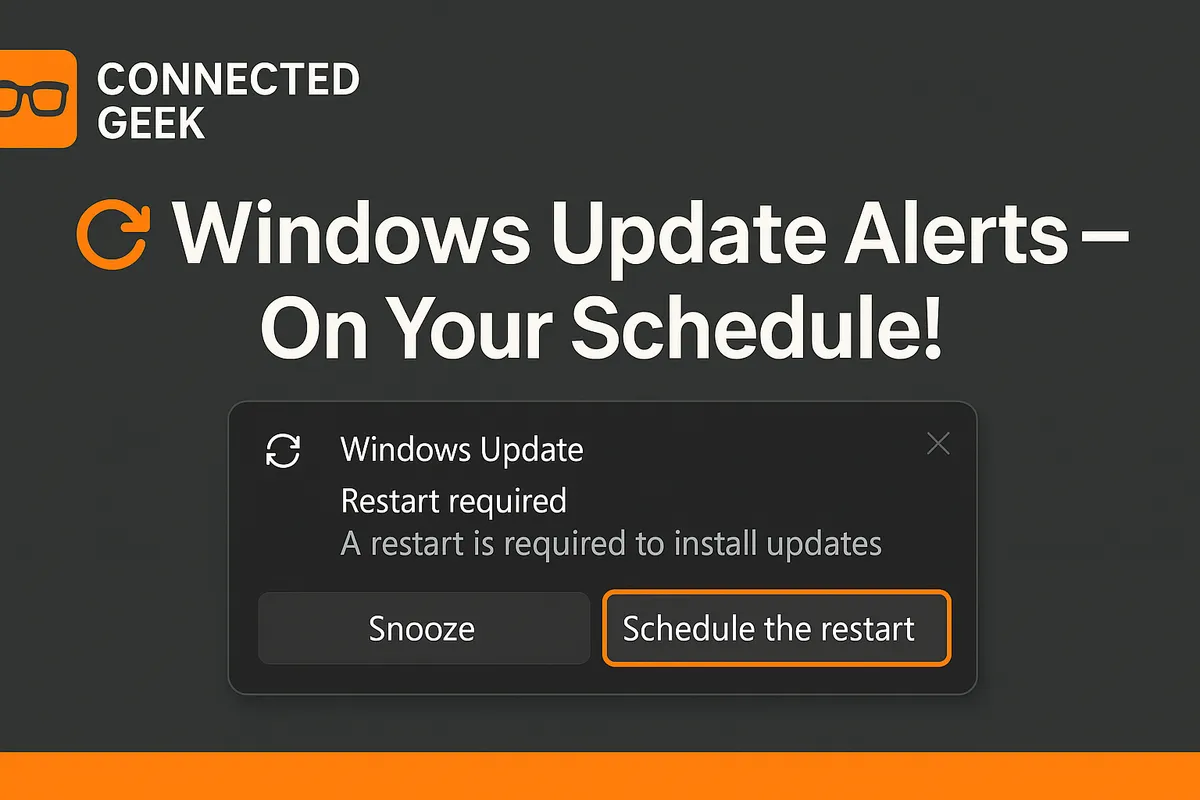
When Windows 11 has downloaded an update that needs a reboot, you will usually see a message that a restart is required. Instead of clicking restart right away, you can choose a time that works better for you by using the Schedule the restart option. This is ideal if you are in the middle of a task and want the restart to happen later, such as during lunch or after work.
- Open Settings and go to Windows Update.
- If an update is waiting, you will see a note that a restart is required. Look for the option that says Schedule the restart and click it.
- Turn on the scheduling toggle if needed, then pick your preferred date and time for the restart.
Once you have set this, Windows will wait and restart at the time you chose, as long as your device is powered on. This small step gives you predictable downtime instead of sudden disruptions, and it only takes a few clicks whenever an update is pending.
Setting Active Hours So Windows Avoids Your Work Time
Scheduling individual restarts is helpful, but you can go one step further with Active Hours. Active Hours tell Windows when you usually use your device, so it will not automatically restart during those times. This is perfect for protecting your working hours or school schedule from surprise reboots.
- Open Settings, then select Windows Update.
- Click Advanced options to see more controls.
- Find the Active hours section. You can let Windows automatically adjust based on your activity, or choose Manually and set a start and end time that match your working hours.
Once Active Hours are set, Windows will avoid restarting during that period, even when updates are ready. For example, if you set Active Hours from 9:00 a.m. to 5:00 p.m., Windows will look for a time outside that window to complete restarts, helping keep your focus uninterrupted.
Make Updates Work Around You, Not the Other Way Around
By combining scheduled restarts with carefully chosen Active Hours, you can enjoy a secure, up-to-date Windows 11 PC without worrying about losing your work. Next time you see that an update is pending, take a moment to click Schedule the restart, and double-check your Active Hours in Settings → Windows Update → Advanced options. With these two simple habits, Windows updates become a quiet background task instead of an unwelcome surprise.
SEO Title: How to Schedule Windows 11 Update Restarts and Set Active Hours
Meta Description: Learn how to schedule Windows 11 update restarts and set Active Hours in Windows Update settings so your PC never restarts during your working hours.
