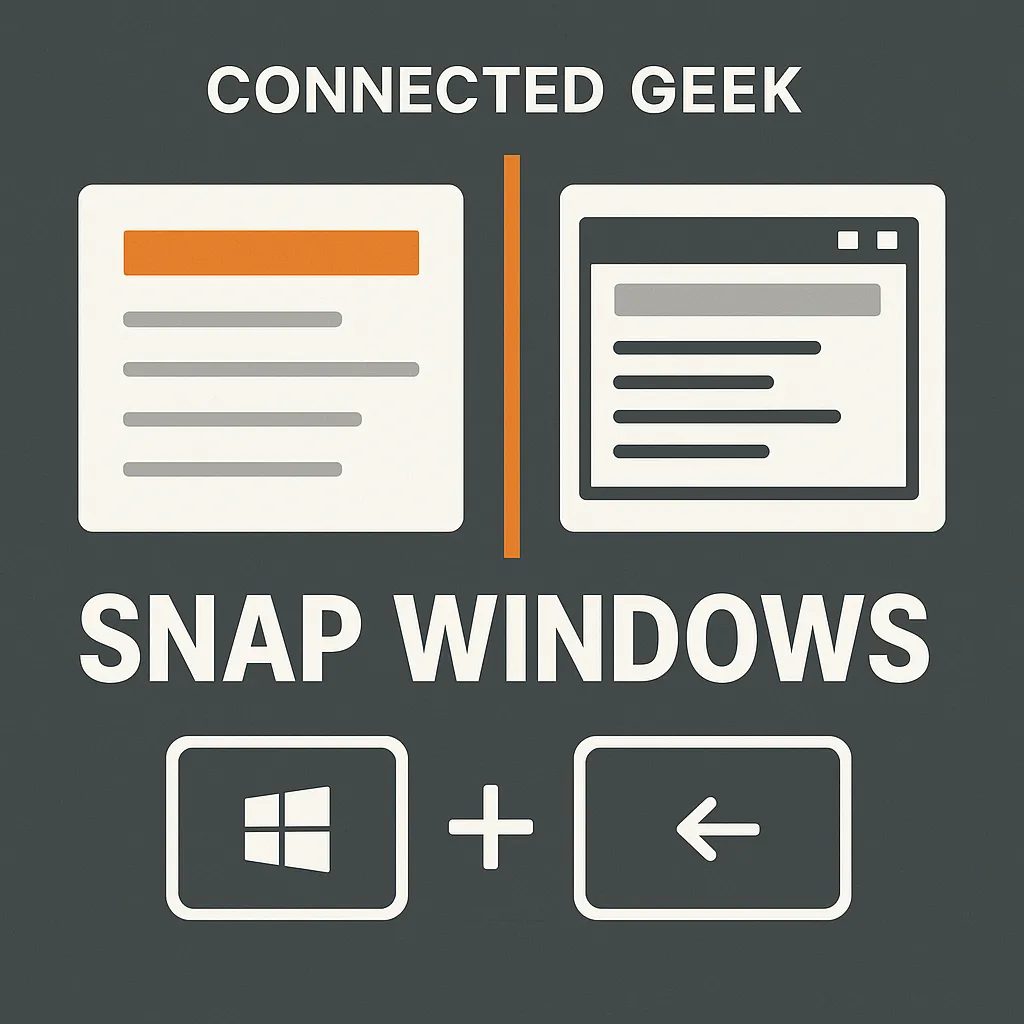
Snap Windows in Windows 11 with Win+Arrow Shortcuts
Windows 11, Productivity, Keyboard Shortcuts
Snap Windows in Windows 11 with Win+Arrow Shortcuts (No Mouse Needed!)
Want to multitask faster in Windows 11 without constantly dragging windows around with your mouse? With a few simple keyboard shortcuts, you can snap windows into place, maximize them, or tuck them out of the way in seconds. In this ConnectedGeek guide, you will learn how to use Win+Arrow shortcuts and Snap Layouts together for a smooth, mouse‑free workflow that keeps you focused on what matters.
Why Snapping Windows with Your Keyboard Feels So Good
When you are juggling a browser, email, chat, and maybe a document or two, constantly resizing and dragging windows gets old fast. Using keyboard shortcuts to snap windows in Windows 11 keeps your hands on the keyboard and your attention on your work instead of on window borders. It is quicker, more precise, and surprisingly satisfying once it becomes a habit.
The less you touch the mouse, the more momentum you keep. Once snapping becomes second nature, you will notice fewer interruptions in your thought process and smoother transitions between tasks.
Win+Left / Win+Right: Snap to Half the Screen
The core of snapping in Windows 11 is the Win+Arrow combination. To instantly move the active window to one side of your screen:
- Press Win+Left to snap the window to the left half of the screen.
- Press Win+Right to snap the window to the right half of the screen.
Try this with a browser on one side and a document or notes app on the other. You get an instant side‑by‑side view that is perfect for research, comparison shopping, or following a tutorial while you work.
“If you regularly work with two apps at once, Win+Left and Win+Right are the fastest way to reclaim your screen and your sanity.”
Once a window is snapped to one side, Windows 11 will often suggest other open apps to fill the remaining space. You can still click them with the mouse, but you can also use Alt+Tab to switch apps and then snap them into place with another Win+Arrow move.
Win+Up: Maximize in a Flash
Need more space for one window? Instead of hunting for the maximize button, just use Win+Up:
- With any window active, press Win+Up to maximize it to full screen.
This is especially handy when you are reading a long article, watching a video, or working in a complex app like a spreadsheet where every pixel counts. One quick key press and you are fully focused on a single window, with distractions pushed out of sight.
Win+Down: Restore or Minimize Without the Mouse
The Win+Down shortcut gives you quick control when you want to back out of full screen or clear your view:
- If a window is maximized, press Win+Down once to restore it to its previous size.
- Press Win+Down again to minimize it to the taskbar.
Think of Win+Up and Win+Down as your quick zoom in and zoom out for any window, no mouse required. With just a couple of taps, you can bring a window front and center, then tuck it away when you are finished.
Combine Win+Arrow with Snap Layouts for Multi‑Window Setups
Windows 11 adds Snap Layouts, which let you arrange three or four windows in neat grids. You can trigger Snap Layouts by hovering over the maximize button with your mouse, but you can also blend them with your Win+Arrow moves for even faster multitasking.
Here is a simple workflow to try:
- Use Win+Left to snap your main window to the left half.
- Windows 11 will show suggested apps on the right. Click one, then hover over its maximize button to pick a Snap Layout with two or three smaller windows on that side.
- Once everything is in place, use Win+Left, Win+Right, Win+Up, and Win+Down to quickly shuffle focus and adjust each window without breaking your flow.
With a little practice, you can build instant multi‑window setups for studying, remote work, coding, or streaming and chatting at the same time. The key is to let Snap Layouts handle the grid while you rely on Win+Arrow shortcuts to move, resize, and refocus windows in seconds.
Bring It All Together
To recap, remember this ConnectedGeek cheat sheet: Win+Left and Win+Right snap windows to half the screen, Win+Up maximizes, and Win+Down restores then minimizes. Combine these keyboard shortcuts with Windows 11 Snap Layouts and you will be multitasking like a pro, with less clutter and fewer clicks.
Pick one shortcut—Win+Left or Win+Right—and start using it today. Once that feels natural, layer in Win+Up and Win+Down, then experiment with Snap Layouts. In just a few days, snapping windows will feel less like a trick and more like your default way of working in Windows 11.
