Resize Desktop Icons in Windows 11: Easy Tips & Tricks
Windows 11, Desktop Tips, Personalization
How to Resize Desktop Icons in Windows 11 (Including a Hidden Trick)
If your Windows 11 desktop icons look too tiny to read or so huge that they crowd your screen, you are not stuck with them. Windows 11 gives you a couple of quick, friendly ways to resize desktop icons so your workspace feels just right. Whether you are on a big 4K monitor, a compact laptop, or a touchscreen device, a few simple tweaks can make everything easier on your eyes and more comfortable to use.
The Classic Way: Right‑Click → View → Small, Medium, or Large Icons
The most straightforward method to resize desktop icons in Windows 11 is built right into the desktop menu. It only takes a couple of clicks and is perfect if you want a simple, set‑and‑forget option.
- Right‑click an empty area on your desktop. Make sure you are not clicking on an icon or shortcut, just a blank space.
- In the context menu that appears, hover your mouse over View. A side menu will open.
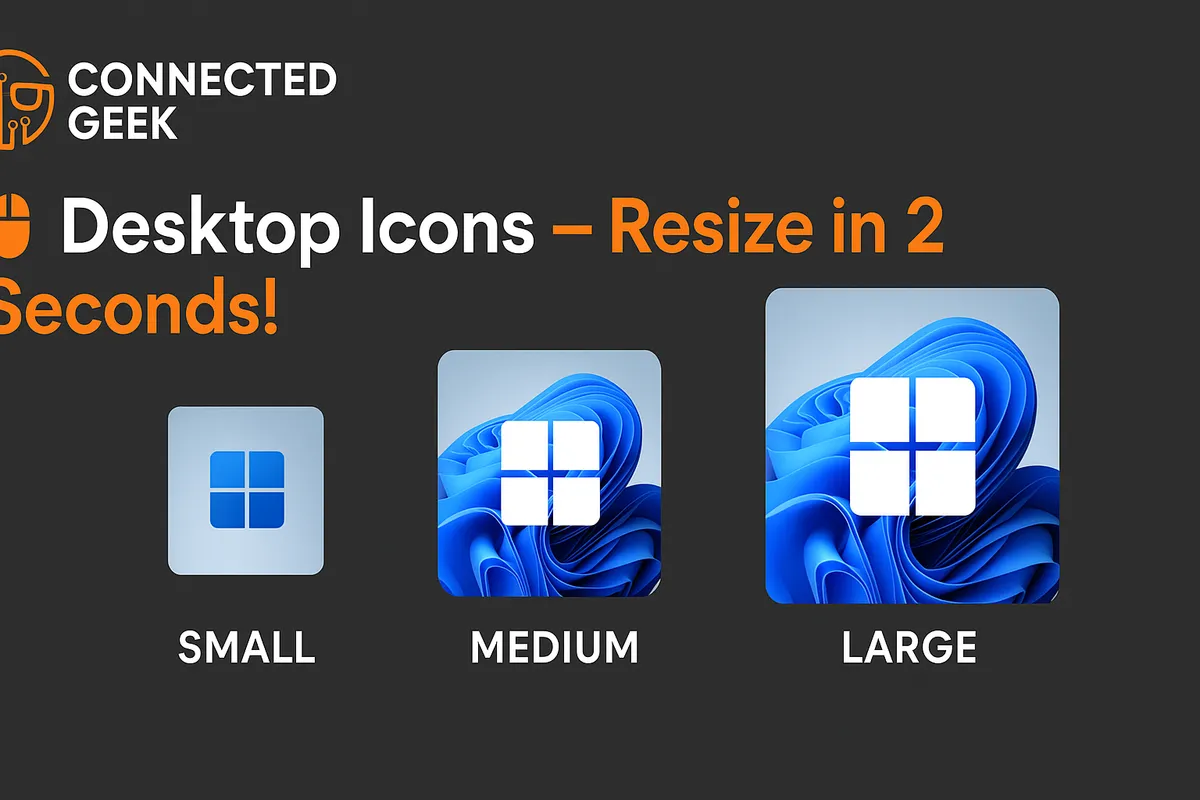
- Choose one of the three options: Large icons, Medium icons, or Small icons.
Windows will instantly apply your selection, and all desktop icons will jump to the new size. Medium icons is the default and works well for most people, but if you are sitting farther from your screen or have vision difficulties, Large icons can make everything much easier to spot. On the other hand, if you like a clean, minimalist desktop with lots of space, Small icons help keep things tidy.
The Hidden Trick: Hold Ctrl and Scroll to Resize Icons Live
The three preset sizes are handy, but what if you want something in between? That is where a lesser‑known, but very friendly, shortcut comes in. You can hold the Ctrl key while scrolling your mouse wheel on the desktop to resize icons live, with much finer control.
- Click on an empty part of your desktop to make sure it is active.
- Press and hold the Ctrl key on your keyboard.
- While holding Ctrl, scroll your mouse wheel up to make icons larger, or scroll down to make them smaller.
As you scroll, you will see the icons resize in real time, almost like zooming in and out. You are not limited to just three sizes; you can fine‑tune the icons until they look exactly the way you want. Release the Ctrl key when you are happy with the result, and Windows will remember that size for your desktop.
Why This Matters on Touchscreens and High‑Resolution Displays
These resizing tricks are especially helpful if you use touchscreens or high‑resolution displays. On a 4K or high‑DPI monitor, icons can look surprisingly small, even when everything is technically “sharp.” Making your icons larger means you are not squinting to find the Recycle Bin or your favorite apps, and it is easier to distinguish one shortcut from another at a glance.
On a touchscreen laptop or tablet, slightly bigger icons make tapping far more comfortable. You are less likely to miss your target or accidentally open the wrong program when each icon has a bit more breathing room. If you often switch between using a mouse and touch, the Ctrl + scroll method is fantastic for quickly adjusting your desktop to match how you are using your device at that moment.
With these simple options—right‑clicking the desktop and choosing a size from View, or holding Ctrl while scrolling your mouse wheel—you can tailor your Windows 11 desktop to your eyes, your screen, and your style. A few seconds of tweaking can make your daily computer use noticeably more comfortable and enjoyable.
SEO Title: How to Resize Desktop Icons in Windows 11 (Fast & Easy Guide)
Meta Description: Learn how to resize desktop icons in Windows 11 using the View menu and the hidden Ctrl + mouse wheel trick. Perfect for touchscreens and high‑resolution displays.
Focus Keywords: resize desktop icons Windows 11, change icon size Windows 11, Windows 11 desktop icons, Ctrl scroll desktop icons
