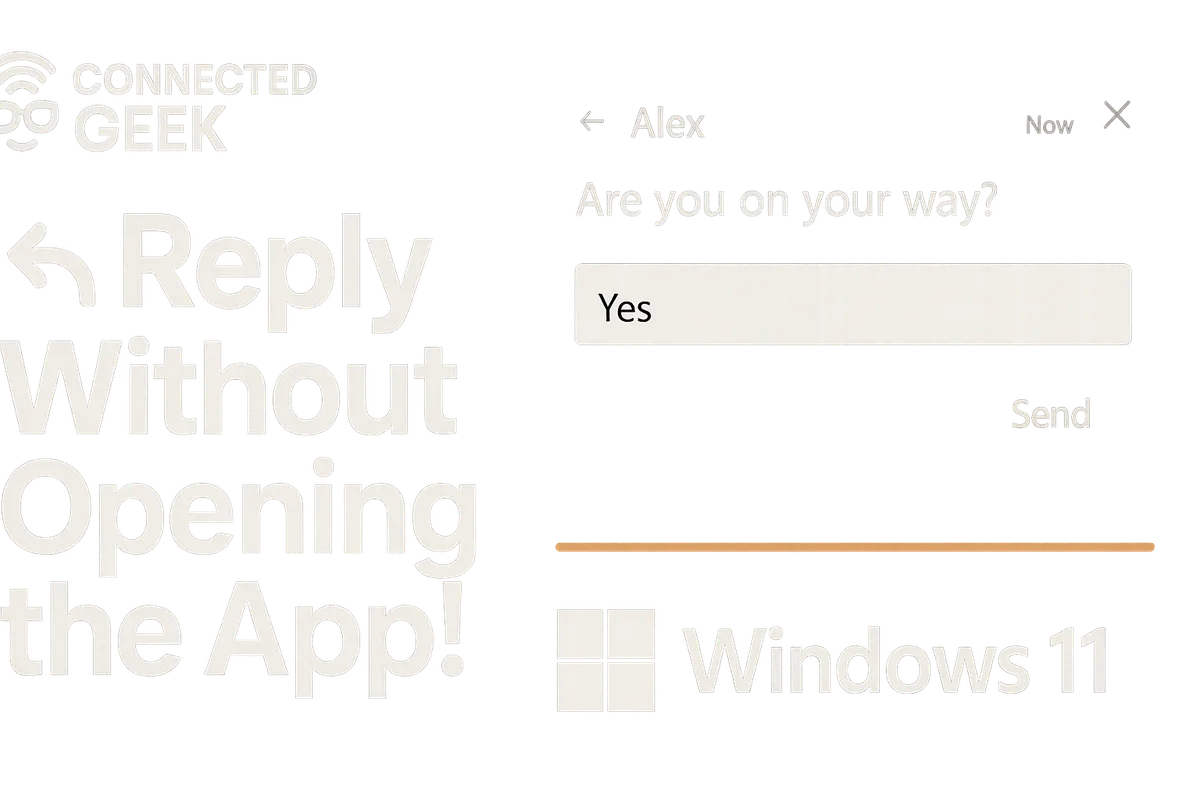
Reply to Messages from Notifications in Windows 11
Windows 11, Productivity, Notifications
How to Reply to Messages Right from Notification Banners in Windows 11
Windows 11 quietly includes a small but mighty feature that can save you dozens of clicks every day: replying to messages directly from notification banners without ever leaving the app you are working in. If you want to stay in flow, avoid window-juggling, and still keep up with chats and email, this built-in shortcut is well worth using.
Meet Actionable Notification Banners
In Windows 11, many apps can show actionable notifications — those pop-up banners that slide in from the bottom-right corner of your screen. Instead of just displaying a message and a dismiss button, these banners often include a small text box so you can respond on the spot. The magic is that you do not have to switch apps or bring a new window to the front; you simply interact with the banner itself and then carry on with what you were doing.
Step 1: Click the Reply Field in the Pop-Up Banner
When a new message arrives, look for the familiar notification that fades in near the taskbar. If the app supports inline replies, you will see a reply field or a button such as Reply or Quick reply right inside the banner. Move your mouse over the notification and click directly into that field. The banner will remain anchored on top of your current app, so you can respond without bringing the messaging app to the foreground or digging through open windows.
Step 2: Type and Send While Staying in Your Current App
Once the cursor is in the reply box, just start typing your message as you normally would. You are still technically inside your current app — maybe a browser, a document, or a design tool — but the banner acts like a mini chat window floating above it. When you are happy with your reply, press Enter or click the Send button on the banner (the exact behavior can vary slightly by app). The notification will send your response, disappear, and you will remain exactly where you were, with your work front and center the entire time.
This simple flow keeps your brain focused on a single task. Instead of breaking concentration to open another window, scan a conversation, and then find your way back, you handle the interruption in just a few keystrokes and move on. It is a gentle nudge, not a full detour.
Which Apps Support Inline Replies in Windows 11?
Not every app uses actionable notifications, but many popular ones do. On Windows 11, you can typically reply directly from banners in:
- Mail (the built-in Windows Mail app) for quickly answering emails without opening a full message window.
- Microsoft Teams for sending short chat responses or acknowledging messages during meetings or focused work.
- Other communication apps that integrate with Windows 11 notifications, such as some messaging and collaboration tools from the Microsoft Store and selected third-party desktop apps.
If you are not sure whether an app supports inline replies, wait for its next notification and check for a reply box or quick action buttons. You can also open Settings > System > Notifications to confirm that banners are enabled for that app, so you actually see the pop-up instead of only a badge in the notification center.
Stay in Flow, Stay Productive
The biggest benefit of replying from notification banners is how well it supports your focus. Every time you switch apps, your brain pays a small “transition tax” to remember what you were doing and rebuild context. Over a full workday, those tiny interruptions add up. Quick replies let you acknowledge important messages, answer simple questions, and keep conversations moving without sacrificing your momentum.
Try making it a habit: when a notification appears, decide whether it deserves a fast, one-line answer. If it does, use the banner’s reply field, send, and return your attention to your main task. If it needs more thought, dismiss the banner and come back to it later from the notification center or the app itself. This friendly balance keeps you responsive without letting every message pull you out of your productive groove.
SEO Title: Reply to Messages from Windows 11 Notifications Without Leaving Your App
Meta Description: Learn how to reply to messages directly from Windows 11 notification banners in Mail, Teams, and other apps so you can stay in flow and boost productivity without switching windows.
