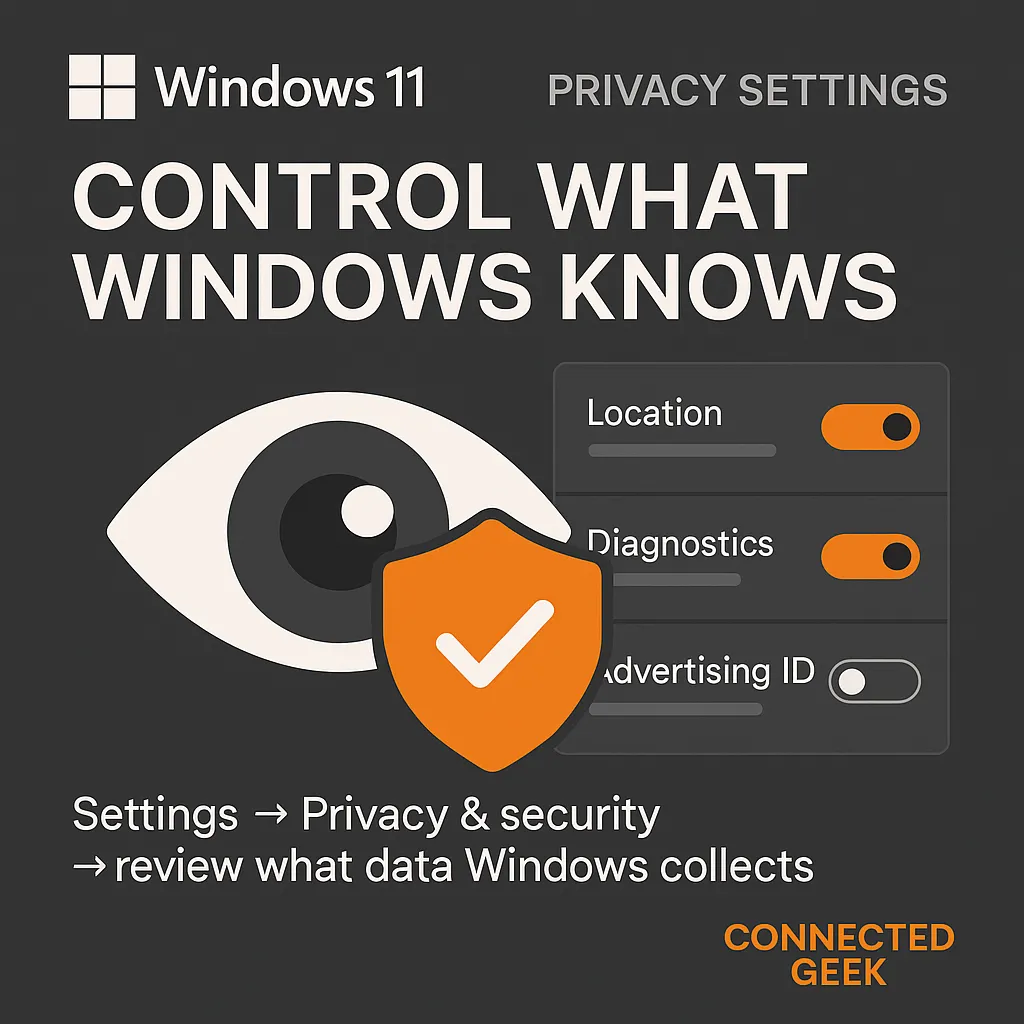
Optimize Privacy Settings in Windows 11
Windows 11, Privacy, Security, Permissions
SEO Title: How to Manage Privacy Settings in Windows 11 for Better Security
Meta Description: Learn how to manage Windows 11 privacy settings, control app access to your location, microphone, camera, and notifications, and protect your personal data in a few simple steps.
Meta Keywords: Windows 11 privacy settings, manage app permissions, Windows 11 location access, microphone camera permissions, notification privacy, Windows security tips
Managing Privacy Settings in Windows 11: A Friendly Step‑by‑Step Guide
Windows 11 comes with a fresh look, but behind the scenes it also collects and shares a lot of information with apps and services. The good news is that you stay in control. By spending a few minutes in the privacy settings, you can decide exactly which apps get access to sensitive features like your location, microphone, camera, and notifications.
Getting to the Privacy & Security Settings
Let’s start by opening the right place in Windows 11. Click the Start button on your taskbar, then select Settings (the little gear icon). In the left‑hand menu, choose Privacy & security. This section is your control center for what data Windows and your apps can use. You will see different categories like Location, Camera, Microphone, and Notifications, each with its own set of options you can adjust.
Controlling Which Apps Can Access Your Location
In Privacy & security, click Location. At the top, you can turn location services on or off entirely for the device. Below that, you will see a list of apps that have requested location access, each with its own toggle. Ask yourself, “Does this app really need to know where I am?” Maps or weather apps usually do, but a random game probably does not. Switch off location for any app that does not genuinely benefit from it. This keeps your movements more private and reduces the amount of data that can be used to build a profile about you.
Managing Microphone Permissions Safely
Next, go back to Privacy & security and choose Microphone. Here you can control whether apps are allowed to listen through your microphone. First, make sure the main microphone access switch is set the way you want. Then review the app list. Communication tools like Teams, Zoom, or Skype clearly need microphone access, but many other apps do not. If you see something unfamiliar, or an app you rarely use, feel free to turn its microphone permission off. This simple step greatly reduces the risk of apps listening when you are not expecting it.
Choosing Which Apps Can Use Your Camera
While you are there, select Camera in the same menu. The layout is similar: a master switch at the top and individual toggles for each app below. Video calling apps and the built‑in Camera app obviously need access, but many others do not. Turning off camera access for unnecessary apps helps prevent accidental video sharing and reduces the risk of someone abusing that permission. For extra peace of mind, some people even keep the camera covered when not in use and only allow access to a short list of trusted apps.
Taming Notification Access and Distractions
Notifications are not as obviously sensitive as a microphone or camera, but they still affect your privacy and focus. In Settings > System > Notifications and through related options under Privacy & security, you can manage which apps are allowed to show alerts. Turn off notifications for apps that constantly pop up with promotions or unnecessary updates. This not only protects you from potentially exposing private information on your screen around others, but also creates a calmer, less distracting workspace.
Why Revoking Unnecessary Permissions Really Matters
Every permission you grant is a doorway into your personal life. Location reveals where you live, work, and relax. Microphone and camera access can expose private conversations and surroundings. Notifications can reveal messages or account activity on‑screen. When you revoke permissions that apps do not truly need, you shrink your digital footprint and make it harder for companies, advertisers, or attackers to collect and misuse your data. Think of it as tidying your home: you are simply deciding who you invite in and what rooms they can enter. Reviewing these Windows 11 settings regularly keeps your device friendlier, safer, and more truly yours.
