Microsoft Word for Beginners: Save Your Work with Confidence
Yesterday we toured the Microsoft Word workspace. Today's lesson is a habit that protects everything else you do in Word: saving. A beautifully written proposal is worth very little if the file is lost, saved in the wrong place, or named something nobody can recognize a month later.
Saving sounds simple, and the basic action is. The skill is doing it on purpose, with a clear name and a folder you can find. This lesson covers the Ctrl+S shortcut, what AutoSave is and when it may be available, and how Save As lets you choose a different name or location.
The lesson in short
A Word document is easier to return to when it has a clear name and a folder you can find. Today’s lesson covers saving with Ctrl+S, when AutoSave may be available for OneDrive files, and using Save As to choose another name or location. Let’s make saving part of the writing habit.
Step by step
Make a small change to your document. Type a sentence or two so there is something worth keeping.
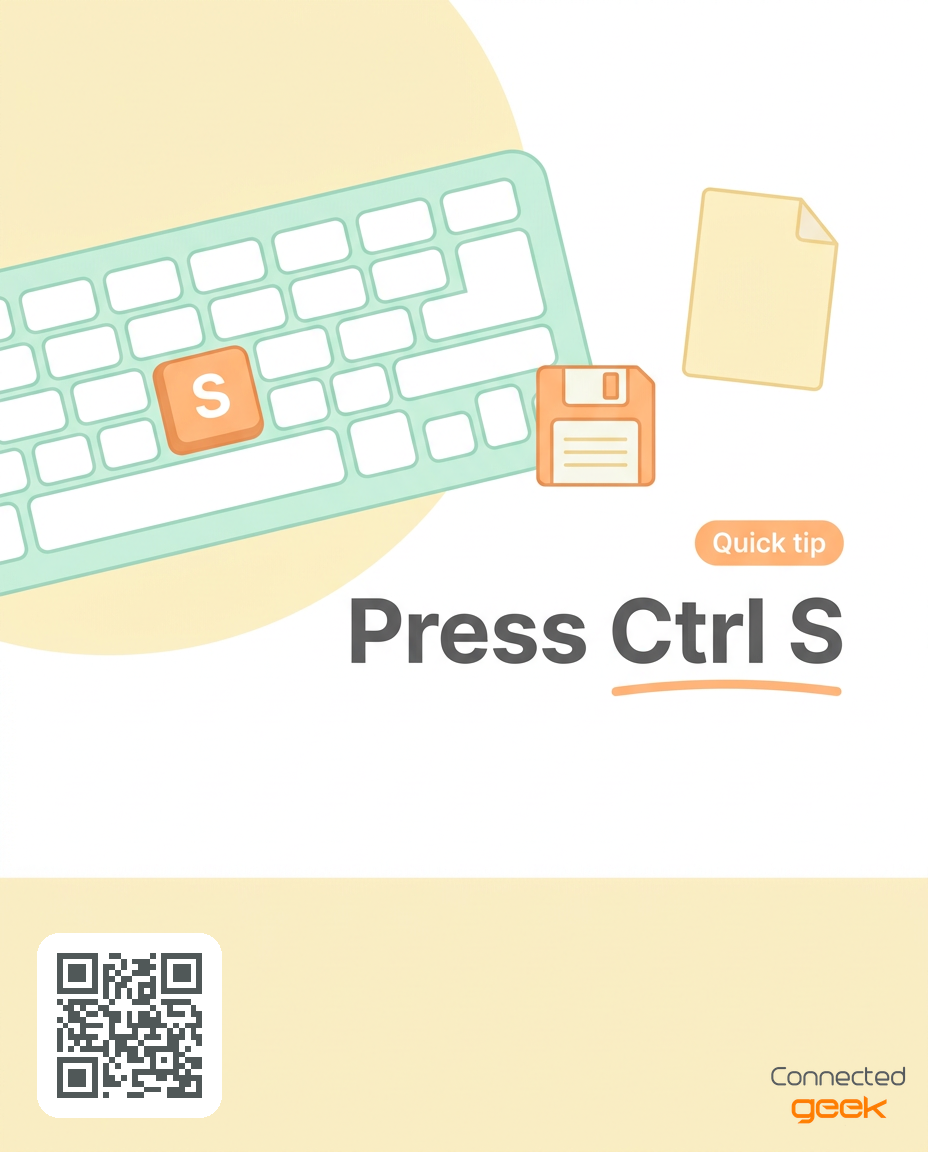
Press Ctrl+S. Hold the Ctrl key and tap S. This is the keyboard shortcut for Save.
If the document is brand new, choose a name. Word first asks you to choose a name and a location. Type a clear, descriptive name rather than accepting a generic one.
Choose a folder you will remember. Pick a location that makes sense for the project, such as a client or department folder, and then confirm the save.
Look at the title bar. After saving, check the top of the window. It shows the name of the open document, which confirms the file now has the name you chose.
Press Ctrl+S again after later edits. Once the name and location are set, Ctrl+S saves your changes to the same place without asking again.
Use Save As when you need something different. Open the File tab and choose Save As to pick a new name or location. Pressing F12 also opens the Save As window.
Why saving deserves its own lesson
Many lost documents are not lost to computer failures. They are lost to small habits, such as working for an hour in a file that was never saved, or saving to a folder that nobody can find later. A thirty-second routine prevents nearly all of that.
The best saving habit has two parts. First, save often, especially after a meaningful edit. Second, make sure the file has a name and a home that your future self will understand.
Saving a new document for the first time
A new document starts with a generic name, and Word does not know where you want to keep it. The first time you press Ctrl+S, Word asks for those two details. Take the extra moment to choose both thoughtfully, because later saves reuse your choices.
A good name says what the document is and, if helpful, when it is from. A name such as Smith Landscaping Quote June is far easier to find later than Document1. Avoid piling up names like final or final2, which become confusing quickly.
Save versus Save As, and where AutoSave fits in
Save and Save As do different jobs. Save, which is Ctrl+S, updates the document where it already lives. Save As lets you decide where the document belongs or what it is called, which is useful for making a copy under a new name before you change a lot.
AutoSave may be available for documents stored in OneDrive with a Microsoft 365 account. When it is on, Word saves changes in the background as you work. Files kept only on your computer may not show the AutoSave switch, so do not assume every document is covered.
Even with AutoSave, Ctrl+S remains a good habit. It takes a fraction of a second, works the same way for every document, and gives you the reassurance that your latest edit is safe.
A real-world example
Suppose you are preparing a service agreement for a new client. You type the first page, press Ctrl+S, and name the file with the client name and the document type. You save it in the client's folder. For the rest of the afternoon you simply tap Ctrl+S after each section. If the power flickers, you lose almost nothing.
Common mistakes and how to fix them
Using names you will not recognize later. Clear file names make it easier to return to the right version. Include the project or client and the type of document.
Never checking the title bar. A quick glance after saving confirms the name. If it still shows a generic name, the document has not been saved the way you intended.
Assuming AutoSave is always on. AutoSave may not appear for files stored only on your computer. Keep using Ctrl+S so you are covered either way.
Quick tip of the day
Quick Word reminder: press Ctrl+S to save your latest changes. For a new file, choose its name and location when prompted; later, Ctrl+S saves it there. Try it before switching tasks.
Make Ctrl+S your reflex before you switch to another task, answer the phone or step away from your desk. It takes a second and removes a lot of worry.
Frequently asked questions
What does Ctrl+S do in Microsoft Word?
It saves your latest changes. For a new document it first asks you to choose a name and a location. After that, it saves to the same place each time.
What is the difference between Save and Save As?
Save updates the existing file. Save As lets you choose a different name or location, which is handy for making a copy before major edits.
What is AutoSave and do I have it?
AutoSave saves changes in the background. It may be available for documents stored in OneDrive with a Microsoft 365 account, and it may not appear for files kept only on your computer.
Can I recover a document I forgot to save?
Sometimes. Open the File tab, choose Info, then Manage Document, and look for the option to recover unsaved documents. It is a safety net, not a plan, so keep saving as you work.
How do I know my document is saved?
Check the title bar for the document name, and press Ctrl+S after your latest edit. A real name instead of a generic one shows the file has been named, and Ctrl+S keeps the newest changes safe.
Key takeaways
Press Ctrl+S to save, and for a new document choose a clear name and a folder you can find.
After the first save, Ctrl+S saves to the same place without asking again.
Check the title bar to confirm the document name.
Use Save As, or press F12, when you want a different name or location.
AutoSave may help for OneDrive files, but Ctrl+S is still a habit worth keeping.
Try it now
Open a document in Microsoft Word, make a small edit and press Ctrl+S. If the document is new, choose a clear name and a folder you will remember, then look at the title bar to confirm the name. Finish by trying Save As to create a copy with a slightly different name.
Where to go from here
Clear names and an easy-to-find folder turn saving into a habit you can trust. Tomorrow we move on to formatting text, so you can make important words stand out without rewriting anything.
More lessons and tips are waiting at https://connectedgeek.net, and each day's lesson also arrives by email and on our social channels.
Need help? Call 248-648-1717 or email [email protected].