Microsoft Word for Beginners: Bulleted and Numbered Lists
A block of notes can hide what matters. The same information, set out as a list, becomes something a reader can take in at a glance. Lists work because each item gets its own line, and the eye can move down the page without effort.
Today's Microsoft Word lesson covers bullets and numbers: when to use each, how to start a list, how to turn lines you have already typed into a list, and how to make a clear sub-item. We finish with a small trick for ending a list neatly.
The lesson in short
Turn scattered notes into a list people can scan. In Word, use bullets for related points and numbering when order matters; keep each item focused and consistent. Today’s lesson explores starting a list, formatting existing lines, and making a clear sub-item.
Step by step
Decide which kind of list you need. Choose bullets for related points and numbering for steps that must be followed in order.
Open the Home tab and find the Paragraph group. The Bullets and Numbering buttons sit side by side there.
Click Bullets or Numbering to start a list. Word places the first marker, and each time you press Enter a new item begins.
Turn existing lines into a list. Select lines you have already typed, then click Bullets or Numbering. Each line becomes a list item.
Keep every item focused. Give each item one idea and use similar wording so the list is easy to read aloud.
Create a sub-level when an item has details. Click at the start of the item and press Tab to move it into a sub-level. Press Shift and Tab together to bring it back.
End the list neatly. Press Enter twice after the final item to return to a regular paragraph.
Bullets or numbers: how to choose
The choice is simple. If the order does not matter, such as a list of supplies to bring, use bullets. If the order does matter, such as the steps to reset a router, use numbers so the reader knows what comes first.
A numbered list also gives people a way to refer to a step. Saying go to step four is much easier than describing where something sits in a paragraph.
Starting a list and formatting lines you have already typed
You can begin a list before you type or after. Many people type their notes first, one per line, and then select all the lines and click Bullets or Numbering. Word turns each line into an item in one move.
Word can also start a list as you type. A line that begins with a number and a period, followed by a space, often becomes a numbered list when you press Enter. This depends on your settings, so use the buttons if it does not happen.
Sub-levels and keeping numbers in order
A sub-level is a smaller list nested under an item. It is useful when one step needs a few details. Click at the start of the item and press Tab to move it in, and press Shift and Tab together to bring it back out. The Increase Indent and Decrease Indent buttons in the Paragraph group do the same job.
After you move items around, check the numbering. If a number looks wrong, right-click it and look for the options to restart at 1 or continue numbering. Make sure each number still matches its instruction.
A real-world example
Suppose you are writing instructions for opening your shop. The tasks must happen in order, so you choose numbering: unlock the door, turn on the lights, count the register, and open the sign. Under count the register, a sub-level lists the steps for the cash drawer. A new employee can follow it with no questions.
Writing items that read well
A good list is easy to read aloud. Start each item the same way, for example with a verb, and keep the length similar. Compare unlock the door, turn on the lights and count the register with a mix of short phrases and long sentences. The first version reads smoothly because the items match.
Aim for a handful of items rather than a very long list. If you find yourself writing more than eight or nine, consider splitting the list under two small headings, which also connects nicely with the styles and headings you learned yesterday.
Common mistakes and how to fix them
Forgetting to check the numbering after you move an item. Make sure each number still matches its instruction, and use the restart or continue options if one looks off.
Writing long, uneven items. Keep each item focused and consistent in wording. If an item needs a paragraph, it may not belong in a list.
Using numbers when order does not matter. Numbers suggest a sequence. Use bullets for related points that can be read in any order.
Leaving an empty bullet at the end. Press Enter twice to finish a list, or press Backspace at the start of an empty bullet to remove it.
Quick tip of the day
Word list tip: when you reach the end, press Enter twice to return to a regular paragraph. If an empty bullet has already appeared, press Backspace at its start to remove the marker.
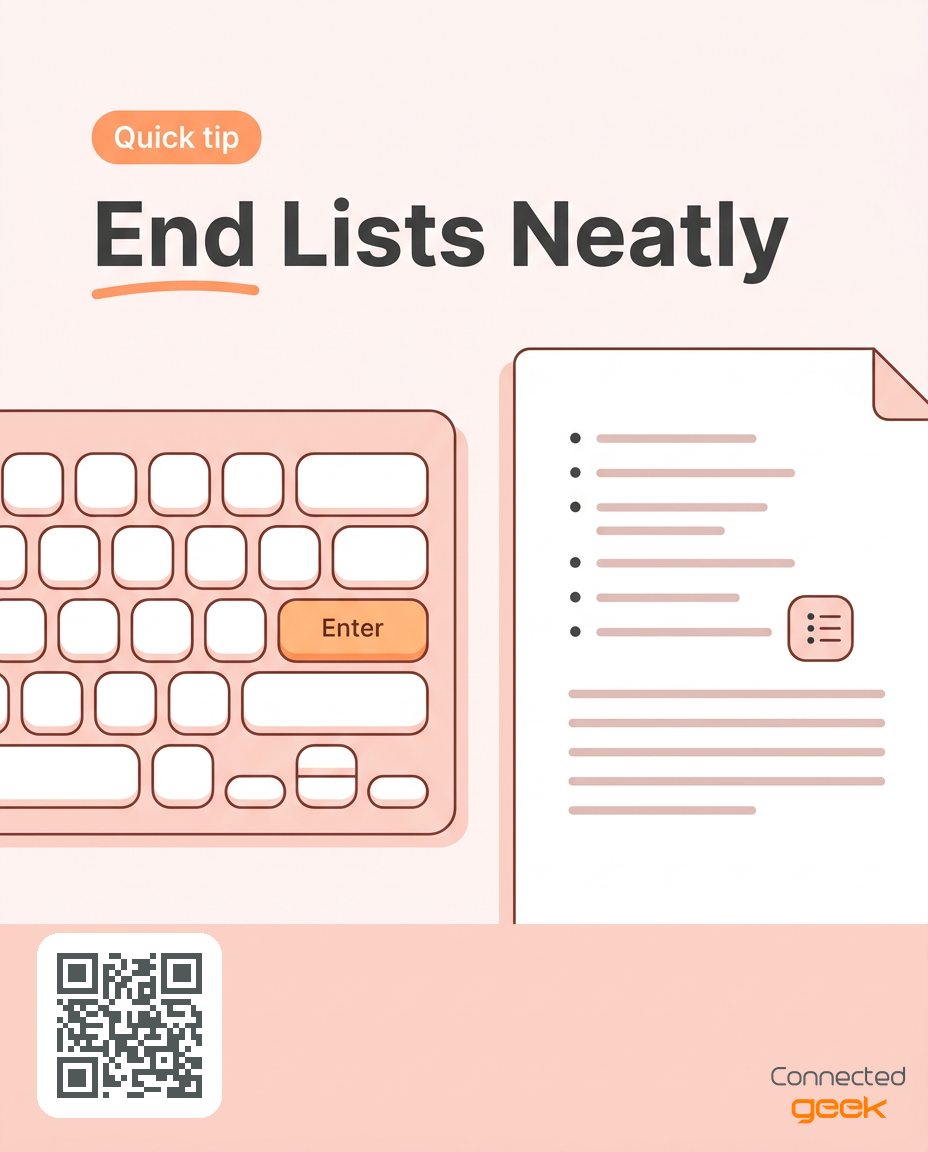
A tidy list also needs a tidy ending. If you press Enter once, Word starts a new item. Pressing Enter a second time on that empty item tells Word you are finished.
Frequently asked questions
How do I start a bulleted list in Microsoft Word?
Click Bullets in the Paragraph group on the Home tab, type your first item and press Enter for each new item.
How do I turn lines I already typed into a list?
Select the lines and click Bullets or Numbering. Each line becomes a list item.
How do I make a sub-item?
Click at the start of the item and press Tab to move it into a sub-level. Press Shift and Tab together to bring it back.
How do I stop a list?
Press Enter twice after the last item. If an empty bullet already appeared, press Backspace at the start of that line.
Why are my numbers wrong after moving an item?
Check each number against its instruction. Right-click the number to restart at 1 or continue numbering if needed.
Key takeaways
Use bullets for related points and numbers for steps that must happen in order.
Select lines you have already typed and click Bullets or Numbering to convert them.
Press Tab for a sub-level and Shift with Tab to bring an item back.
Press Enter twice after the last item to return to a regular paragraph.
Always check the numbering after moving items.
Try it now
In Microsoft Word, type a few related points and turn them into a bulleted list, then type a few steps and turn them into a numbered list. Try moving one item into a sub-level and back again, and finish by pressing Enter twice to end each list.
Where to go from here
Small choices in wording and structure make a list clearer without adding more content. Tomorrow we add tables and pictures, which help you present information that does not fit neatly into a list.
More lessons and tips are at https://connectedgeek.net, and each day's lesson also arrives by email and on our social channels.
Need help? Call 248-648-1717 or email [email protected].
