Microsoft PowerPoint for Beginners: Transitions and Animations
Motion can guide attention, but too much movement can distract people from the information they came to see. In Microsoft PowerPoint, transitions control how one slide changes to the next, while animations affect objects on a slide. Learn the difference, preview each choice, and use timing that feels comfortable. These directions describe Microsoft PowerPoint for Microsoft 365 on Windows; steps may look slightly different in other versions.
The lesson in short.
Select a slide and use the Transitions tab to choose how it arrives. Select an object and use Animations when movement helps explain order or direct attention. Preview effects, adjust duration and start timing when needed, and keep a consistent, restrained style so motion supports the message rather than competing with it.
Step by step
Select a slide thumbnail in the pane and open the Transitions tab. Choose a simple effect from the gallery and check the preview. A transition belongs to the selected slide and controls how it appears after the slide before it. Select a different slide if you intend to set a different transition there.
Use Preview on the Transitions tab to watch the selected slide enter. If the motion seems distracting, choose a quieter option or select None. Apply the same transition across most of a short deck so viewers can focus on the content instead of reacting to a new effect on every slide.
With the slide selected, find Duration on the Transitions tab. This setting controls how long the transition effect takes, not how long the slide stays on screen. Adjust it modestly if the change feels too slow or abrupt, then preview again to judge the pacing.
To animate an object, return to the slide and select a text box, picture, or shape. Open Animations and choose a straightforward effect only if it helps the audience understand the order of ideas or notice something important. The selected object, not the entire slide, receives that animation.
Select Preview to see the animation. If the slide has multiple animated objects, use the animation controls or pane to inspect their order. Check when each one starts, such as On Click, With Previous, or After Previous, and keep the sequence easy to follow.
If an animation needs more or less time, use its Duration setting on the Animations tab. Start with a simple duration and preview the result. Timing should make a point clear without making the audience wait; use a delay only when there is a reason for the object to begin later.
Review the full deck in Slide Show view. Keep one transition style throughout and use one restrained animation style where it adds meaning. Remove motion that does not help explain the content, and confirm that the sequence works at the pace you intend.
Why it matters
A transition is a change between slides, and an animation is an effect applied to an object on a slide. Keeping those jobs separate helps you select the correct controls. A consistent transition can make the deck feel connected, while a purposeful animation can reveal steps or direct attention to one part of a diagram.
Timing changes the feel of motion. A long transition can slow the presentation, and an object that appears before its explanation can confuse people. Previewing gives you a chance to notice these problems before presenting. If an effect does not improve understanding, a still slide is often the clearest choice.
Where to find it
In PowerPoint, select a slide thumbnail and open Transitions to choose the slide’s entrance effect. Preview and Duration are available on that tab, and slide advance settings may also appear there. Select Apply to All only when you want the same transition applied throughout the presentation.
Select an object on the slide and open Animations to choose an object effect. Preview and Duration are available there, and the start setting determines whether an effect begins on a click, with another effect, or after one. The Animation Pane can help you inspect the order when a slide has more than one animated item.
What you will see on screen
The Transitions gallery shows effects you can apply to the selected slide. Preview plays the change so you can judge its speed and direction. Duration is a time value for the effect itself. A selected slide may display a small indicator in the slide pane when a transition or animation has been added.
On the Animations tab, the gallery offers effects for the selected object. Preview shows how it enters, emphasizes, or exits. The timing controls determine how long the effect runs and when it begins. If there are several objects, their order can be reviewed and adjusted so the movement follows your explanation.
A small-business example
A team sharing a project update might use one subtle transition between slides so the audience knows when a new topic begins. A process slide could reveal one stage at a time, helping people follow the sequence. Each effect has a job, so the team chooses motion only where it makes the explanation easier to understand.
Before the meeting, the presenter previews the deck, checks animation order, and removes motion that does not help explain the update.
Common mistakes and how to fix them
Confusing a slide transition with an object animation: transitions control how a slide arrives, while animations affect objects on that slide. Select the slide or the object before choosing the matching tab.
Using a different transition on every slide: changing effects can distract people from the story. Choose one restrained style for the deck and reserve exceptions for a clear purpose.
Treating Duration as the time a slide remains visible: Duration controls how long the effect takes. Review any slide advance timing separately when you want a slide to remain on screen for a set period.
Adding movement without previewing it: an effect may cover text or arrive at an awkward moment. Use Preview, then check the sequence in Slide Show view before presenting.
Animating everything on a slide: constant motion competes with the message. Keep one simple animation style for the few objects that need it, and remove effects that add no information.
Quick tip of the day.
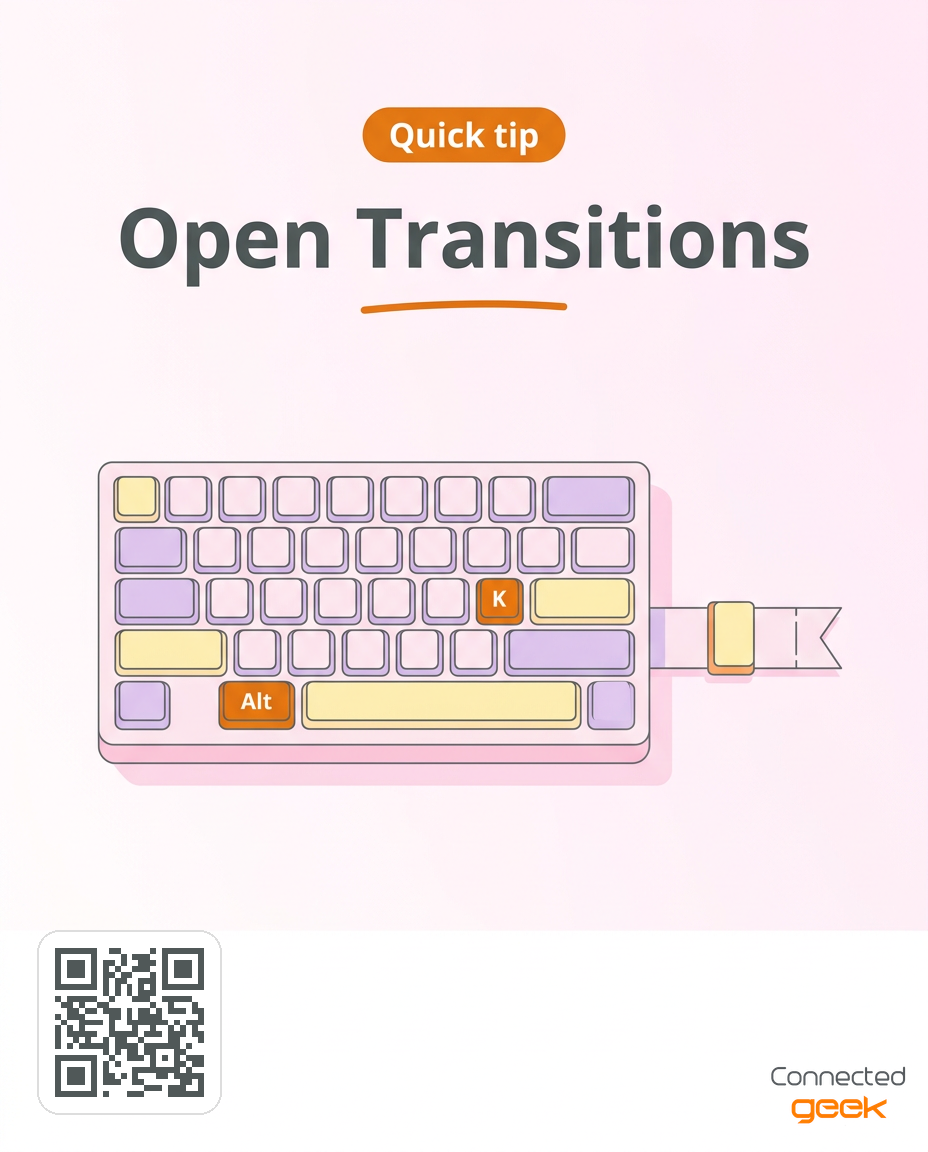
Press Alt to show KeyTips on the ribbon, then press K to open the Transitions tab in the current Windows version. Follow the letters displayed on screen if your setup presents a different sequence. Once the tab is open, choose a subtle effect and use Preview before applying it throughout the deck. The steps may look slightly different in your version.
Frequently asked questions
What is the difference between a transition and an animation?
A transition controls how one slide changes to the next. An animation applies movement or emphasis to an object on a slide. Select a slide for a transition, or select a text box, picture, or shape for an animation.
What does Duration control?
Duration controls how long the transition or animation effect takes to play. It does not decide how long a slide stays on screen. Preview the effect after adjusting its duration to check whether the movement feels comfortable.
How can I make an animation start at the right time?
Use the animation timing controls to choose a start such as On Click, With Previous, or After Previous. Preview the slide and check the order, especially if more than one object is animated. The sequence should match the explanation you plan to give.
Can I use one transition across the whole deck?
Yes. Choose a transition and use Apply to All when you want it on every slide. A consistent effect is a useful starting point for a short presentation. Preview the deck and make a deliberate change only when a different treatment serves a clear purpose.
How do I remove an effect?
Select the slide and choose None on the Transitions tab to remove its transition. For an object, select it and choose None or remove its animation through the animation controls. Preview again to confirm the unwanted movement is gone.
Key takeaways
Transitions control how slides change; animations affect objects on a slide.
Use Preview to check every effect before presenting.
Duration controls the length of an effect, not slide display time.
Check start timing and order when a slide has animations.
Use a consistent transition and motion only when it helps understanding.
Try it now
On a practice deck, select one slide and choose a subtle transition. Preview it, then adjust Duration slightly and preview again. Select one object on a different slide, choose a simple animation, and set its start timing. Review both effects in Slide Show view. If movement does not clarify the content, remove it and keep the slide still.
Transitions can connect slides, and a carefully timed animation can make a sequence easier to follow. Keep the visual style consistent, preview the complete deck, and let the lesson remain more noticeable than the motion. Visit https://connectedgeek.net. Need help? Call 248-648-1717 or email [email protected].
