Microsoft PowerPoint for Beginners: Present and Share
A finished presentation is ready to do more than sit on your computer. In Microsoft PowerPoint, you can run the slide show, use Presenter View to keep notes nearby, save a PDF copy, and share the file or a link. A short rehearsal and a permission check help avoid surprises. These directions describe Microsoft PowerPoint for Microsoft 365 on Windows; steps may look slightly different in other versions.
The lesson in short.
Use Slide Show, then From Beginning to start at the first slide, or From Current Slide to start with the selected slide. Presenter View can show your notes and next slide when a second display is available. Save a PDF through File, then Save As or Export, and review it. Share a link or attach a copy only after checking who can access it.
Step by step
Open your presentation and select the Slide Show tab. Choose From Beginning to start at slide one. The show fills the screen, and you can move through the slides using the keyboard, mouse, or presentation controls available on your setup. Press Esc to leave the show and return to editing.
To rehearse only one section, select the slide you want in the slide pane and choose From Current Slide on the Slide Show tab. The presentation begins with that selected slide rather than returning to the opening slide. Check the selected thumbnail before you start so the show begins where you intend.
If you will use two displays, open the Slide Show tab and check the Presenter View setting. When it is available and enabled, the audience display can show the current slide while your screen shows the current slide, the next slide, and speaker notes. Test the display arrangement before the meeting.
Use Presenter View as a prompt, not as a substitute for rehearsal. Confirm that notes are readable and that the audience sees the slide rather than your presenter controls. If you are using one screen or Presenter View is unavailable, you can still run the ordinary slide show and keep a separate copy of your notes.
To make a PDF, select File and choose Save As or Export, depending on the commands shown. Select PDF as the file type, choose where to save it, and complete the save or export. Keep the presentation file as well if you want to continue editing the slides later.
Open the saved PDF and check each page before sharing it. Look for cut-off text, missing images, unreadable labels, or slides that break across pages unexpectedly. The PDF is convenient for viewing, but it does not preserve the same editing experience as the presentation file.
For an online link, save the presentation to OneDrive or SharePoint and choose Share. Review the access setting and select the people or audience who should be able to open it. Alternatively, attach a reviewed PDF or presentation copy to a message. Confirm the attachment and recipients before sending.
Why it matters
Starting from the right slide makes a rehearsal more useful. From Beginning checks the full story and opening, while From Current Slide lets you repeat one section without navigating through everything before it. Presenter View can keep speaking notes private and help you anticipate what comes next, especially when using a second display.
A PDF gives recipients a convenient version to read, and a link can keep one shared presentation current. A link also has an access setting, so check who can open it before sharing. An attached copy can be easier when recipients need a file, but it may become outdated if you make later edits. Choose a format for the audience and purpose.
Where to find it
In PowerPoint, the Slide Show tab contains From Beginning, From Current Slide, and Presenter View options. The exact controls may depend on the window and display setup. Use the From Beginning and From Current Slide buttons to start the show, and check Presenter View before connecting to a meeting display.
Use File, then Save As or Export to create a PDF. If the presentation is stored online, use Share to create or manage an access link. If you choose an attachment instead, use your usual email or messaging method and attach the copy you intend recipients to receive.
What you will see on screen
In Slide Show view, the slide fills the display and the editing ribbon is not in front of the audience. Presenter View, when available, places presenter information on one display and the audience slide on another. You may see a current slide, a preview of the next one, notes, and navigation controls on your own screen.
A PDF shows the exported pages. Review its layout and labels, then confirm the sharing dialog shows the intended access and file version.
A small-business example
A small team preparing a customer update might rehearse the full deck from the beginning, then repeat the project summary from its selected slide. The presenter checks Presenter View on the meeting-room display before people arrive, making sure private notes appear only on the presenter’s screen and the audience sees the intended slide.
After the meeting, the team reviews a PDF. Colleagues use a permission-checked link for the latest deck, while others receive the reviewed fixed copy.
Common mistakes and how to fix them
Starting from the wrong slide: select the slide thumbnail before choosing From Current Slide, or use From Beginning when the audience should see the opening. Check the start point before presenting.
Assuming Presenter View works without testing: check the second display in advance and keep a simple fallback ready.
Sending a PDF without opening it: conversion can change how an item fits on a page. Open the exported file and review every slide before attaching or sharing it.
Treating every shared link as private: link permissions determine who can open the presentation. Review the access choice and make sure it is appropriate for the recipients before sharing.
Attaching an outdated copy: recipients may not see later edits made to your original file. Save a fresh copy after changes and verify the file name before attaching it.
Quick tip of the day.
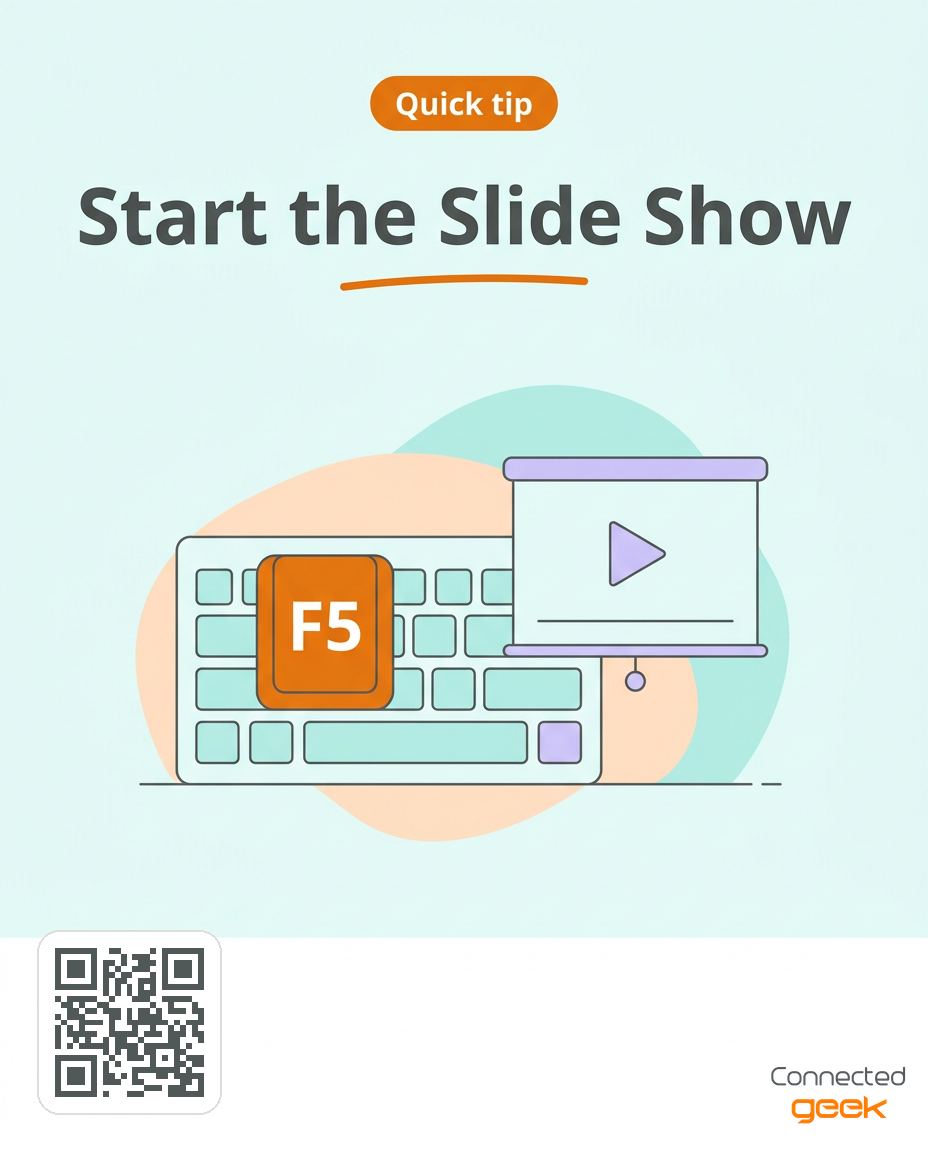
Press F5 to start the slide show from the beginning. To begin from the slide selected in the editing window, press Shift+F5. These shortcuts make it easy to review the full deck or rehearse just the section you have been editing.
Frequently asked questions
How do I start a slide show from the first slide?
Open the Slide Show tab and choose From Beginning. You can also press F5. The show starts at the first slide, so use this option when you want to review or present the complete deck from its opening.
How do I start from the slide I am editing?
Select the slide in the editing window, then choose From Current Slide on the Slide Show tab. Shift+F5 is the keyboard shortcut for starting from the selected slide. Check that the correct thumbnail is selected first.
What does Presenter View show?
When available, Presenter View can show your current slide, the upcoming slide, speaker notes, and controls on your display while the audience sees the presentation. It commonly uses a second display, so test the setup and confirm which screen the audience will see.
How do I save my slides as a PDF?
Choose File, then Save As or Export, select PDF as the file type, and complete the save. Open the resulting PDF and check each page for layout or readability issues. Menu names may look slightly different in other versions.
Should I send a link or an attachment?
A link is useful when recipients should access the online version, especially if you expect updates. Check its permissions before sharing. An attachment gives people a copy of a specific file, so use a reviewed PDF or current presentation and verify it is the version they need.
Key takeaways
Choose From Beginning or From Current Slide to start the show where you intend.
Test Presenter View and display setup before the presentation.
Save a PDF and open it to review every page.
Check link permissions before sending a presentation link.
Attach the reviewed copy when recipients need a fixed file.
Try it now
Practice both starting points: press F5 to run the full presentation, then press Esc and select a middle slide before using Shift+F5. If you have a second display, test Presenter View and confirm the audience sees the slide. Save a PDF, open it, and review every page. Decide whether your recipient needs a link or an attached copy, then check access and version before sharing.
A quick rehearsal helps you begin confidently, and a careful review makes the shared copy easier to use. Choose the format that fits your audience, verify that the file looks right, and make sure recipients can access only what you intend. Visit https://connectedgeek.net. Need help? Call 248-648-1717 or email [email protected].
