Microsoft PowerPoint for Beginners: Meet the Workspace
A new presentation can look busy at first, but its main areas each have a clear job. In Microsoft PowerPoint, the slide pane helps you move through slides, the slide area is where you build the current one, and the ribbon organizes commands. Learning the workspace makes it easier to find what you need without clicking at random. These directions describe Microsoft PowerPoint for Microsoft 365 on Windows; steps may look slightly different in other versions.
The lesson in short
The slide pane shows your presentation as a list of thumbnails, while the large slide area is where you arrange content. Notes give you space for reminders, ribbon tabs group commands, and the status bar and view buttons help you check the presentation. Start by identifying these areas before adding content.
Step by step
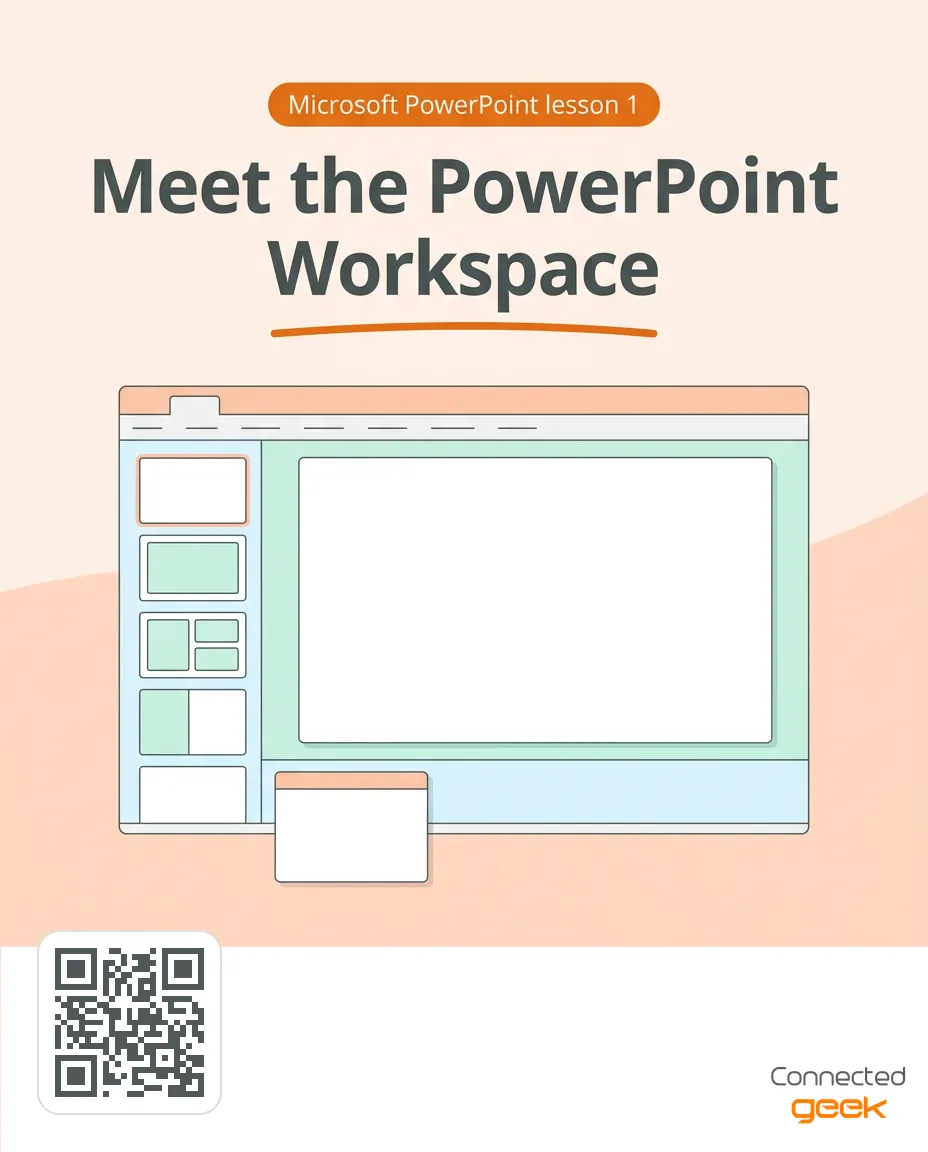
Open a presentation or create a blank one. Look across the screen before changing anything. The large central canvas is the current slide, and a narrow pane of smaller slide pictures usually appears to its left.
Find the slide pane on the left. Each thumbnail represents one slide in the deck. Click a thumbnail to make that slide current, and notice that the large slide area changes to show the selected slide.
Look at the slide area in the middle. This is the main editing surface for the selected slide. Click a text placeholder or other object only when you intend to select it; a border or handles indicate that an item is selected.
Locate the notes area below the slide area. If it is not visible, use the Notes control on the status bar to show it. Click in the notes area to add speaker reminders that are not part of the slide itself.
Across the top, find the ribbon tabs such as Home, Insert, Design, and Slide Show. Select a tab to display a different group of commands. Home contains common editing controls, while Insert provides ways to add items such as pictures or shapes.
At the bottom of the window, examine the status bar. It can show slide position and other presentation information. The view buttons nearby switch how the presentation is displayed, such as Normal view or Slide Sorter view.
Click between Normal view and Slide Sorter view using the view buttons. Return to Normal view to edit one slide with the pane visible, then select another thumbnail and confirm the slide area follows your selection.
Why it matters
Knowing the workspace helps you move through a deck with confidence. The slide pane gives a quick overview of order, while the slide area focuses your attention on one slide at a time. When you can tell these apart, you are less likely to edit the wrong slide or mistake a thumbnail for the full editing canvas.
The other areas support different tasks. The notes pane is for what you want to say or remember, ribbon tabs group commands by purpose, and the status bar and view buttons help you navigate and review. You do not need to memorize every command before you begin; knowing where these areas are is a practical first step.
Where to find it
The ribbon sits across the top of the PowerPoint window, just below the title area. Its tabs organize tools into groups. Select a tab to see its commands, and return to Home when you want familiar text and slide controls. The exact command groups can depend on what is selected on the slide.
The slide pane is normally on the left in Normal view, and the notes area is beneath the slide canvas. The status bar runs along the bottom edge of the window. Its view buttons are near the lower-right corner, where you can switch the way slides are displayed without changing their contents.
What you will see on screen
In Normal view, the selected thumbnail is highlighted in the slide pane and the matching slide appears larger in the slide area. Select a different thumbnail and the large canvas changes. This relationship helps you know which slide is active before you type or move an object.
When notes are displayed, a separate area appears below the canvas with a prompt for adding notes. The ribbon changes when you select a different tab, and the status bar remains at the bottom. In Slide Sorter view, slides appear as larger thumbnails across the workspace so you can review their order.
A small-business example
Imagine preparing a short presentation for a team meeting. The slide pane lets you check that the agenda comes before the project update. The slide area lets you edit the current agenda, while the notes pane can hold a reminder to explain a decision that would make the slide too crowded.
Before presenting, you could use Slide Sorter view to scan the deck as a whole, then return to Normal view to adjust one slide. The status bar helps you see where you are in the presentation. Separating these jobs makes it easier to organize, edit, and rehearse without putting every speaking note on screen.
Common mistakes and how to fix them
Editing the wrong slide: first check which thumbnail is selected in the slide pane, then confirm the same slide is showing in the slide area before making a change.
Treating speaker notes as slide text: notes are separate from the content displayed to the audience. Put only concise on-slide information in placeholders, and use the notes area for private speaking reminders.
Looking for every command on one ribbon tab: tabs group tools by task. Check the tab that matches your goal, such as Insert for adding an item, rather than repeatedly opening unrelated controls.
Confusing a view change with a content change: view buttons change how you inspect the deck, not the words or objects on slides. Return to Normal view when you want to work on one slide.
Clicking a tiny thumbnail when you mean to edit the canvas: select the slide in the pane first, then click the object in the larger slide area. The larger view makes it easier to see what is selected.
Quick tip of the day
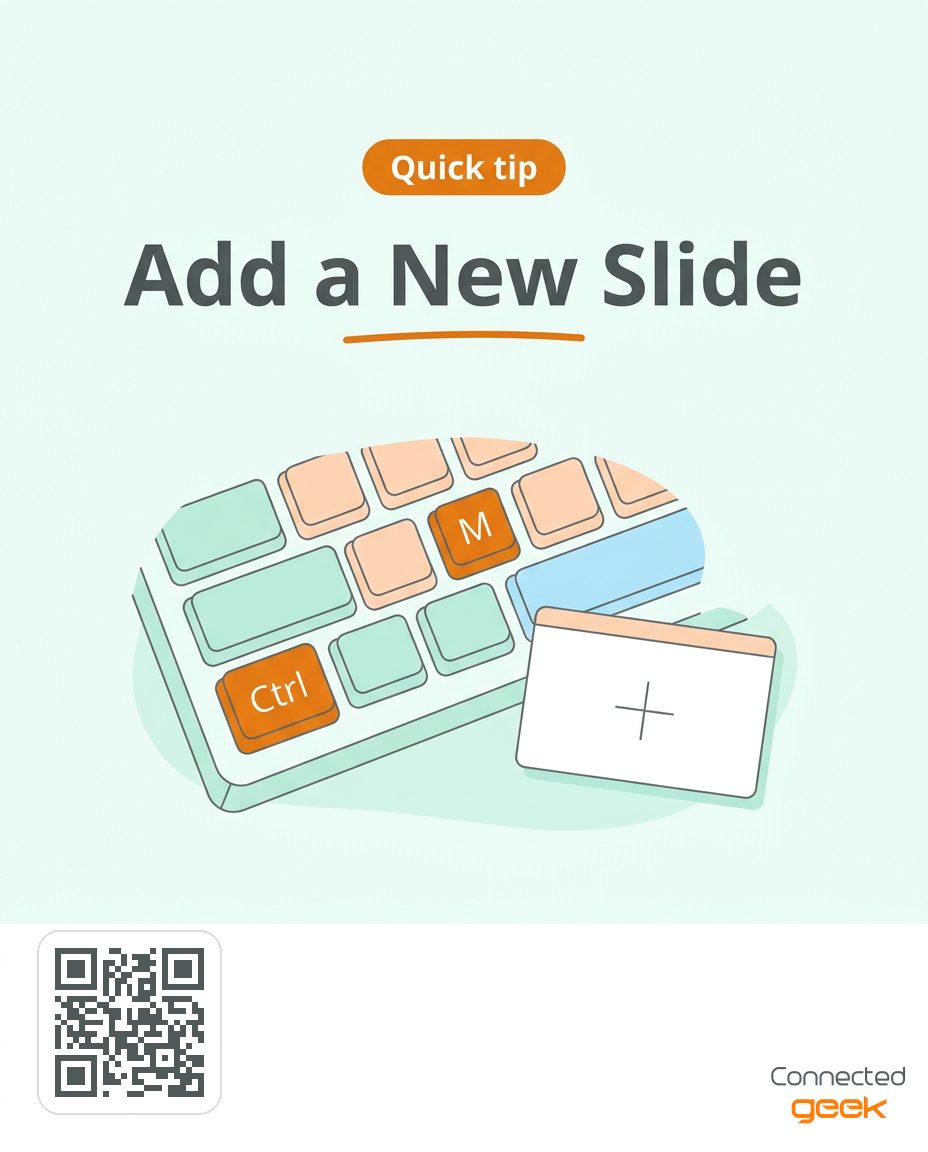
Quick PowerPoint tip: Ctrl+M adds a new slide. In Normal view, the new slide appears in the slide pane and becomes the active slide in the slide area. Check its thumbnail position before adding text.
Frequently asked questions
What is the slide pane for?
The slide pane shows thumbnails for the slides in your presentation. Use it to select a slide, move between slides, and get a quick sense of their order. The selected thumbnail corresponds to the larger slide shown in the editing area.
Where do I type speaker notes?
Use the notes area below the slide canvas. If it is hidden, use the Notes control on the status bar to display it. Notes are for the presenter and do not appear as ordinary slide text during a presentation.
What is the ribbon?
The ribbon is the command area organized under tabs such as Home, Insert, Design, and Slide Show. Choose a tab that fits your task, then look through its groups of commands. Available controls can change based on the selected object.
How do I change the way I see my slides?
Use the view buttons near the lower-right of the window. Normal view is useful for editing an individual slide, and Slide Sorter view makes it easier to scan slide order. Changing views does not by itself change slide content.
Can my PowerPoint screen look different?
Yes. The layout can vary with window size, ribbon settings, or another version of PowerPoint. The areas have the same general purpose, even if a control appears in a different place or has a slightly different appearance.
Key takeaways
The slide pane contains thumbnails for selecting and ordering slides.
The slide area is the main canvas for editing the current slide.
Use the notes area for presenter reminders, not audience-facing slide text.
Ribbon tabs organize commands by task.
The status bar and view buttons help you navigate and review the deck.
Try it now
Open a practice presentation and name the slide pane, slide area, notes area, ribbon, and status bar out loud. Select two different thumbnails and watch the slide area change. Switch to Slide Sorter view, scan the slide order, and return to Normal view before editing.
Once the main areas feel familiar, you can spend less time searching and more time shaping a clear presentation. Start in Normal view, select the slide you want in the pane, and use the matching area for each kind of work. Visit https://connectedgeek.net. Need help? Call 248-648-1717 or email [email protected].
