
Microsoft Outlook for Beginners: Meet the Workspace
Microsoft Outlook for Microsoft 365 on a classic Windows desktop puts your daily messages and schedule in one workspace. This beginner tour explains the folder pane, message list, reading pane, ribbon, Mail, and Calendar. The layout may vary with your window size or version, but the main areas help you find, read, and organize work email.
The lesson in short.
The folder pane is where you move among Mail folders. The message list shows messages in the selected folder, and the reading pane displays a selected message. The ribbon holds commands for the current view. Use the navigation controls to switch between Mail and Calendar, or press Ctrl+1 for Mail and Ctrl+2 for Calendar.
Step by step
Open Outlook and look across the main window before opening a message. In the classic desktop app, Mail commonly opens first. The navigation area lets you move to another Outlook area, while the wider center of the window changes to show the selected area. If the window is narrow, some controls may be condensed.
Find the folder pane along the left side of Mail. It lists folders such as Inbox and Sent Items, and may show additional folders created for your account. Select a folder to view its messages. If you do not see the folder list, look for a control that expands the navigation pane rather than assuming the folders are gone.
Select Inbox and look at the message list beside the folder pane. Each row represents a message and may show its sender, subject, date, and a short preview. Select a row to read it. The currently selected folder determines which messages appear, so return to Inbox if you are unsure where you are.
Notice the reading pane, which displays the selected message without opening a separate window. Depending on your arrangement, it may appear to the right of the message list or beneath it. Read the sender, subject, and message before using a reply or forward command. A preview is useful, but it does not change who received the original message.
Look across the top for the ribbon. Its tabs group commands for the selected Outlook area, and the commands can change as you move between messages, folders, and Calendar. If you cannot find a command, first select the relevant item and check the current tab. A small window may hide some labels behind compact buttons.
Switch to Calendar using the navigation controls, or use Ctrl+2. The calendar view replaces the Mail message list with your schedule. To return to Mail, use the Mail control or press Ctrl+1. These two shortcuts open Mail and Calendar respectively; avoid relying on other numbered shortcuts because view settings can differ.
Take a moment to identify the area before acting. Ask yourself which folder is selected, which message is highlighted, and which Outlook view is open. This quick orientation reduces mistakes such as replying to an old message or looking for an appointment while Mail is still active.
Why it matters
A clear picture of the workspace makes everyday tasks less confusing. The folder pane helps you move between incoming, sent, and saved messages. The message list gives you a compact overview, while the reading pane lets you inspect a message before choosing what to do next. The ribbon then presents commands for the item or view you are using.
Mail and Calendar serve different purposes but sit within the same desktop app. Switching views can be faster than closing one window and hunting for another program. Knowing where you are also matters when your screen is busy. Before clicking a command, confirm the selected message or calendar view so the action matches your intention.
Where to find it
In Mail, look on the left for folders, in the central area for the message list, and beside or below it for the reading pane. The ribbon runs across the top of the window. Its exact appearance depends on the Outlook window and display settings, but these regions remain useful landmarks.
Mail and Calendar are available from Outlook navigation controls. If keyboard shortcuts suit your routine, Ctrl+1 opens Mail and Ctrl+2 opens Calendar. Try each one when Outlook is open and note which view appears. You can always use the visible navigation controls if you prefer not to memorize shortcuts.
What you will see on screen
In Mail, the folder pane and message list work together. Selecting a different folder changes the messages listed. Selecting a message changes what appears in the reading pane. Above them, the ribbon offers commands for the current context. In Calendar, the center shows a calendar layout instead of the Mail list. If parts of the window are hidden, widen or maximize it and look for pane controls.
A small-business example
Imagine starting the morning by checking a customer request. Select Inbox in the folder pane, then scan the message list for the request and read it in the reading pane. After recording the next step, switch to Calendar with Ctrl+2 to check your schedule. When you need to return to the message, press Ctrl+1. You have changed views without losing the idea of where each task belongs.
Common mistakes and how to fix them
Looking in the wrong folder: the message list reflects the folder selected in the pane. Select Inbox or the folder you intended to check before deciding a message is missing.
Confusing a selected row with a sent reply: highlighting a message only selects it for viewing. Read the message and choose a command deliberately rather than assuming Outlook has responded.
Searching for Calendar while still in Mail: switch views with the navigation controls or Ctrl+2, then return with Ctrl+1. The center of the window changes to match the selected area.
Assuming every ribbon command is missing: commands can be grouped, condensed, or shown only after selecting an item. Widen the window, select the relevant item, and inspect the current ribbon tab.
Quick tip of the day.
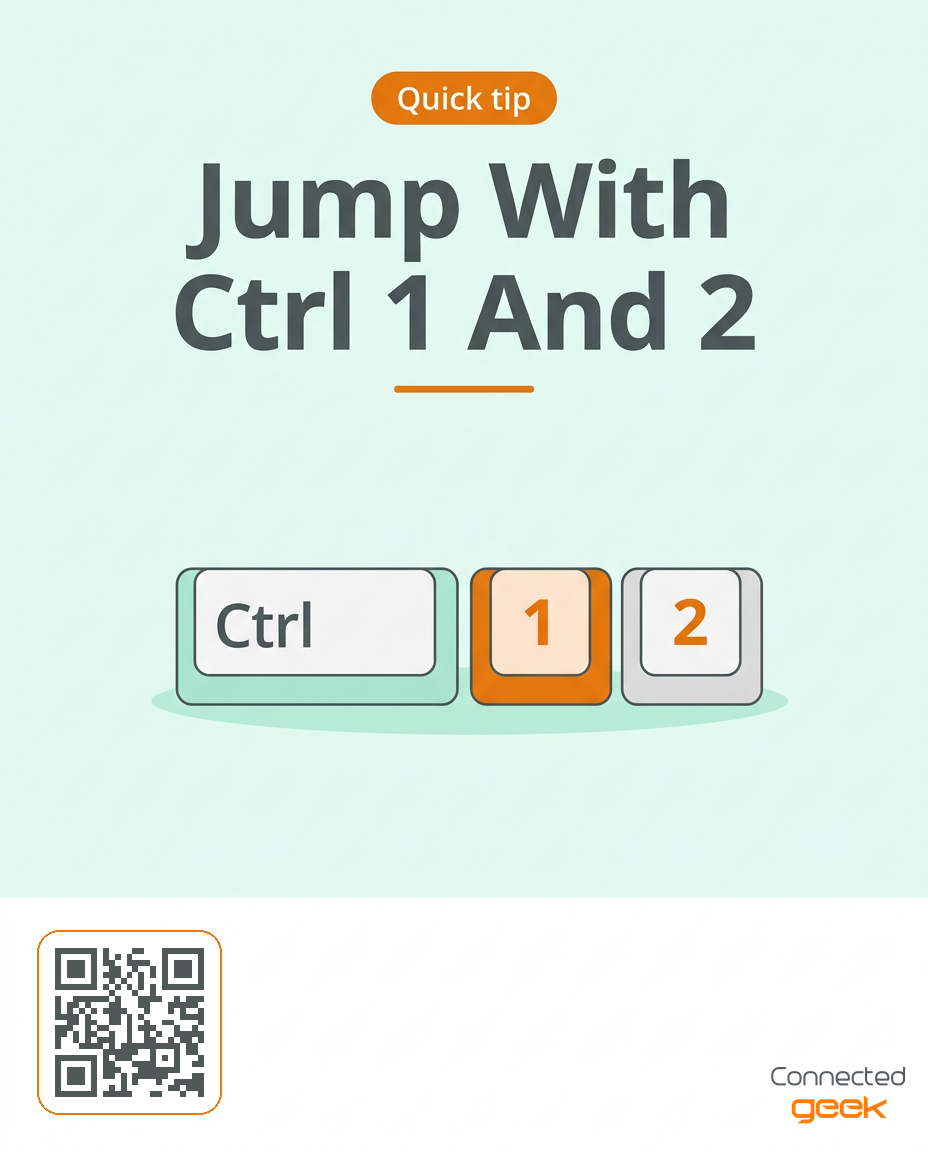
Use Ctrl+1 to open Mail and Ctrl+2 to open Calendar in classic Outlook for Windows. Try the pair as a simple way to move between your inbox and schedule, then use the visible navigation controls whenever you prefer a point-and-click route.
Frequently asked questions
What is the folder pane?
It is the area that lists your Mail folders. Select a folder there to show its messages in the message list.
What does the reading pane do?
It displays the selected message beside or below the message list, depending on your layout. You can read a message without opening a separate window.
How do I get back to Calendar?
Use Outlook navigation to choose Calendar or press Ctrl+2. To return to Mail, press Ctrl+1.
Why does my ribbon look different?
The ribbon can change with the selected view, item, window size, and Outlook version. Select the item you want to work with and review the available tabs and commands.
Key takeaways
Use the folder pane to choose a Mail folder.
Use the message list to select an email and the reading pane to read it.
Look to the ribbon for commands related to the active view.
Press Ctrl+1 for Mail and Ctrl+2 for Calendar.
Check the selected folder, message, and view before acting.
Try it now
Open Outlook and identify the folder pane, message list, reading pane, and ribbon. Select a message and read it without opening a separate window. Press Ctrl+2 to visit Calendar, look at the calendar view, and press Ctrl+1 to return to Mail. Then repeat the same journey using the visible navigation controls. Notice which route feels clearer and keep the other as a backup.
A little orientation now can make the next email task easier. Keep the folder, message, and view in mind before choosing a command. Visit https://connectedgeek.net. Need help? Call 248-648-1717 or email [email protected].
