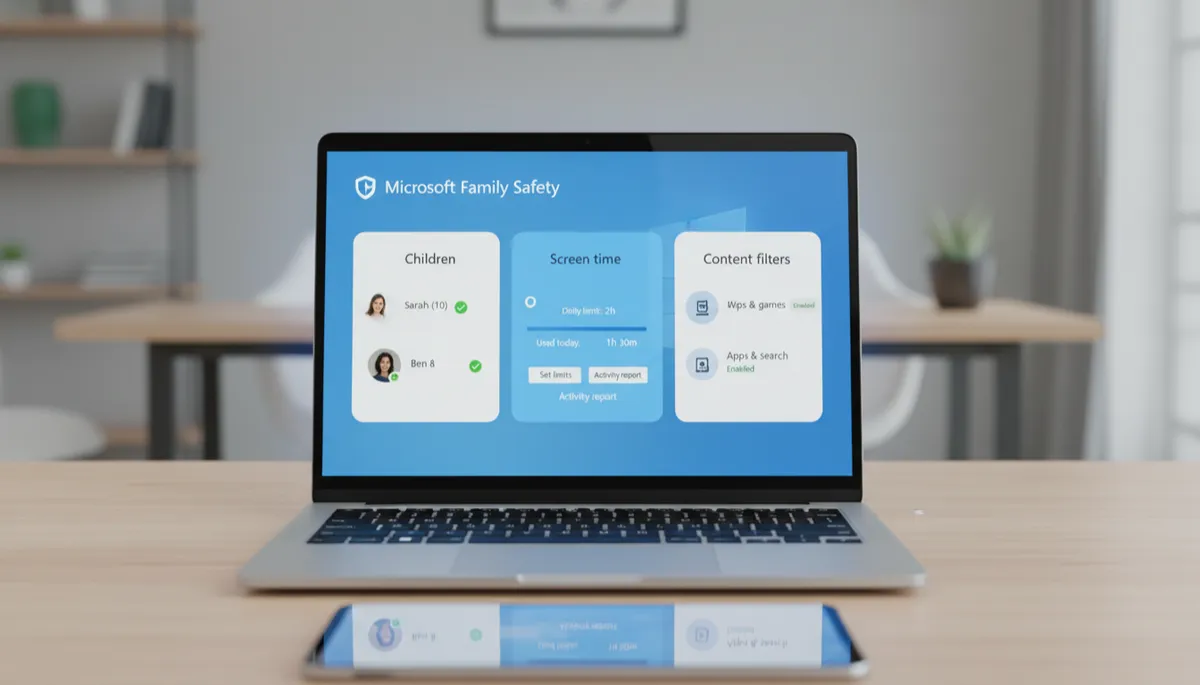
Microsoft Family Safety Tips and Common Troubleshooting Fixes
Common Family Safety Problems — and How to Fix Them
Problem: Screen Time Limits Aren't Working on the PC
Fix: Your child must be signed into their PC with their Microsoft account (not a local account) for screen time to apply. Check: Settings → Accounts → Your info — it should show their email address, not just a name.
Problem: Content Filters Aren't Blocking in Chrome
Fix: Content filters work at the network level for most websites, but Chrome can sometimes bypass them via DNS-over-HTTPS. In Chrome settings → Privacy and security → Security → Use secure DNS — set it to your current provider (not a custom server). If filters still fail, consider restricting Chrome and requiring Edge via app limits.
Problem: Child Can't Accept the Invitation Email
Fix: If your child is under 13, Microsoft requires parental consent to create an account. Check your parent email for a parental consent request from Microsoft. Click the link in that email to approve the account creation, then have your child accept the family invitation.
Problem: Activity Report Shows No Data
Fix: Activity reporting may take 24–48 hours to populate after setup. Also verify: family.microsoft.com → child's account → Activity → toggle on activity reports.
General Tip: Ensure Microsoft Account Sign-In on the PC
Most Family Safety issues trace back to the child using a local account instead of their Microsoft account. Confirm the account type under Settings → Accounts and switch if needed — it solves the majority of control application failures.
