Microsoft Family Safety: Require Parental Approval Before Kids Buy Apps or Games
Parenting, Digital Safety, Windows 11
How to Require Parental Approval for App and Game Purchases in Windows 11
If you’ve ever opened a bank statement and spotted mystery charges for games, add-ons, or in‑app coins, you’re not alone. The good news is that Windows 11, together with Microsoft Family Safety, gives you calm, clear control over what your child can buy on their device. With purchase requests that come straight to your phone, you can approve or decline spending in seconds and finally say goodbye to surprise charges.
The Basics: How Microsoft Family Safety Handles Purchases
Microsoft Family Safety is a free set of tools that helps you guide how your child uses Windows 11, Xbox, and other Microsoft services. One of its most useful features is the ability to require adult approval for any app or game purchase your child tries to make from the Microsoft Store, including many in‑app purchases. Instead of your child being able to click “Buy” and charge your card, they send a request that you can calmly review from your own device.
Step One: Set Up Your Child’s Account and Family Group
To use purchase approvals, your child needs their own Microsoft account that is linked to your Microsoft family group. This might sound technical, but in practice it’s straightforward and worth a few minutes of setup for the peace of mind it brings.
- On your computer or phone, sign in to your Microsoft account and visit the Family Safety page or open the Family Safety app.
- Create a child account if they don’t already have one, or add their existing Microsoft account email to your family group by sending an invitation.
- Have your child accept the invitation on their device so their Windows 11 profile is clearly linked to your family.
Once your child’s Microsoft account is in your family group, you can turn on the setting that requires adult approval before they can spend money. This ensures that any purchase attempt from their Windows 11 PC, Xbox, or other Microsoft device is tied back to you as the decision‑maker, not to a stored payment card they can tap without thinking.
How Purchase Requests Reach Your Phone for Instant Decisions
When purchase approval is enabled, your child can still browse the Microsoft Store and choose games or apps they’re interested in. The difference is what happens when they press “Buy.” Instead of money leaving your account, a purchase request is sent to you.
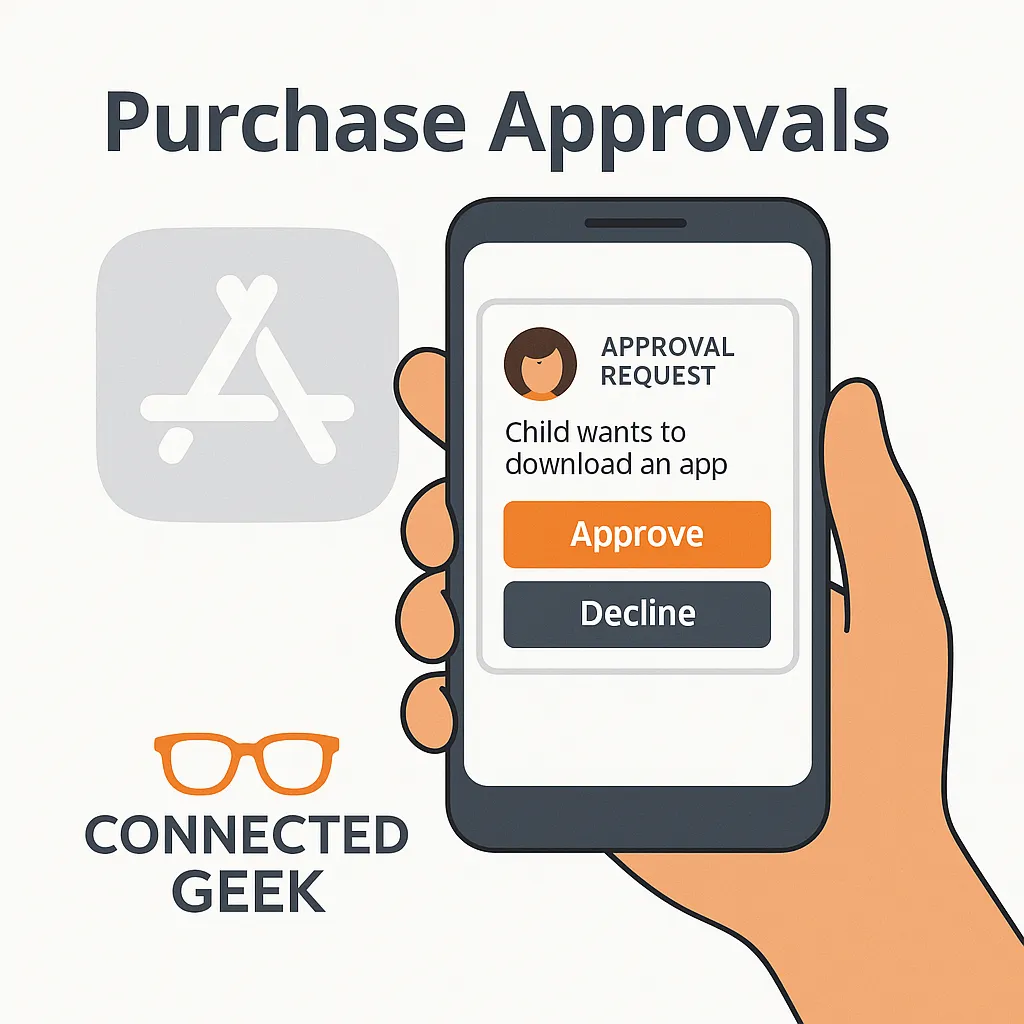
You’ll receive a notification on your phone (typically through the Family Safety app and/or email) showing:
- The name of the app or game
- The price and any tax
- Which child is asking to buy it
From there, you can calmly tap Approve or Decline right on your phone, whether you’re in the next room or away from home. There’s no need to rush to your child’s computer or try to guess what they’re buying after the fact. You see the request in real time and decide on the spot, in a way that fits your family’s rules and budget.
What Your Child Sees When a Request Is Sent
From your child’s point of view, the process is simple and predictable. When they try to purchase something on their Windows 11 device, they’ll be told that adult approval is required. They can then choose to send you a request. This is a helpful pause that encourages them to think, “Do I really want to ask for this?” rather than clicking through on impulse.
After the request is sent, your child sees that it’s pending and that they’ll need to wait for your decision. If you approve, the purchase goes through and they can download or access the content. If you decline, they’ll see that it was not approved. This gives you a natural opening for a calm conversation: you can explain why something isn’t appropriate right now, or suggest alternatives that fit your values and budget better.
Why Purchase Approval Eliminates Surprise Charges
Many surprise charges happen because children don’t fully understand that digital purchases involve real money. A few quick taps in a game can add up to a significant bill, especially when payment details are stored and no extra confirmation is required. By turning on purchase approval, you remove that risk in a gentle but firm way.
With Microsoft Family Safety in Windows 11, nothing can be bought without an adult’s explicit OK. Every purchase must pass through you first, in a clear format that shows the exact cost. This means no more scanning through bank statements trying to work out which game a charge came from, and no more difficult conversations that start with, “I didn’t know it cost money.” Instead, you have a predictable routine: your child asks, you review, and you decide together.
Using Spending Limits as a Flexible Alternative
For some families, approving every single purchase feels a bit too hands‑on, especially with older children who are ready for more independence. In those cases, Microsoft Family Safety also offers spending limits as an alternative or companion approach.
You can add money to your child’s Microsoft account balance or set a monthly spending limit. Your child can then make purchases within that amount without needing you to approve each one. When the balance is gone, they can’t spend more unless you choose to top it up. This mirrors real‑world budgeting: they learn to weigh up whether a new game is worth a chunk of their allowance, and they see that money is finite.
You can also combine both approaches. For example, you might allow low‑cost items within a spending limit, but still require approval for more expensive games. This gives you a balanced mix of safety and trust, while still keeping surprise charges firmly off the table.
A Calmer Way to Manage Digital Spending
Requiring parental approval for purchases in Windows 11 using Microsoft Family Safety turns a potential source of stress into an opportunity for guidance. By linking your child’s Microsoft account to your family group, enabling purchase approvals, and using spending limits where appropriate, you create clear, consistent boundaries around money. Your child can still enjoy games and apps, but you remain in control of what’s bought and when.
Most importantly, you regain the reassurance that there will be no more surprise charges quietly building in the background. Instead, you get simple notifications, instant approve‑or‑decline choices on your phone, and a calmer digital environment for your family.
