Microsoft Excel for Beginners: Print and Share a Sheet
A worksheet that looks tidy on screen can print with a column cut off, a nearly empty last page, or text too small to read. In Microsoft Excel, previewing before printing helps catch those issues while there is still time to adjust the layout. Sharing is a separate decision: before giving someone access to a workbook, check what access they will receive. I will cover both parts carefully.
The lesson in short
Before printing an Excel sheet, check the print preview for cut-off headings or columns. Compare portrait and landscape if the sheet is wide, and avoid scaling text until it’s too small to read. Today’s lesson also covers print areas, repeating headings, and sharing access settings.
Step by step
Open the worksheet you intend to print and press Ctrl+P to open the print screen. Review the preview before sending anything to the printer.
Look at the page count and inspect every preview page. Check whether headings or columns are cut off, whether extra blank pages appear, and whether the text is comfortable to read.
If the worksheet is wide, compare portrait and landscape orientation in the print settings. Choose the layout that shows the relevant columns clearly without making text difficult to read.
If the print layout still needs work, return to the worksheet or page settings. Review page setup choices such as orientation, margins, and scaling, then reopen the preview to see what changed.
For a focused printout, consider setting the print area to the intended range. If the data spans several pages, use the Page Layout controls for repeating heading rows so each printed page can be understood.
Review the preview again after each layout adjustment. Check page count, clipped columns, blank pages, and text size. Print only when the result is readable and contains the information you intended.
For online sharing, review where the workbook is saved and the access settings available from the Share button. Confirm who should have access and whether the intended permission is view or edit before sharing.
Why it matters
A printed worksheet is a fixed page layout. A wide table may extend past the edge of paper, while scaling it to fit can shrink the text. Print preview gives you a chance to balance page count and readability before you use paper or hand the pages to someone who needs them.
Sharing a workbook has a different consequence: it gives another person access to a file, potentially with permission to make changes. A printout is a static copy; a shared workbook can remain a live working document. Decide which outcome you need, then inspect the appropriate print settings or sharing access rather than assuming one action does both.
Where to find it
Press Ctrl+P to open the print screen and preview. The available print settings let you examine orientation and other layout choices, while Page Layout contains controls for page setup, print area, and repeating heading rows. Use the preview as the final check after changing a setting rather than relying only on the worksheet view.
For sharing, use the Share button in the workbook interface when the file is saved in a supported cloud location such as OneDrive or SharePoint. The sharing options shown for a file depend on its location and your access. Read the options displayed and check the intended audience and permission before confirming any share.
What you will see on screen
The print screen includes a preview of how the selected worksheet will be paginated. Use the page navigation to inspect more than the first page. A page count that is higher than expected, a cropped edge, or an almost empty page can reveal a layout issue. If the font appears too small in the preview, do not assume it will be comfortable on paper.
Page setup changes affect the printed arrangement, not the source content itself. Changing orientation, defining a print area, or repeating heading rows can make a multi-page printout easier to follow. Return to the preview after each adjustment, because one improvement can affect the page count or how much information fits on a page.
Sharing choices appear in the file-sharing interface. Review whether a link is restricted or available to a wider audience, and whether people can view or edit. Do not infer access from the fact that someone received a link. Read the actual settings shown for that workbook and share only with the people who should have access.
A small-business example
A small landscaping company may keep a weekly route sheet with customer names, service dates, addresses, and notes. Before printing a crew copy, the coordinator can use Ctrl+P to check that the address and notes columns are not clipped. If the sheet is wide, comparing portrait with landscape can reveal a more readable arrangement.
If the office manager needs to update the same schedule during the week, a printed page may become stale. Sharing the workbook can be more suitable, but the coordinator should first review the access settings and choose who should be able to view or edit it. The right option depends on how the team will use the information and where the workbook is stored.
Common mistakes and how to fix them
Printing without checking every page: inspect the full preview, not just the first page. Look for clipped columns, extra blank pages, and page count changes before printing.
Shrinking text until it is hard to read: fitting everything on one page is not always the best goal. Compare orientation or page setup options and preserve readable text, even if the worksheet needs more than one page.
Forgetting repeating headings on a multi-page sheet: readers may not know what a continued column means. Use the Page Layout controls for repeating heading rows, then check the preview on later pages.
Assuming print settings change the worksheet data: page setup affects how the sheet is printed. If a value or heading itself is incorrect, fix the worksheet content separately and review the preview again.
Sharing with the wrong audience or permission: pause before confirming. Check the selected people or link audience and whether they can view or edit. If the displayed setting is unclear, do not proceed until you understand it.
Quick tip of the day
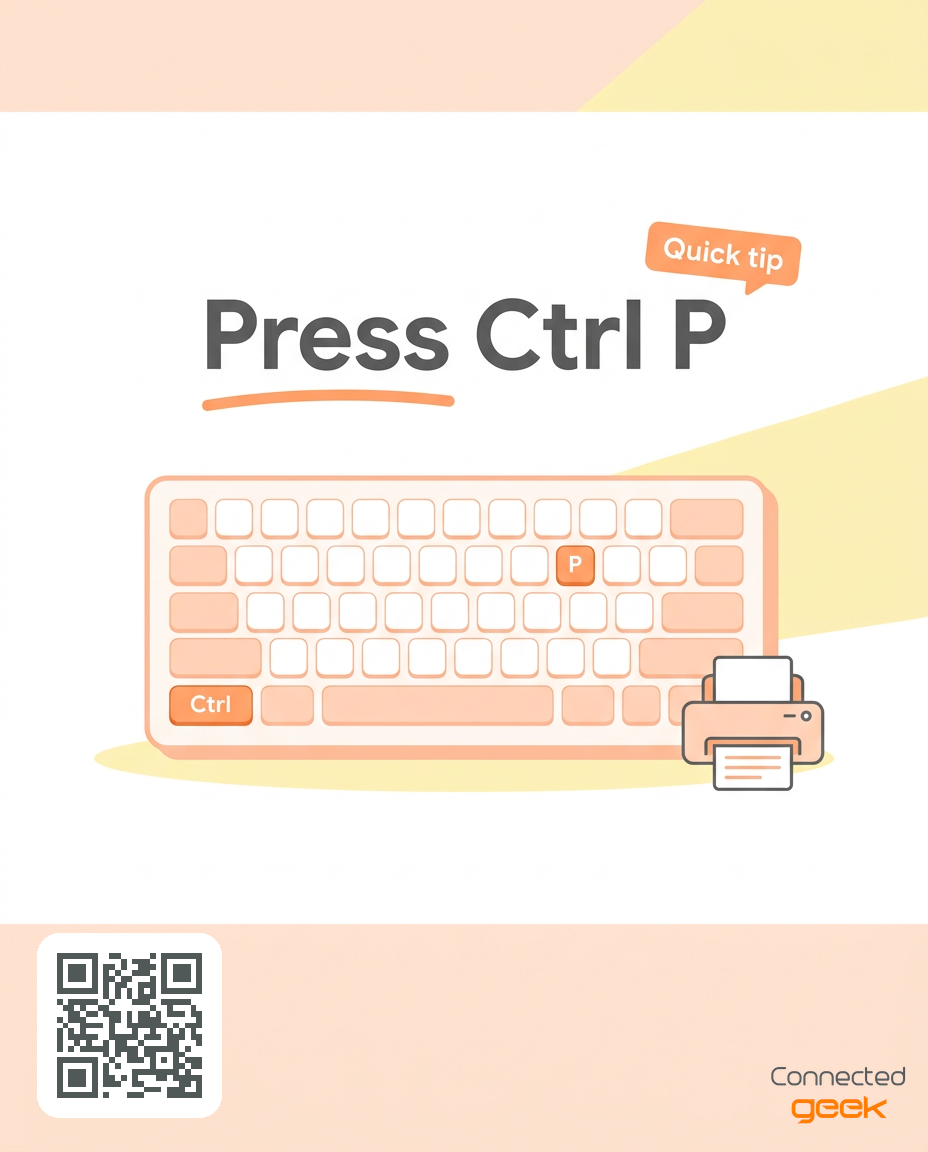
Quick Excel printing tip: press Ctrl+P to open the print screen and preview. Check the page count, clipped columns, extra blank pages, and text size. If something looks off, return to the worksheet or page settings and preview again.
Frequently asked questions
What does Ctrl+P do in Excel?
Ctrl+P opens the print screen, where you can review the print preview and settings. Use it before printing to check page count, clipped columns, blank pages, and readability. If something looks wrong, return to the worksheet or page settings and preview again.
Should I use portrait or landscape?
Compare both when a worksheet is wide. Choose the orientation that displays the important columns clearly while keeping text readable. Check the preview after changing orientation because the number and arrangement of pages may change.
How can I repeat headings on printed pages?
Use the Page Layout controls for repeating heading rows, then inspect the preview on later pages. Repeated headings help readers understand columns when a list spans multiple printed pages.
Does printing share the workbook with coworkers?
No. Printing creates a paper output. Sharing gives other people access to the workbook through the available file-sharing options. Choose based on whether coworkers need a static copy or access to the working file.
What should I check before sharing a workbook?
Review the audience and permission shown in the sharing options, including whether recipients can view or edit. Confirm the workbook is stored where the sharing option supports it, and do not share until the access choice matches your intent.
Key takeaways
Ctrl+P opens the print screen and preview.
Inspect every page for clipping, blank pages, and readable text.
Compare portrait and landscape for wide sheets.
Use page setup, print areas, and repeating headings thoughtfully.
Review the audience and permission before sharing access.
Try it now
Open a practice worksheet that is wider than one page and press Ctrl+P. Check the page count, column edges, blank pages, and text size. Compare portrait and landscape, then return to the preview. Separately, open the sharing options for a practice workbook and read the audience and permission choices without confirming a share.
A careful preview prevents an avoidable printout, and a careful access check helps ensure a workbook reaches the right people with the right permissions. Treat printing and sharing as two different tasks, review the screen before confirming, and keep the source worksheet intact. Visit https://connectedgeek.net. Need help? Call 248-648-1717 or email [email protected].
