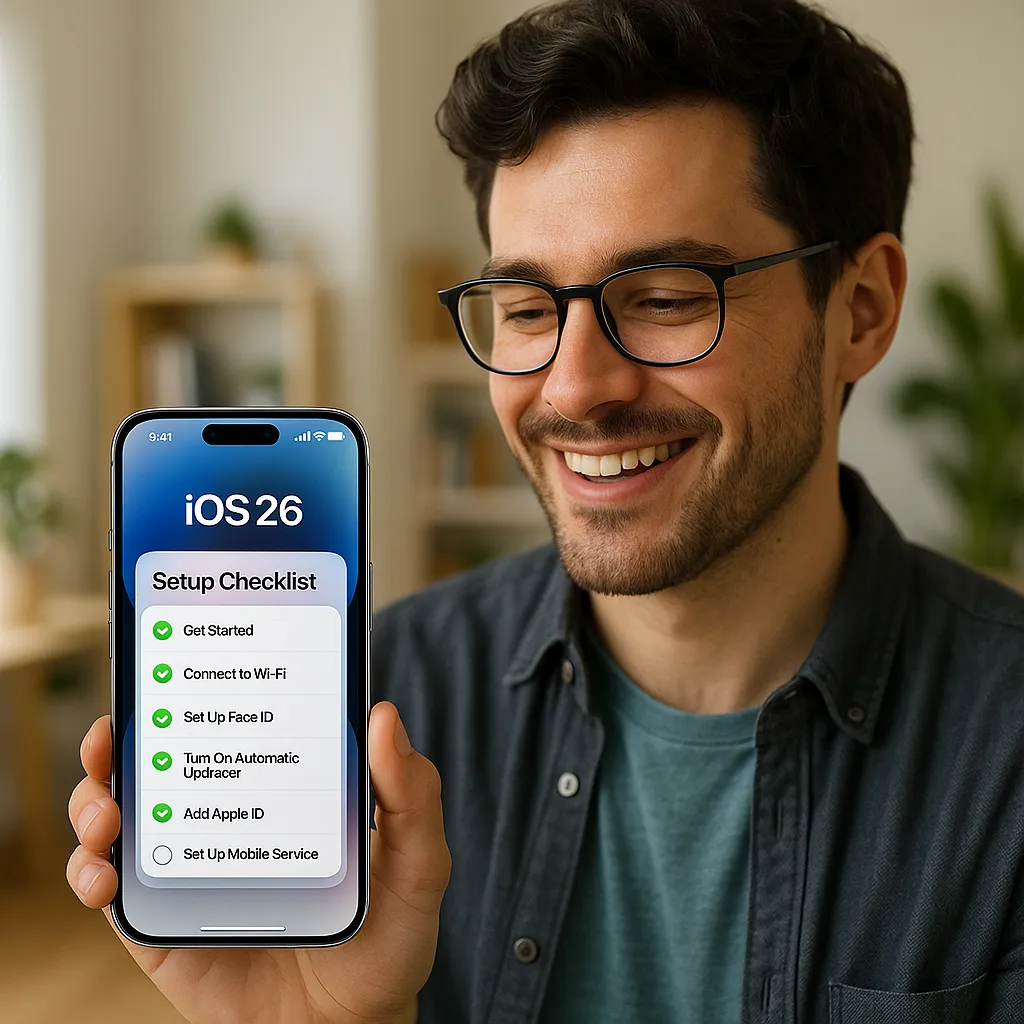
9 Essential Steps After Updating to iOS 26
iOS, iPhone Tips
Just Updated to iOS 26? Do These 9 Things First
iOS 26 is one of the biggest iPhone updates in years, packed with a fresh Liquid Glass look and smart new features powered by Apple Intelligence. If you’ve just finished installing it, here are nine fun, practical things to do right away so your iPhone feels fresh, personal, and ready for everyday life.
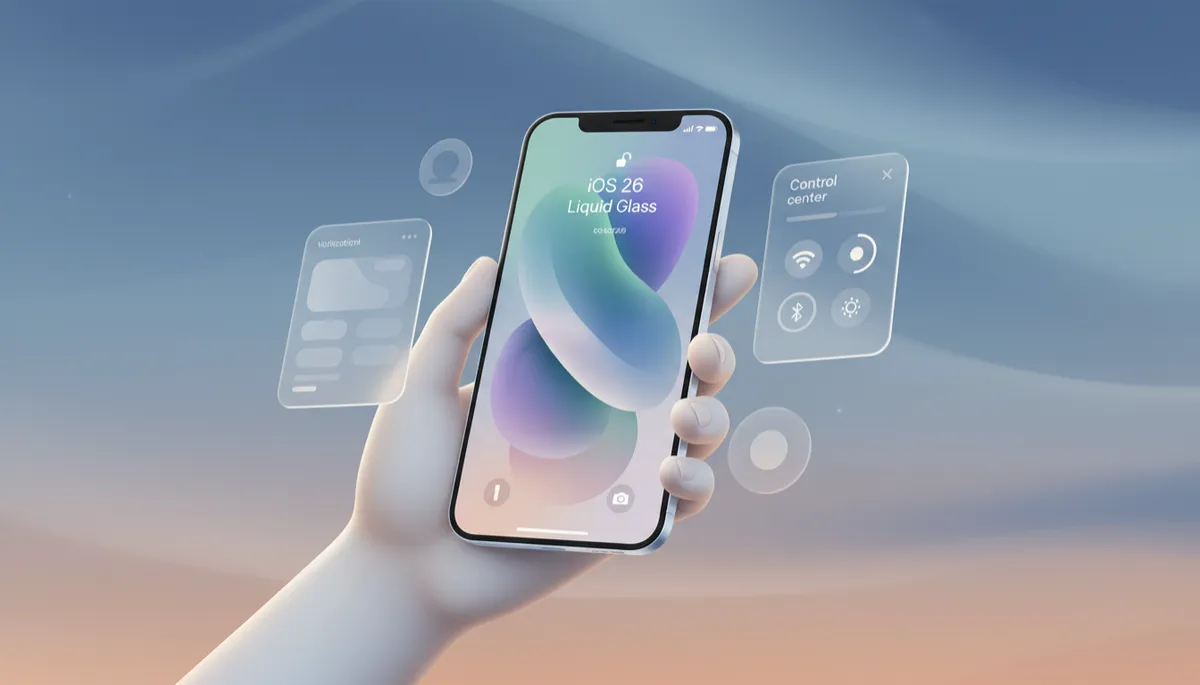
1. Explore Liquid Glass and Customize Your Lock Screen
Start with the feature you’ll see dozens of times a day: your Lock Screen. iOS 26’s new Liquid Glass design gives everything a translucent, refractive look that subtly reacts to your wallpaper and surroundings. Press and hold the Lock Screen, tap Customize, and:
- Try the new 3D spatial wallpapers that move as you tilt your phone.
- Adjust the adaptive time display style, size, and position.
- Add widgets for weather, calendar, or fitness so key info is one glance away.
2. Enable Apple Intelligence (If Your Device Supports It)
iOS 26 introduces Apple Intelligence, Apple’s on‑device AI system that helps with writing, images, and understanding what’s on your screen, while keeping privacy at the center (most processing happens on your device, according to Apple’s documentation on iOS 26 features). Go to Settings > Apple Intelligence and follow the prompts to turn it on if your iPhone is compatible (iPhone 15‑class and newer in many regions).
Once enabled, try:
- Using Visual Intelligence on screenshots to search what’s on your screen.
- Creating playful Genmoji or images in Image Playground.
3. Fine‑Tune Priority Notifications
Notifications can make or break your day. In iOS 26, Priority Notifications help surface what matters most and quietly file away the rest. Head to Settings > Notifications and:
- Mark key apps (Messages, Calendar, banking) as Priority.
- Turn social or shopping apps to Summary so they’re batched.
- Adjust lock screen previews so sensitive info stays private.
4. Refresh Your Home Screen Layout
With Liquid Glass, icons and widgets look more alive than ever, so it’s the perfect time to declutter. Long‑press on an empty area of your Home Screen to enter jiggle mode, then:
- Experiment with new icon size and spacing options in iOS 26.
- Promote your most‑used apps and stack widgets for quick swiping.
- Hide rarely used pages and rely on the App Library.
5. Set Up the Improved Control Center
Control Center in iOS 26 is more flexible, with extra pages and resizable controls. Open Settings > Control Center and:
- Add tiles for Apple Games, Music recognition, or Timer.
- Reorder controls so essentials (Wi‑Fi, flashlight, camera) are at the top.
- Use multiple pages for “Work,” “Travel,” or “Home” setups.
6. Try the New Camera Features
Open the Camera app and swipe through the modes—iOS 26 adds refinements like better low‑light processing and smarter Portrait suggestions on supported devices. If you use AirPods‑4 or AirPods Pro 2, you can even trigger the camera remotely by pressing and holding the stem, as noted in Apple’s iOS 26 documentation.
Spend a few minutes testing photos, portraits, and video so you’re ready when that perfect moment appears.
7. Explore the Redesigned Phone and Messages Apps
The core communication apps get meaningful upgrades in iOS 26. In Phone, try Call Screening to automatically send unknown callers to voicemail, and enable Hold Assist so your iPhone waits on hold and alerts you when a real person joins the call (Apple highlights both as new in iOS 26).
In Messages, explore:
- The folder that separates unknown senders from your main chats.
- Custom chat backgrounds, polls, and Apple Cash (where available).
8. Review Privacy & Security Settings
Big updates are the perfect time for a quick security check‑up. Visit Settings > Privacy & Security and:
- Review which apps can access location, photos, microphone, and camera.
- Check App Store information sections and accessibility labels before installing new apps, a feature expanded in iOS 26.
- Make sure Find My and two‑factor authentication are enabled.
9. Discover What Siri Can Do Now
With iOS 26 and Apple Intelligence, Siri is more context‑aware and better at understanding natural language. Try asking:
- “Summarize my notifications from today.”
- “Translate this message into Spanish and reply politely.”
- “Create a reminder based on this email.”
Spend a few minutes experimenting, and you’ll quickly feel how much smarter and more helpful your iPhone has become with iOS 26.
