iOS 26 Tips: 30-Day Connected Geek Series
iOS 26, iPhone Tips, Connected Geek Series
Day 1: Welcome — iOS 26 June Series
Welcome to Connected Geek’s 30‑day iOS 26 June Series — your friendly, no‑jargon guide to Apple’s biggest iPhone makeover in more than a decade.
A fresh iPhone, without buying a new iPhone
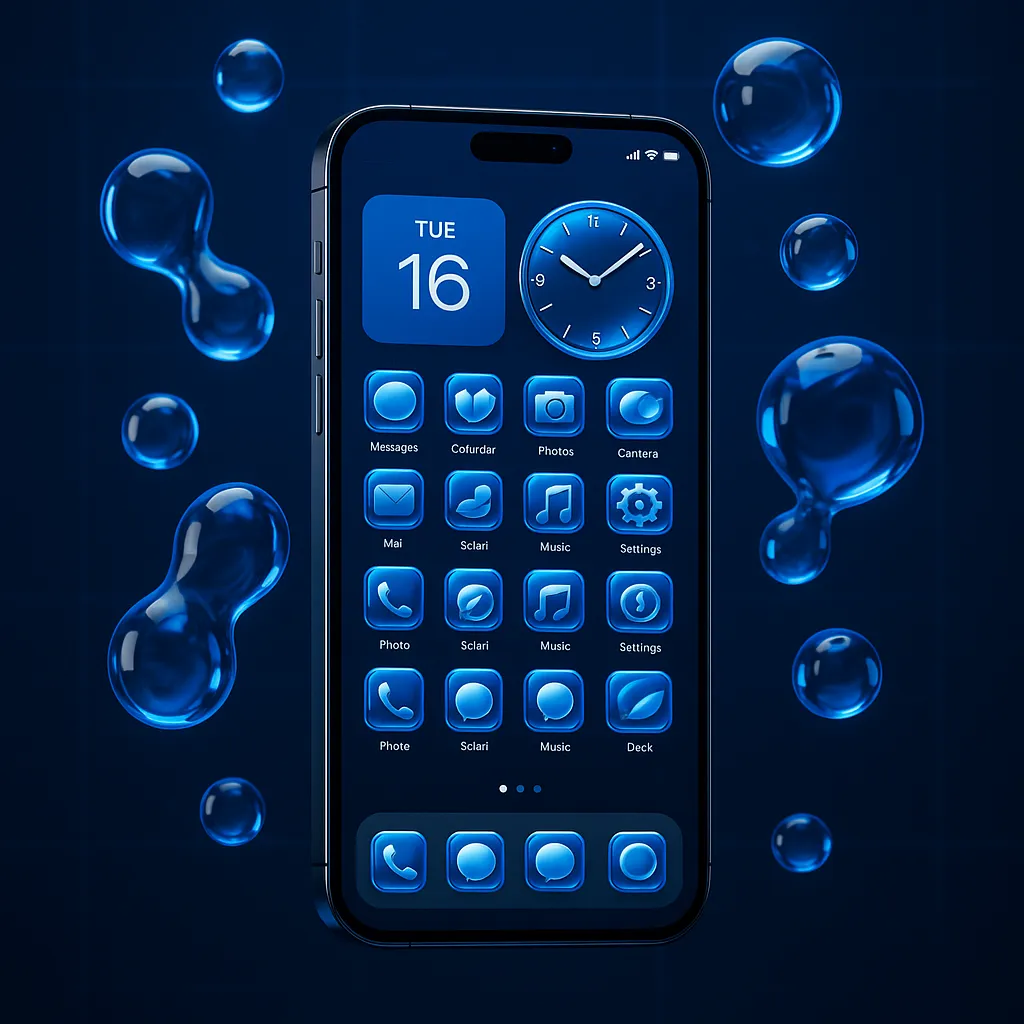
If iOS 26 feels like your phone just got a full remodel, you’re not imagining it. Apple has introduced Liquid Glass, a new design language that makes icons, menus, and panels look like smooth, translucent glass that subtly reacts to your wallpaper and lighting (support.apple.com). It’s the biggest visual shake‑up since the flat design days of iOS 7 back in 2013.
On top of that, the entire interface has been refreshed: the Lock Screen clock flows around your wallpaper, apps like Photos, Safari, and Camera feel cleaner and more focused, and even icons can switch between light, dark, tinted, or the bold new “clear” style (9to5mac.com). In other words, your iPhone might look familiar at first glance — but live with iOS 26 for a day, and it feels like a brand‑new device.
Meet Apple Intelligence: your phone, now actually helpful
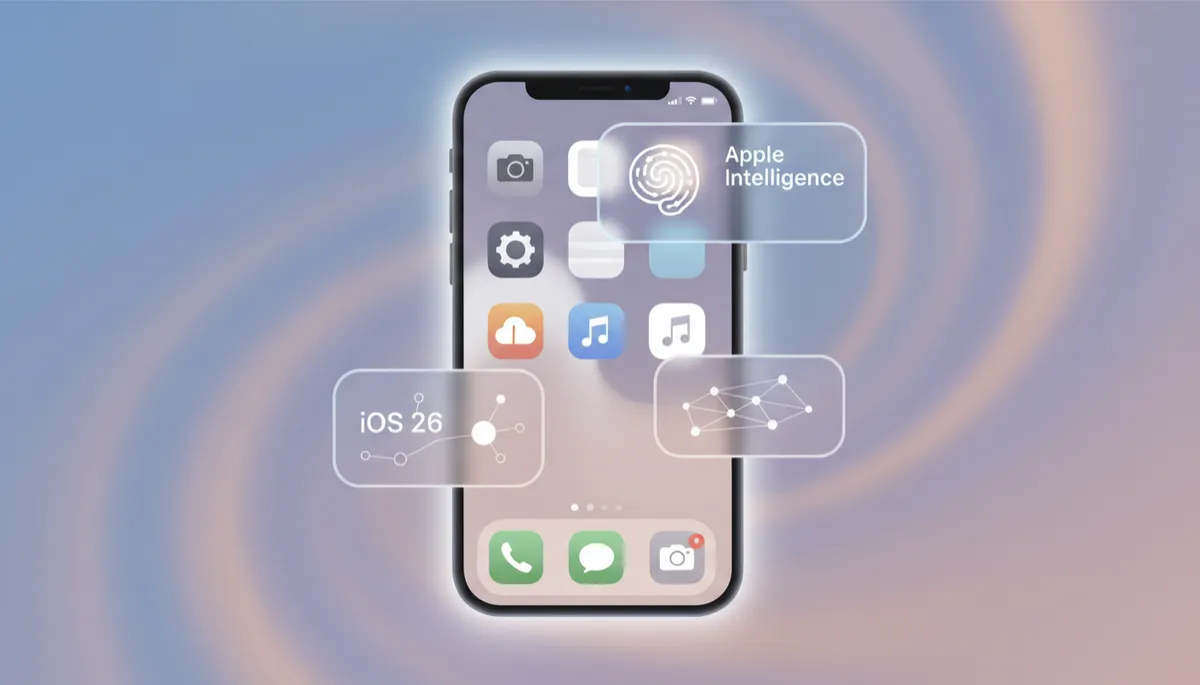
The other star of the show is Apple Intelligence — Apple’s new umbrella for built‑in AI features. Think of it as a smarter layer that quietly helps out behind the scenes. You can use visual intelligence from a screenshot to ask questions, search the web, or jump into apps like Google or Etsy based on what’s on your screen (apps.apple.com).
There’s also Live Translation in Messages, FaceTime, and even phone calls, plus playful touches like Genmoji to create emoji that actually look like you. We’ll walk through all of these in plain language, with real‑world examples — not just feature lists.
What we’ll cover over the next 30 days
Over the next month, we’ll publish one short, focused post every day here on Connected Geek. By the end, you’ll feel completely at home in iOS 26 — and probably discover a few tricks your friends don’t know yet. Here’s a peek at what’s coming:
- Days 2–5: Getting comfortable with Liquid Glass — new Lock Screen, Home Screen layouts, icon styles, and wallpapers that make everything pop.
- Days 6–10: Apple Intelligence basics — visual intelligence from screenshots, Live Translation, and how to use them in everyday life.
- Days 11–15: Messages, Phone, and FaceTime — call screening, Hold Assist, group polls, and staying in touch more easily (apple.com).
- Days 16–20: Everyday apps leveled up — Preview on iPhone for PDFs, the new Journal experience, and smarter Clock, alarms, and timers.
- Days 21–25: Accessibility and family features — tools that make iOS 26 more inclusive, plus parental controls and communication limits.
- Days 26–30: Power‑user week — Shortcuts with Apple Intelligence, Live Activities across devices, and how to tune iOS 26 so it feels “just right” for you.
How to follow along (and actually stick with it)
This series is designed for everyday iPhone owners — not developers, not tech reviewers, just people who want their phones to feel easier and more enjoyable. Each post will take only a few minutes to read and will include simple steps you can try immediately on your own device.
To get the most out of it, bookmark this page, subscribe to Connected Geek, or add a reminder in your Calendar to check back daily. By Day 30, iOS 26 won’t just look new — it’ll work in a way that genuinely fits your life.
For now, explore your refreshed UI, swipe around that Liquid Glass Home Screen, and maybe snap a screenshot or two — tomorrow we’ll start turning all of this eye candy into everyday superpowers.
