iOS 26 Notifications: Complete Guide to Changes
iOS, Notifications, Productivity
iOS 26 Notifications — Complete Guide to What Changed
iOS 26 gives iPhone notifications a quieter, smarter feel. If your Lock Screen has started looking different and alerts behave in new ways, this guide walks you through exactly what changed — and how to use it to keep your phone helpful, not overwhelming.
The New Stacked Card Look on the Lock Screen
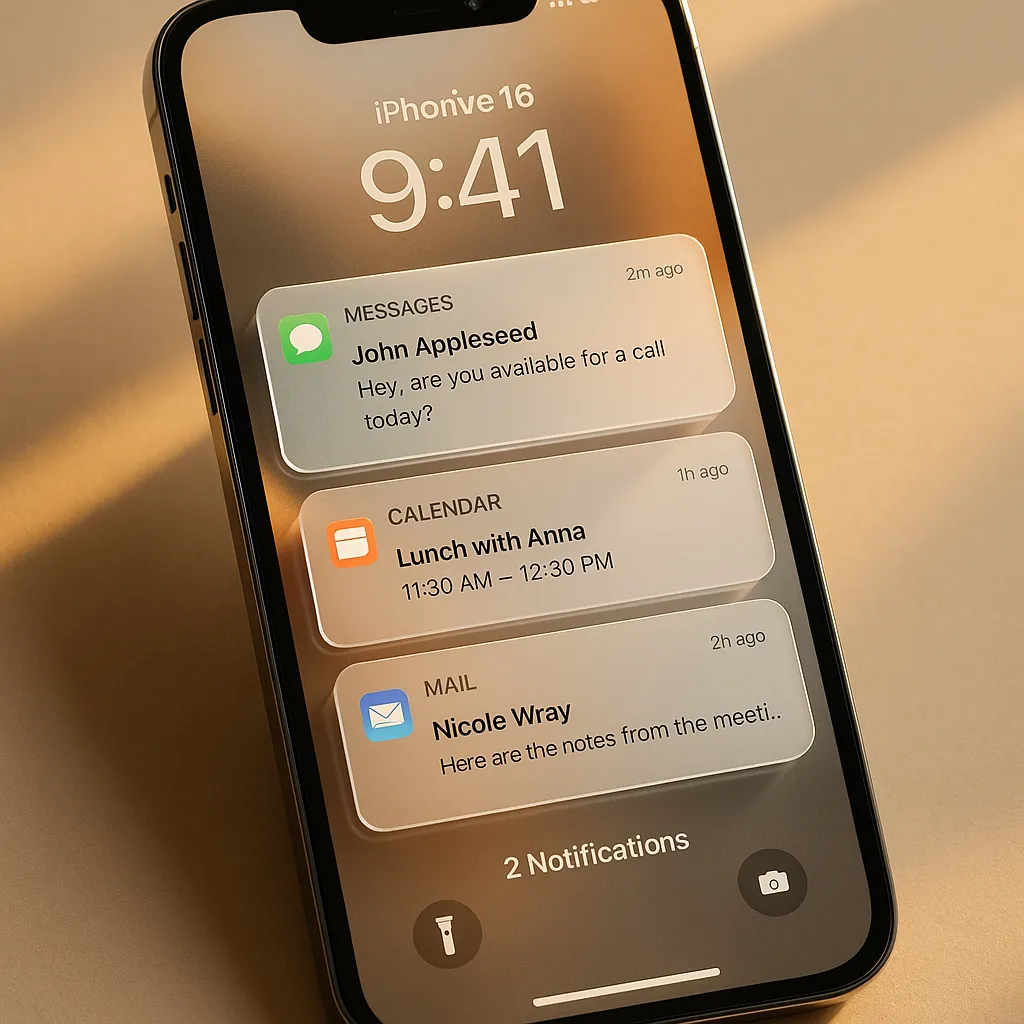
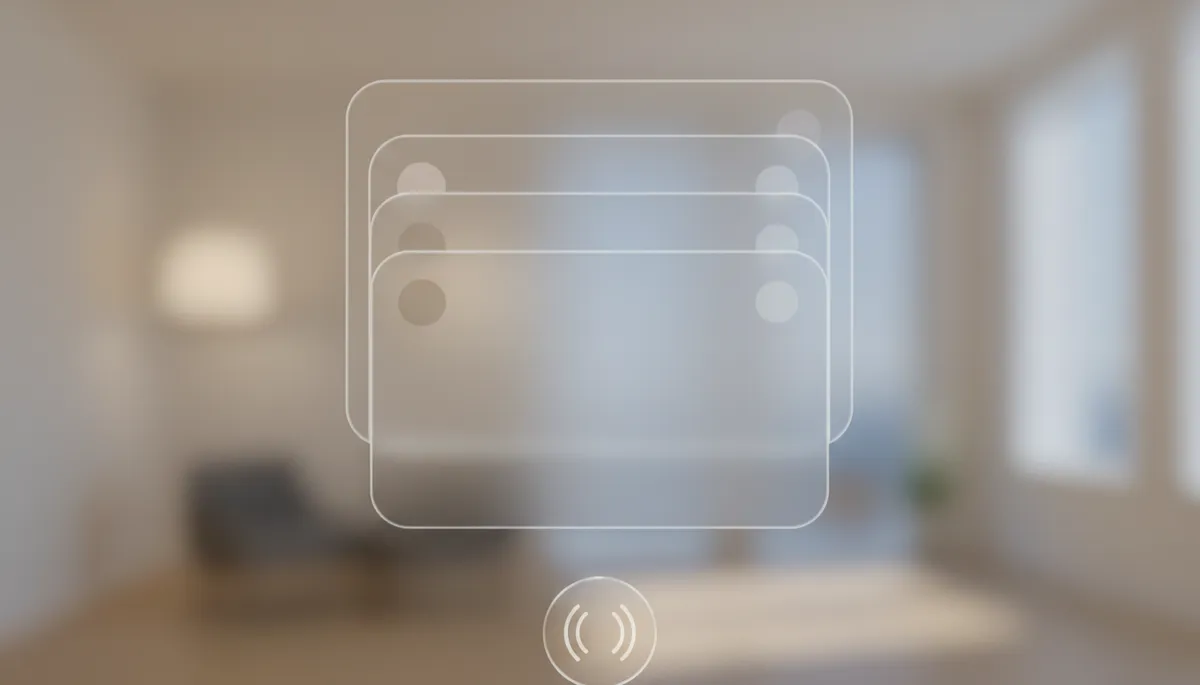
In iOS 26, notifications on the Lock Screen gather into a stacked card at the bottom instead of filling the whole display. You see the most recent alert on top, with older ones layered behind it. This keeps your wallpaper visible while still keeping you informed.
Using it is simple:
- Tap once on the stack to expand it into a small fan of cards you can scroll through.
- Tap an individual card to open the related app or take action.
This layout is especially useful when you get bursts of alerts — group chats, deliveries, or breaking news — because everything stays reachable without feeling like your Lock Screen is buried under banners.
Long‑Press Snooze: The New Habit to Build
The most practical change in iOS 26 is the new long‑press snooze menu. Instead of either acting on a notification immediately or letting it disappear into Notification Center, you can now delay it on your terms.
Long‑press any supported notification — like Calendar, Reminders, Mail, and most popular apps — and you’ll see quick options:
- Remind me in 15 minutes — great for “I’ll do this right after this call.”
- Remind me in 1 hour — for tasks you want to push to later in the day.
- Turn off for today — perfect for muting a noisy thread or app without changing settings permanently.
Pro tip: make long‑pressing notifications a reflex. Any time you catch yourself thinking “I’ll handle this later,” don’t just swipe it away — long‑press and snooze it. That tiny habit keeps your Lock Screen clear while making sure important things actually come back when you’re ready.
Liquid Glass: How Notifications Look Now
With the new Liquid Glass effect, notification cards pick up a subtle tint from the app’s color — Messages might have a soft green hue, Mail a calm blue — all sitting on a frosted, glass‑like background. Shadows and depth make each card feel separate without being loud or flashy.
Animations are smoother too. Expanding the stack, snoozing, or clearing alerts feels more fluid, so managing notifications is less like fighting pop‑ups and more like shuffling a small deck of cards you control.
Fine‑Tune Notifications in Settings
To really benefit from these changes, spend a few minutes in Settings > Notifications. In iOS 26, you can adjust the notification style per app, so high‑priority apps behave differently from everything else.
- Choose whether an app uses the stacked card look, a fuller list, or a simple count.
- Decide which apps are allowed on the Lock Screen and which should only appear in Notification Center.
- Turn sounds or badges off for apps that distract you but still keep silent alerts if you need them.
Think of this as setting “notification roles”: only a handful of apps should be allowed to interrupt you; everything else can wait its turn.
Use Scheduled Notification Summary for Non‑Urgent Apps
For apps that send lots of updates — social media, shopping, news — iOS 26’s Scheduled Notification Summary is your best friend. Instead of pinging you all day, their alerts are batched and delivered at times you choose, like 9 a.m. and 7 p.m.
Go to Settings > Notifications > Scheduled Summary, turn it on, then pick which apps to include. You’ll still get time‑sensitive alerts immediately, but everything else arrives in a tidy bundle you can scroll through when it suits you.
Combine this with the stacked cards, Liquid Glass visuals, and that long‑press snooze habit, and iOS 26 turns your iPhone from a constant interrupter into a calm, organized assistant that surfaces the right notifications at the right time.
