iOS 26 Lock Screen: Liquid Glass Customization Guide
iOS, Lock Screen, Customization
iOS 26 Lock Screen — Complete Liquid Glass Guide
iOS 26 turns your Lock Screen into a sleek sheet of digital glass. If you love customizing your iPhone, the new Liquid Glass design, smarter notifications, and flexible widgets give you plenty to play with. This guide walks you through everything you need to know to make your Lock Screen look stunning and stay useful.
How Liquid Glass transforms your clock, date, and notifications
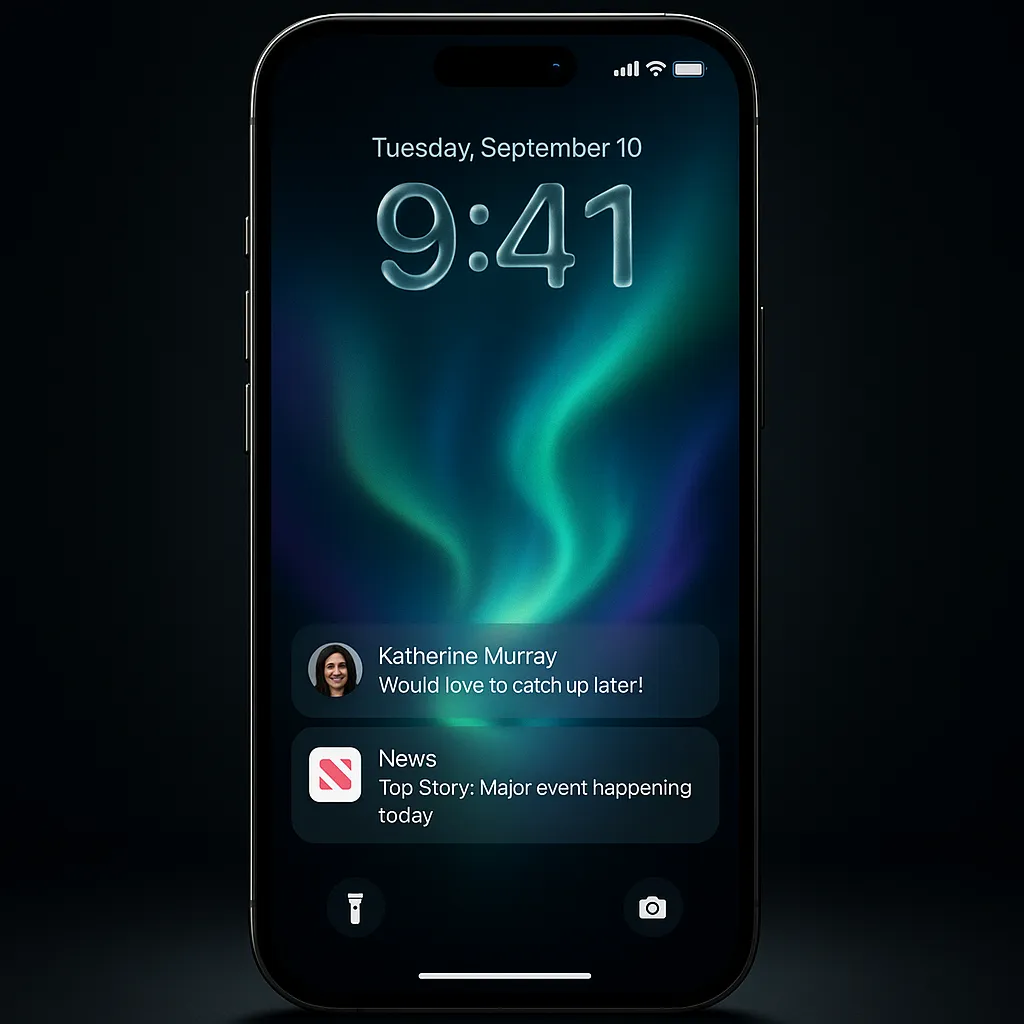
Liquid Glass is the new visual language in iOS 26 — a translucent, dimensional style that makes Lock Screen elements feel like real pieces of glass resting on your wallpaper (Apple, 2025). The clock and date now sit inside soft, rounded panels that subtly reflect colors from your background. As you tilt or move your phone, highlights shift, giving the time a gentle sense of depth instead of a flat overlay.
Notification bubbles get the same treatment. Each alert appears in a frosted glass capsule, with blurred wallpaper peeking through behind the text. The effect is clean and modern: your content stays readable, while the Lock Screen still feels like a single, unified surface instead of stacked boxes and banners.
Smarter notification grouping and display style
With iOS 26, notifications are organized into tighter, more intentional stacks that sit comfortably at the bottom of the screen. Related alerts from the same app group into a single Liquid Glass cluster, so you see a tidy summary instead of a tall list that hides your wallpaper. You can expand or collapse groups with a tap, and the glass bubbles gently rearrange themselves, maintaining that polished, layered look as they move.
How to access Lock Screen customization in iOS 26
Getting into the new customization view is simple:
- Wake your iPhone and stay on the Lock Screen.
- Long-press anywhere on the Lock Screen until it zooms out.
- Tap Customize under the current Lock Screen to edit it, or hit the + button to create a new one.
Customizing wallpaper, clock style, widgets, and depth effects
iOS 26 gives you deep control over how your Lock Screen looks and feels:
- Wallpaper & Spatial Scenes: Choose a photo or one of Apple’s new Spatial Scenes, which turn flat images into subtle 3D environments that shift as you move your phone (Apple, 2025). Subjects can appear to sit in front of the clock for a cinematic depth effect.
- Clock style: Tap the time to pick fonts, adjust opacity, and switch between Glass and Solid styles. You can even drag a corner to resize the clock, making it bold and prominent or small and minimal (MacRumors, 2025).
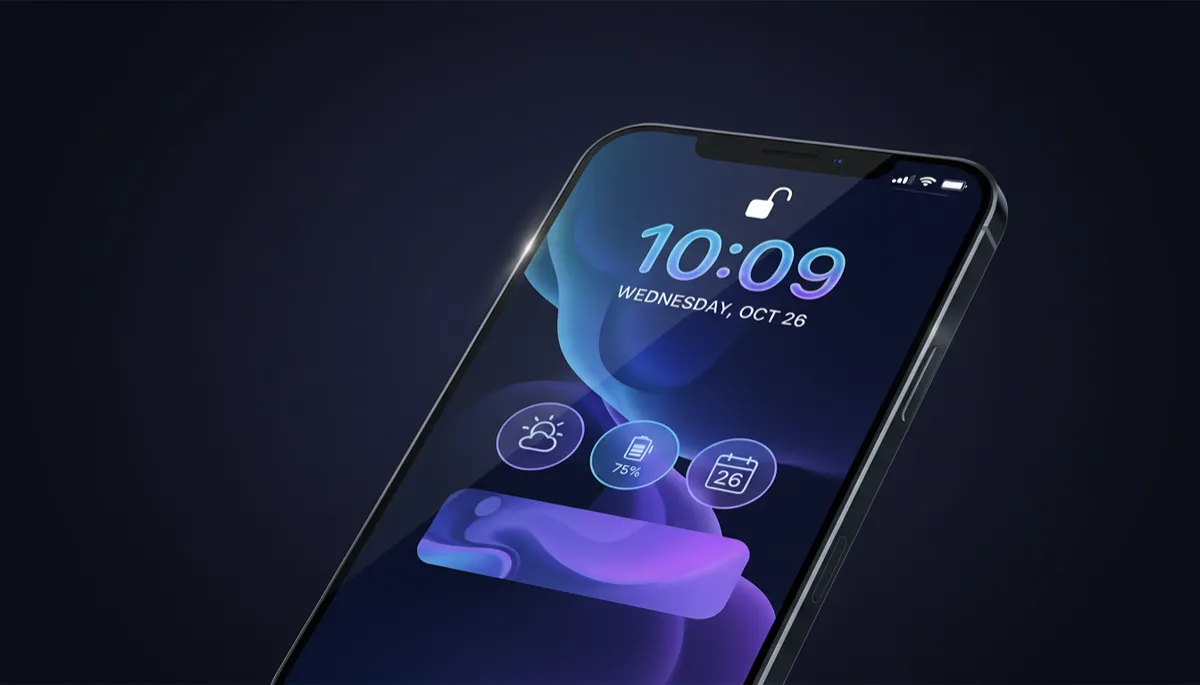
- Widgets: Add widgets above or below the clock, or move them down near the bottom for easier one-handed reach. Their Liquid Glass tiles echo the clock’s look so everything feels cohesive.
- Depth and blur: You can tweak how strongly the wallpaper blurs on the Always‑On display and how intense the Liquid Glass effect is, balancing clarity with style.
New Lock Screen widgets in iOS 26
While iOS 26 doesn’t flood you with brand-new widget types, it refines how they work and adds some thoughtful touches. The standout is the Apple Music search widget, letting you jump straight into finding a song from the Lock Screen (MacRumors, 2025). Widgets now share the same Liquid Glass styling as the clock, so your calendar, weather, and fitness rings feel like they belong in the same design family.
Live Activities with Liquid Glass
Live Activities—like ongoing timers, ride-share progress, or sports scores—now sit inside elongated Liquid Glass banners at the bottom of your Lock Screen. The translucent treatment keeps them glanceable without feeling heavy, and animations, such as a moving progress bar or updating score, appear to glide under the glass surface. When paired with full-screen animated album art, your Lock Screen can feel almost like a living dashboard.
Tips to make your iOS 26 Lock Screen look great
- Pick wallpapers with soft gradients or simple subjects so the glass panels stand out and text stays readable.
- Use Spatial Scenes or depth effects sparingly; let one strong subject interact with the clock instead of a busy collage.
- Keep widgets focused on what you truly glance at: time, weather, calendar, activity, or music. Too many tiles can clutter the glass aesthetic.
- Experiment with clock size and opacity until it feels balanced with your wallpaper and notifications.
- Create multiple Lock Screens linked to Focus modes—for work, fitness, or downtime—so each one looks great and shows exactly what you need in that moment.
With a few thoughtful tweaks, iOS 26’s Liquid Glass Lock Screen can feel both personal and polished, giving you a little hit of delight every time you wake your iPhone.
