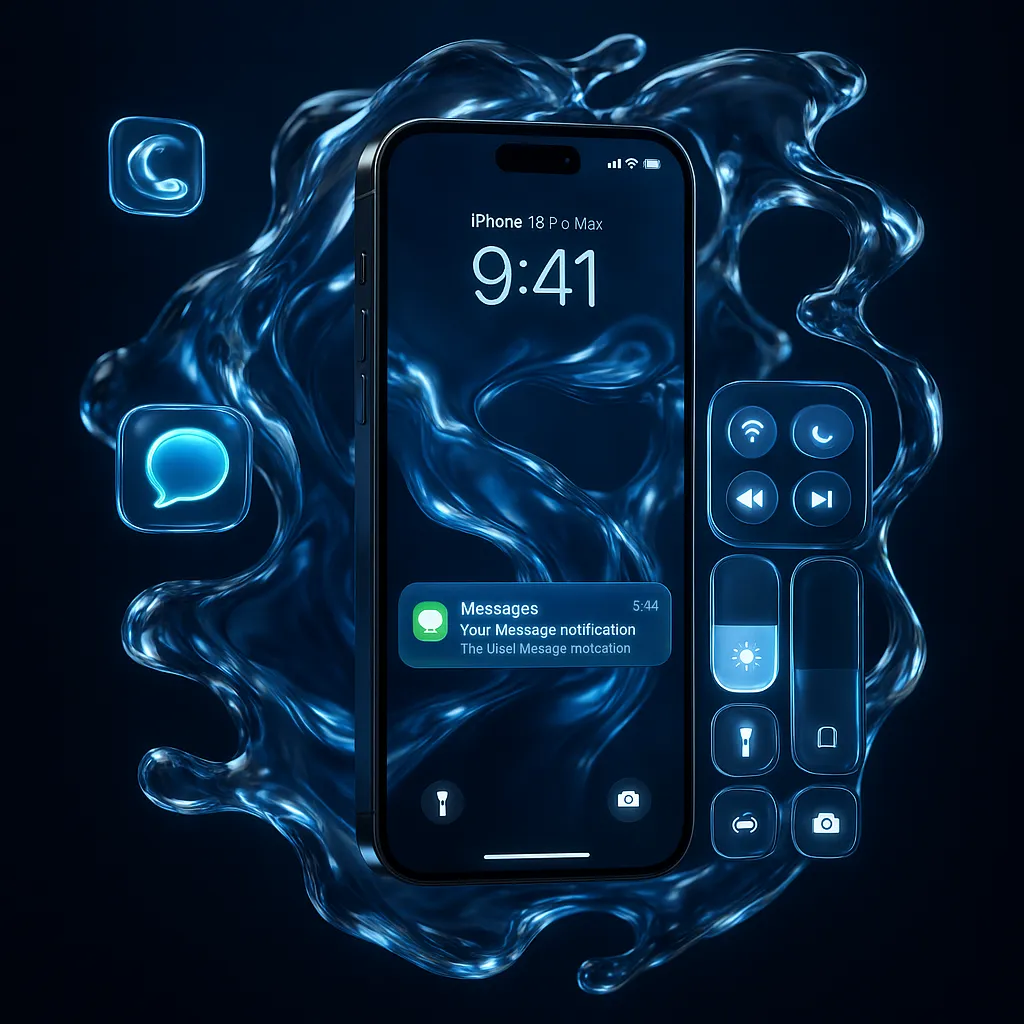
iOS 26 Liquid Glass: Complete Cheat Sheet Recap
iOS 26, Liquid Glass, Cheat Sheet
Day 2 Liquid Glass Recap — Your Complete iOS 26 Cheat Sheet
Missed a moment of Day 2 in the iOS 26 Liquid Glass series? This fast, high‑impact recap gives you everything you need to understand the new look, dial it in, and show it off — all in one skim‑friendly reference.
What Is Liquid Glass?
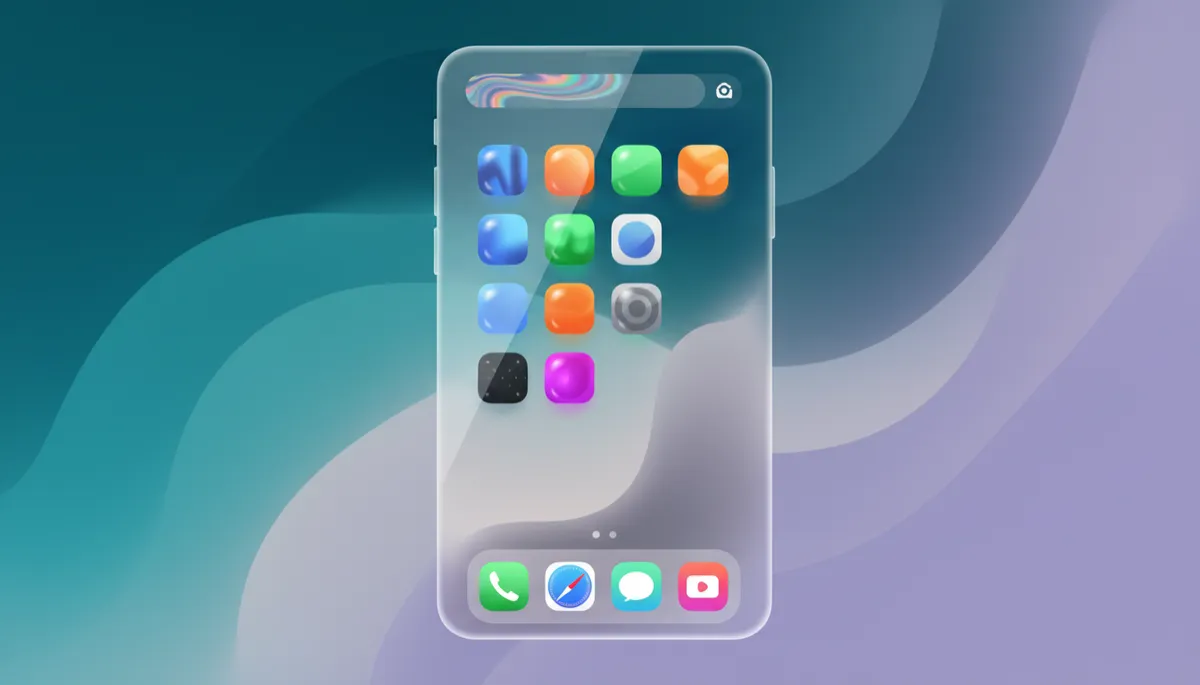
Liquid Glass is the bold new design language in iOS 26 — Apple’s biggest visual rethink since the flat overhaul of 2013’s iOS 7 (iOS 26 was introduced at WWDC 2025 and rolled out that fall, per Apple’s release notes and coverage on MacRumors and Wikipedia). Instead of flat, opaque panels, your iPhone now feels like layered, translucent glass, subtly reflecting your wallpaper and the light around it (MacRumors; Wikipedia).
Think of it as a living sheet of glass across your phone: icons, tab bars, and controls float above your wallpaper, picking up its color and depth in real time. Tilt, scroll, or open an app and the glass reacts with soft glints and shifting translucency. It’s dramatic, but still grounded in readability and structure thanks to Apple’s refinements across the betas.
The Four Icon Themes (Light, Dark, Tinted, Clear)
Liquid Glass really comes alive on the Home Screen, where every app icon can adopt one of four glass styles:
- Light – Soft, frosted glass that keeps things bright and airy. Great for light wallpapers and classic iOS vibes.
- Dark – Deeper glass with stronger contrast. Perfect if you live in Dark Mode or prefer a cinematic feel.
- Tinted – Icons pick up a subtle color wash from your wallpaper, balancing personality and legibility. This is the sweet spot for many users.
- Clear – The show‑stopper. Icons become almost fully transparent, outlined in glass that refracts your wallpaper underneath.
To switch themes, follow this path: Settings → Wallpaper → Customize → Icon Tinting, then choose Light, Dark, Tinted, or Clear for your current Home Screen. You can mix choices per Focus setup, so your work screen can stay practical while your personal screen goes full glassy.
Key Liquid Glass Features You’ll Notice Every Day
Liquid Glass isn’t just a pretty face — it reshapes how core parts of iOS behave:
- Smart Tab Bars – In apps like Safari and Music, tab bars now shrink as you scroll, then gracefully expand when you reverse direction, keeping content front and center while staying instantly reachable.
- Shimmering Control Center – Pull down Control Center and notice the tiles floating like glass cards, softly shimmering with tones from your wallpaper for a cohesive, system‑wide look (MacRumors).
- Card‑Style Notifications – Alerts now stack like layered glass cards with real depth. Long‑press any notification to expand actions or snooze it, then watch it settle neatly back into the stack.
- Safari’s Liquid Glass Address Bar – The address bar becomes a floating glass pill that reflects your page and wallpaper, while Apple’s privacy tools quietly keep tracking protections and extension controls close at hand.
How to Control Liquid Glass Intensity
Want full drama or something more restrained? iOS 26 gives you a quick master control: Settings → Display & Brightness → Liquid Glass.
- Full – Maximum translucency, reflections, and motion. Choose this if you love the futuristic, glass‑everywhere aesthetic.
- Balanced – Dials back some of the glow for better contrast, especially on busy wallpapers. Ideal for most people.
- Off – Minimizes Liquid Glass effects for a more traditional, solid interface while still keeping iOS 26’s layout improvements.
Third‑Party Apps: Get the Updated Glass Look
Apple’s own apps already lean into Liquid Glass, and more third‑party apps are adopting the new glass buttons, floating tab bars, and translucent sheets via updated UIKit and SwiftUI APIs. To make sure your favorite apps keep up, head to: App Store → Profile (top right) → Update All.
Once updated, watch for apps where toolbars now hover above content, context menus expand as glass panels, and sliders stretch fluidly — all part of the Liquid Glass toolkit Apple highlighted in its developer sessions (Apple Developer).
Best Tip: The Most Stunning Setup to Try Tonight
If you try only one combo from Day 2, make it this one — it’s the fastest way to make your phone look like a brand‑new device: Clear icons + a vibrant wallpaper.
Grab a high‑contrast galaxy or glowing sunset wallpaper with rich color gradients. Then go to Settings → Wallpaper → Customize → Icon Tinting → Clear. Your icons melt into the background, outlined only by shimmering glass and subtle refractions. Pair this with Liquid Glass set to Balanced for readability, and your Home Screen instantly looks like a concept render from an Apple keynote — but it’s right in your hand.
Screenshot it, share it, and enjoy the “Wait… what iPhone is that?” reactions. That’s the power of mastering Liquid Glass in iOS 26.
