iOS 26 Image Playground: Create AI Images Right Inside Your iPhone Apps
Apple Intelligence, iOS 26, Creative AI
iOS 26 Image Playground: Create AI Images Right Inside Your iPhone Apps
If you have ever wished you could whip up a fun custom illustration without leaving Messages or Notes, iOS 26 is going to make you very happy. Apple’s new Image Playground feature, powered by Apple Intelligence, lets you generate playful AI images right where you are already chatting, planning, and jotting down ideas on your iPhone.
What Is Image Playground in iOS 26?
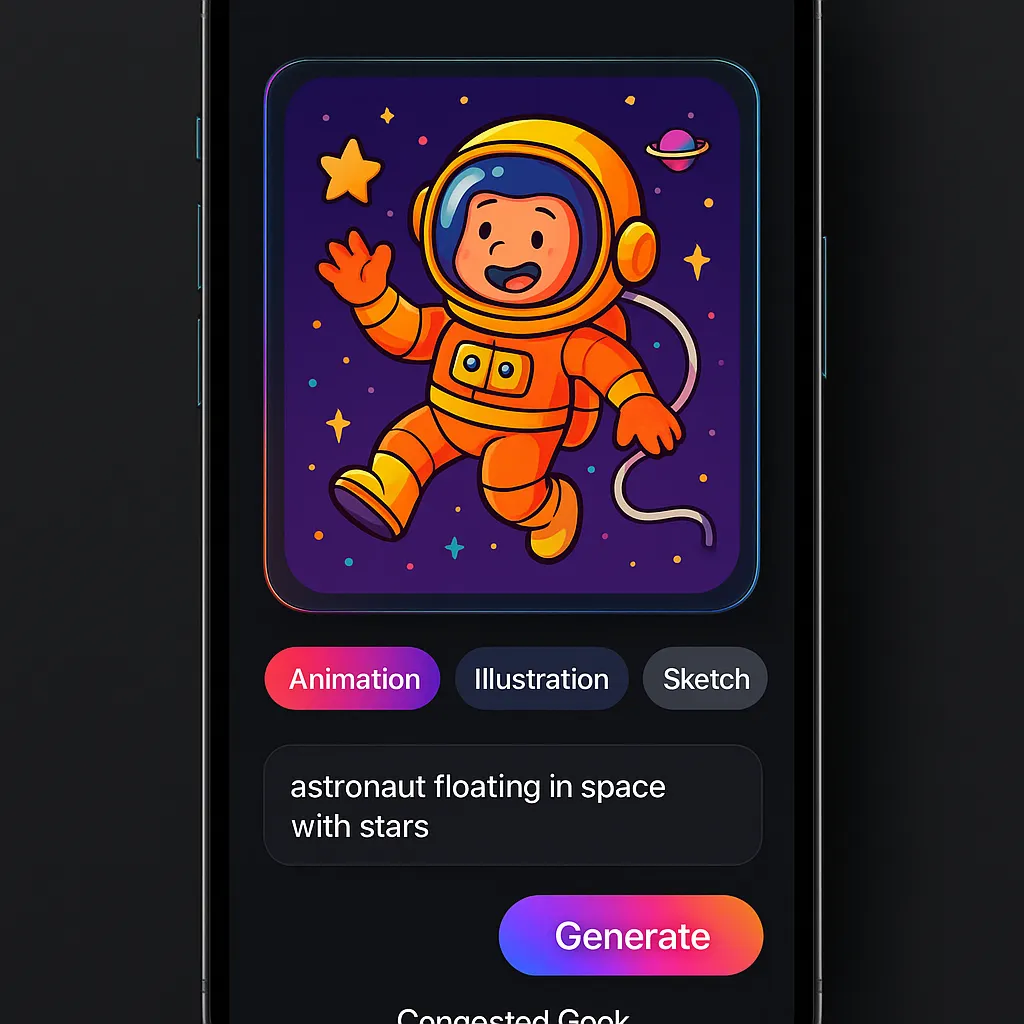
Image Playground is Apple’s built‑in creative image generator, tightly woven into iOS 26. Instead of opening a separate app or website, you can ask Apple Intelligence to create fun, stylized images right inside apps like Messages and Notes. The focus is on playful, expressive visuals rather than serious photo editing, so it feels light, fast, and surprisingly delightful to use.
You describe what you want, pick a style, and Image Playground instantly offers three creative variations you can drop straight into a conversation, a note, or other supported apps. It is like having a tiny, always‑on illustrator living in your iPhone, ready to bring your ideas to life in seconds.
How to Use Image Playground in Messages
Using Image Playground in Messages feels wonderfully natural, because it sits right alongside the tools you already use every day. Here is the simple flow:
- Open a conversation in Messages on your iPhone running iOS 26.
- Tap the + button next to the text field to open the app drawer.
- Choose Image Playground from the list of options.
- Pick a style (Animation, Illustration, or Sketch).
- Type a short description of what you want, or tap one of the suggested prompts that appear.
- Image Playground generates three variations. Swipe through them, pick your favorite, and tap to insert it into the chat.
That is it. No exporting, no saving, no juggling apps. You go from idea to shareable artwork in a few taps, which makes it perfect for playful back‑and‑forth messages, inside jokes, or quick visual reactions that go way beyond a normal emoji or sticker.
How to Use Image Playground in Notes
Notes is where Image Playground becomes a surprisingly powerful brainstorming buddy. Instead of staring at a blank page, you can spin up visuals that match your ideas as you write.
- Open the Notes app and create a new note, or open an existing one.
- In the formatting bar above the keyboard, tap the Image Playground icon.
- Choose your preferred style and enter a description, just like in Messages.
- Pick from the three generated images and it drops directly into your note, ready to be moved or resized as needed.
This is fantastic for visual planners, students, and anyone who thinks in pictures. You can decorate study notes, mock up concepts for a project, or create simple storyboards without ever leaving the note you are working in.
The Three Image Playground Styles Explained
Image Playground keeps things delightfully simple with three core styles, each with its own personality:
- Animation: Think bold, colorful, cartoon‑style fun. Perfect for silly scenarios, exaggerated expressions, and anything you want to feel playful and energetic.
- Illustration: A more detailed, art‑forward look. This is great for slightly more polished visuals, like a cover image for a note, a concept sketch, or a stylish message greeting.
- Sketch: A hand‑drawn, pencil‑like style that feels personal and casual. Use it when you want something that looks like it came from a notebook or a quick doodle.
Because the options are focused and curated, you spend less time fiddling with settings and more time actually creating and sharing images that feel just right for the moment.
Smart Suggestions Based on Who You Are Messaging
One of the most charming touches in Image Playground is how it tailors suggestions to the conversation you are in. Because it is powered by Apple Intelligence, it can offer smart prompts that feel relevant to the person you are chatting with and the context of your messages, all while preserving your privacy through Apple’s on‑device and Private Cloud Compute approach, as highlighted in Apple’s iOS 26 announcements (apple.com).
For example, if you are messaging a friend about weekend plans, you might see playful suggestions about activities, locations, or shared interests. This makes it incredibly easy to tap a suggestion, tweak it if you like, and instantly get a fitting image without having to think up a perfect prompt from scratch.
Fun, Everyday Use Cases You Will Love
Image Playground shines in everyday moments. Here are some fun ways to put it to work:
- Personalized messages: Send a cartoon of your friend as a superhero, a sketch of your coffee meetup, or an illustrated “good luck” before an exam.
- Illustrations for notes: Add simple diagrams, concept art, or mood‑setting scenes to your notes for school, work, or personal projects so they feel more alive and memorable.
- Birthday and holiday images: Create a custom birthday card illustration, a festive holiday scene, or a playful thank‑you image tailored to the person you are celebrating.
Because everything is generated on the spot, you are never stuck with generic clip art again. Each image can be as quirky and specific as your relationship with the person you are sending it to.
Important Limitations to Keep in Mind
As magical as Image Playground feels, it does have some intentional guardrails. Apple has clearly designed it to prioritize safety, privacy, and a playful tone over raw power or realism.
- No real human faces: People are rendered in a stylized way, not as photorealistic portraits. That keeps things fun and reduces the risk of misuse or confusion with real photos.
- Three styles only: You are limited to Animation, Illustration, and Sketch. There is no fully photorealistic mode in Image Playground itself, even though iOS 26 introduces more realistic generative models for other contexts, complete with watermarking (apple.com, macrumors.com).
These boundaries actually make Image Playground feel approachable. You always know the output will look like a creative artwork, not a deceptive photo, which keeps the experience lighthearted and family‑friendly.
Tips for Getting the Best Results
To really make Image Playground sing, a little prompt crafting goes a long way. Here are some friendly tips:
- Be specific: Instead of “cat,” try “orange cat wearing sunglasses, reading a book on the beach.” The more detail you give, the more personality the image will have.
- Match the style to the moment: Use Animation for big, bold jokes; Illustration for more polished or decorative images; Sketch for casual, notebook‑style doodles in Notes.
- Lean on suggestions: If you are stuck, tap one of the smart suggestions and then add a few details that make it personal to you or your friend.
With a bit of practice, you will quickly find your own style of prompting, and Image Playground will start to feel like an extension of your imagination.
Image Playground vs Genmoji: What Is the Difference?
iOS 26 also features Genmoji, so it is helpful to know when to use each. Both are powered by Apple Intelligence, and both are designed to make your conversations more expressive, but they serve different roles.
- Genmoji: These are emoji‑sized characters. You create them from text or photos, and they behave like extra‑expressive emojis you can drop inline with your messages. They are tiny, punchy, and perfect for quick reactions.
- Image Playground: This generates full‑size creative images. They take up more space in the conversation, work beautifully as illustrations in Notes, and feel more like mini posters or cards than simple icons.
Think of Genmoji as your expressive punctuation marks and Image Playground as your personal art studio. Use Genmoji when you want a quick, emoji‑like reaction, and reach for Image Playground when you want a rich, visual moment that tells a little story all on its own.
With iOS 26, Apple has turned your iPhone into a joyful canvas for creativity, right inside the apps you use every day. Once you start playing with Image Playground, it is hard to go back to plain text alone.
