iOS 26 Genmoji: Create Your Own Custom Emoji with a Text Prompt
iOS, Apple Intelligence, Emoji
iOS 26 Genmoji: Create Your Own Custom Emoji with a Text Prompt
If you’ve ever wished you could invent the perfect emoji for a moment, iOS 26’s Genmoji is going to make you ridiculously happy. Powered by Apple Intelligence, Genmoji lets you describe what you want in plain language and instantly turns that idea into a brand‑new emoji that looks and behaves just like the ones you already love.
What Exactly Is Genmoji?
Genmoji is Apple’s AI‑powered custom emoji creator built into iOS 26. Using Apple Intelligence, it takes a short text description (or a mix of existing emoji) and generates a fresh, emoji‑sized character in the familiar iOS emoji style. Think of it as your personal emoji factory: you describe the vibe, and Genmoji designs a tiny, expressive icon that fits right into your keyboard and messages.
Unlike big, detailed images, Genmoji are intentionally small, bold, and simple—just like the standard emoji set. According to Apple’s iOS 26 feature documentation, they’re part of the broader Apple Intelligence tools that run privately and efficiently on supported devices, so your creative ideas stay personal while still feeling incredibly magical to use (apple.com).
How to Create a Genmoji Step by Step
Making your first Genmoji only takes a few taps, and once you’ve done it once, you’ll want to do it all the time. Here’s the basic flow using the iOS keyboard:
- Open any app with the keyboard (Messages is perfect to start).
- Tap the emoji button on the keyboard to open your emoji panel.
- Look for the Genmoji sparkle icon and tap it to enter Genmoji creation mode.
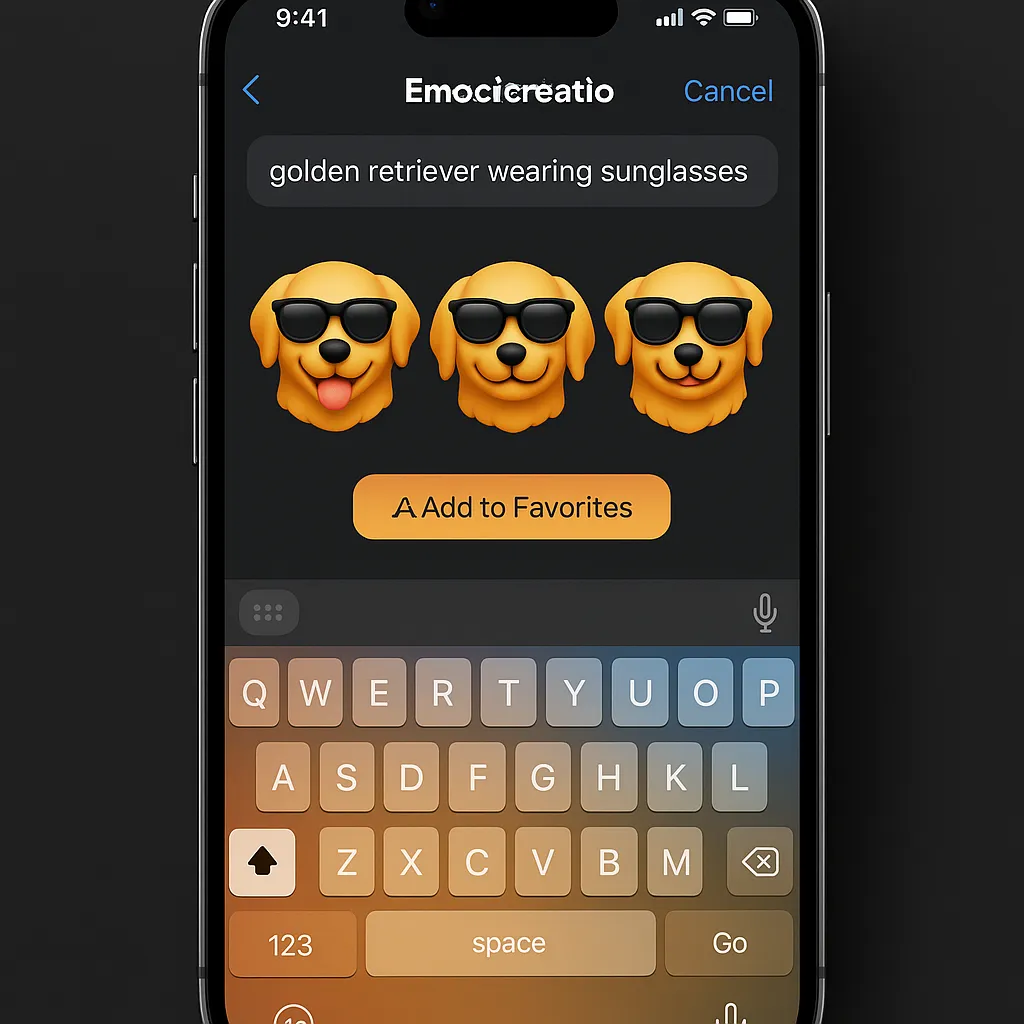
- In the text box that appears, type a short description of what you want, like “a dragon eating ice cream.”
- Apple Intelligence will quickly generate three Genmoji variations based on your prompt.
- Tap the version you like best to insert it directly into your message, note, or email.
That’s it—you’ve just invented a brand‑new emoji! iOS 26 also lets you mix existing emoji as a starting point and then add a description on top, like combining a 🎓 and 🐶 and then typing “golden retriever in a graduation cap” for extra detail (9to5Mac).
Fun Prompt Ideas to Try First
The real joy of Genmoji is experimenting with prompts. The more playful you are, the more delightful the results. Here are some fantastic starter ideas:
- “a golden retriever in a graduation cap” – perfect for celebrating exam results, graduations, or any big win for a dog‑loving friend.
- “a dragon eating ice cream” – ideal for summer chats, fantasy fans, or just when your dessert feels epic.
- “a robot thumbs up” – a fun way to say “approved,” “nice job,” or “message received” with a geeky twist.
Once you get comfortable, push it further: “sleepy sloth with a coffee mug,” “pizza slice wearing sunglasses,” or “storm cloud with a tiny rainbow umbrella.” Apple Intelligence is surprisingly good at turning imaginative ideas into crisp, readable emoji‑style art (apple.com).
Genmoji from Photos: Emoji That Look Like Real People
One of the most charming tricks in iOS 26 is creating Genmoji from photos. Instead of describing a character, you can base it on someone you know—yourself, a friend, or a family member—and Apple Intelligence turns them into a tiny emoji twin.
- In the Genmoji creation view, tap the face icon.
- Choose a contact or photo from your library as the reference.
- iOS will generate a Genmoji that resembles that person in emoji form, complete with adjustable expressions like happy, surprised, or thoughtful, and tweakable details such as hairstyle or glasses (9to5Mac).
It’s a fun, lightweight alternative to Memoji: instead of building a full animated avatar, you get a crisp, expressive emoji that feels instantly personal and super shareable.
How Genmoji Look and Where They Work
Genmoji are designed to blend right in with the standard iOS emoji set. They share the same bold colors, clean outlines, and friendly 3D‑cartoon style you’re used to, so they never feel out of place. When you drop one into a message, it sits neatly alongside 😀, ❤️, and 🎉 as if it’s always been part of the keyboard.
Even better, they’re not limited to just one app. Because they’re treated like emoji‑sized adaptive images, you can use Genmoji anywhere the emoji keyboard works:
- Messages – the most natural place to start, with Genmoji tools built right into the composer (MacRumors).
- Mail – add personality to subject lines or sign‑offs.
- Notes – mark up to‑do lists or journals with custom icons.
- Any emoji‑supporting app – social media, chat apps, task managers, and more.
Saving, Favoriting, and Reusing Your Genmoji
The magic doesn’t stop after you hit send. When you create a Genmoji, iOS 26 treats it like part of your personal emoji collection. Frequently used Genmoji will start appearing in your emoji favorites section, right alongside your most‑tapped standard emoji, so they’re always a couple of taps away.
That means your “robot thumbs up” or “golden retriever in a graduation cap” can become a signature reaction you reuse across conversations, emails, and notes. You don’t need to regenerate it each time—just pick it from your favorites and drop it into whatever you’re writing.
Genmoji vs. Image Playground: What’s the Difference?
Genmoji and Image Playground are siblings in the Apple Intelligence family, but they’re built for different jobs. Understanding the difference helps you pick the right tool for your creative moment.
- Genmoji focuses on emoji‑sized creations. It generates small, expressive icons meant to live inline with text—perfect for reactions, quick emotions, and tiny characters. The style is consistent with iOS emoji, and the workflow is quick and chat‑friendly (en.wikipedia.org).
- Image Playground is for full images. It can create illustrations, sketches, animations, photorealistic scenes, and yes, even emoji‑style art, but at a larger size and with more layout flexibility. It’s ideal for posters, story prompts, mood boards, or app designs (developer.apple.com).
In iOS 26, the two tools are integrated: you can craft Genmoji directly inside Image Playground if you want a more advanced workflow, or stay in the keyboard flow for fast, conversational creativity (apple.com). But as a rule of thumb, think Genmoji for tiny reactions, Image Playground for big visuals.
Pro Tips for Better, More Unique Genmoji
To really unlock Genmoji’s potential, lean into specificity and personality. Here are some friendly tips to level up your creations:
- Be specific, not vague. “Cat” is fine, but “sleepy orange cat under a blanket” gives Apple Intelligence much more to work with—and the result feels uniquely yours. More detail usually means more charm.
- Include an emotion or action. Add words like “celebrating,” “confused,” or “face‑palming” to express a mood, not just an object. For example, “confused cactus with question marks” is instantly meme‑worthy.
- Mix emoji plus text. Start by combining emoji in the Genmoji interface, then add a short description for extra flair, as Apple’s iOS 26 notes suggest. This combo can lead to surprisingly clever hybrids (9to5Mac).
- Iterate until it feels right. If the first set of three variations isn’t perfect, tweak your prompt—change one or two words, or focus on a specific detail like “bigger smile” or “sparkly hat.”
- Create “signature” Genmoji. Make a few that represent you—maybe a hobby, your favorite snack, or a stylized version of yourself—and reuse them as your personal reactions across chats.
With iOS 26, Genmoji turns your imagination into tiny, expressive characters that feel like they were always meant to be on your keyboard. The next time you think, “There should be an emoji for this,” open the Genmoji sparkle, type your idea, and let Apple Intelligence do the rest.
