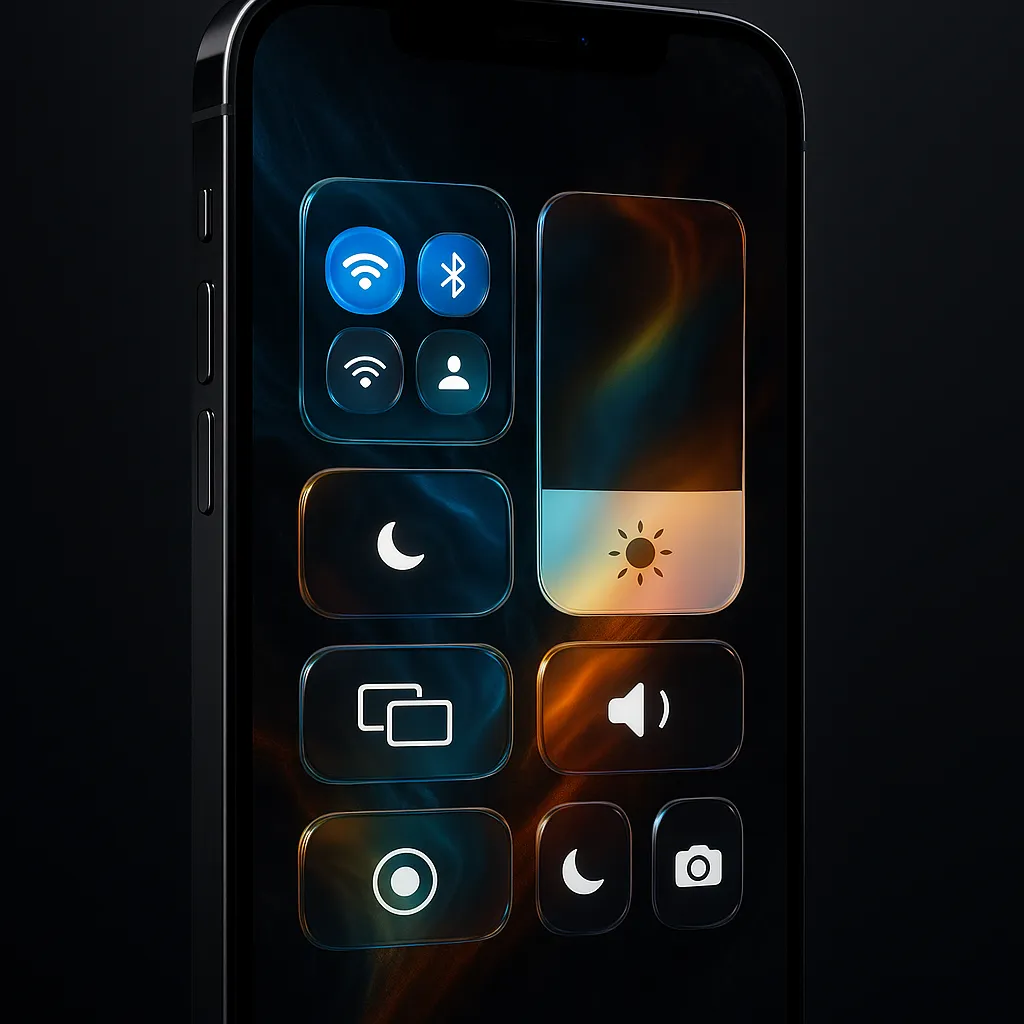
iOS 26 Control Center: Liquid Glass Guide
iOS, Control Center, Tips & Tricks
iOS 26 Control Center — Complete Guide to the Liquid Glass Makeover
Learn how to open, understand, and fully customize the new Liquid Glass Control Center in iOS 26 so your favorite tools are always one swipe away.
Step 1: How to Open Control Center on Any iPhone
Before you explore the Liquid Glass makeover, make sure you can reliably open Control Center:
- Face ID iPhones (no Home button): Swipe down from the top-right corner of the screen, starting just beside the battery icon.
- Older Home button iPhones: Swipe up from the bottom edge of the screen until Control Center appears.
Try this from the Home Screen and from within an app. If it is not working, go to Settings → Control Center and ensure Access Within Apps is turned on.
Step 2: Get Oriented — What’s New in the Liquid Glass Look
iOS 26 gives Control Center a dramatic Liquid Glass redesign, especially noticeable on newer devices with A16 Bionic or later (see coverage on MacRumors). Here is what to look for when you swipe it open:
- Liquid Glass toggles: Every button—Wi‑Fi, Bluetooth, Focus, and more—now looks like a rounded glass pebble, subtly reflecting light as you tap.
- Shimmer that matches your wallpaper: When you move controls, a soft shimmer passes through them, picking up colors from your wallpaper underneath.
- Glass track sliders: Brightness and volume sliders now sit on translucent tracks, as if the levels are floating inside a clear bar of glass.
- Frosted background: The whole Control Center blurs and frosts what is behind it, giving a sense of depth without hiding your wallpaper completely.
Spend a moment swiping between the new multi‑page layout and watching how the Liquid Glass elements glide and refract. It is not just cosmetic—Apple uses this depth to make groups of controls easier to read and reach.
Step 3: Customize Control Center to Match Your Routine
The real power of iOS 26’s Control Center is how easily you can tailor it. Follow these steps:
- Open Settings on your iPhone.
- Tap Control Center.
- Under Included Controls, you will see what is already visible. Under More Controls, you will see everything you can add.
- To add a control, tap the green + next to it.
- To remove a control, tap the red - and then Remove.
- To reorder, drag the three‑line handle beside a control up or down. This changes where it appears in the Liquid Glass grid.
In iOS 26, these choices extend across multiple pages, so you can group work tools on one page and personal shortcuts on another for a clean, glassy dashboard.
Step 4: Must‑Have Controls to Add First
To get immediate everyday benefits, add these controls from Settings → Control Center:
- Screen Recording: Capture your screen for tutorials, bug reports, or sharing app workflows in seconds.
- Text Size: Quickly increase or decrease text size system‑wide—perfect when your eyes are tired or you switch between reading and video.
- Magnifier: Turn your iPhone into a digital magnifying glass for menus, labels, or tiny serial numbers.
- Notes: Jump straight into a new note from Control Center, ideal for capturing ideas before they disappear.
- Shazam: Identify any song playing around you with one tap, without unlocking and hunting for the app.
- Voice Memos: Start recording instantly—great for meetings, lectures, or quick personal reminders.
Step 5: Pro Tips to Unlock Hidden Power
Once your Liquid Glass Control Center is set up, these small habits make it dramatically more useful:
- Long‑press any control: Press and hold (or use Haptic Touch) on most tiles to reveal expanded options—Wi‑Fi networks, audio outputs, and more.
- Long‑press Brightness: Deep‑press the brightness slider to quickly toggle Night Shift and True Tone without opening Settings.
- Haptic Touch on the Camera icon: Press firmly on the camera control to jump straight into specific modes like Video, Portrait, or Selfie.
Combine these pro tips with a carefully arranged set of controls, and the iOS 26 Liquid Glass Control Center becomes a fast, elegant command panel tuned exactly to how you use your iPhone every day.
