iOS 26 Clear Icon Theme: Transform Your Home Screen
iOS, Customization, Home Screen Design
iOS 26 Clear Icon Theme — The Most Jaw-Dropping Feature You Need to Try
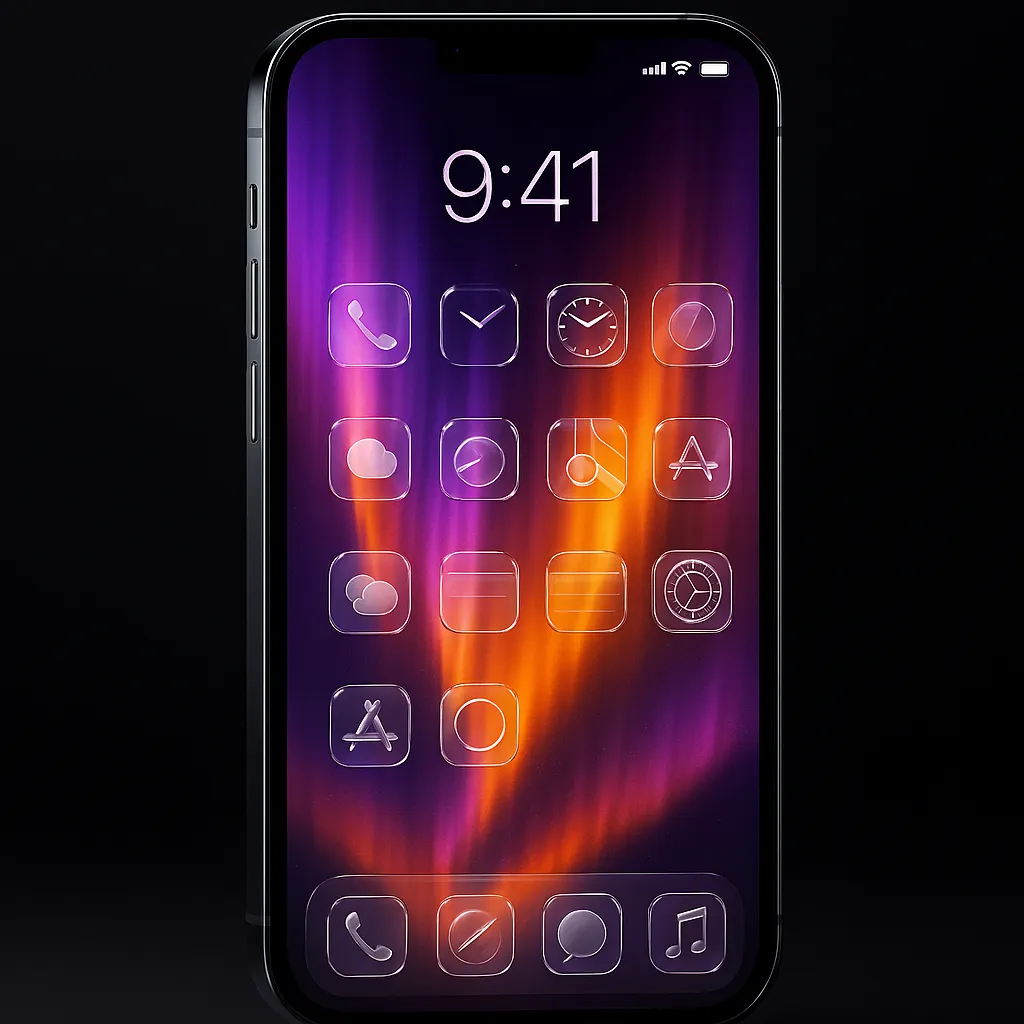
If you love tweaking every pixel of your iPhone Home Screen, the new Clear icon theme in iOS 26 is about to become your latest obsession. It turns your apps into floating glass panels and makes your wallpaper the real star of the show.
How to Turn On the Clear Icon Theme (In Seconds)
Apple tucked this feature into the new Home Screen and wallpaper controls, so you don’t need any third‑party apps or shortcuts. Just follow this quick path:
- Open Settings on your iPhone.
- Tap Wallpaper, then choose your current Lock Screen / Home Screen pair.
- Hit Customize under the Home Screen preview.
- Go to Icon Tinting and select Clear.
- Choose your favorite variant — Light, Dark, or Auto — then tap Done.
What Actually Happens When You Enable Clear Icons?
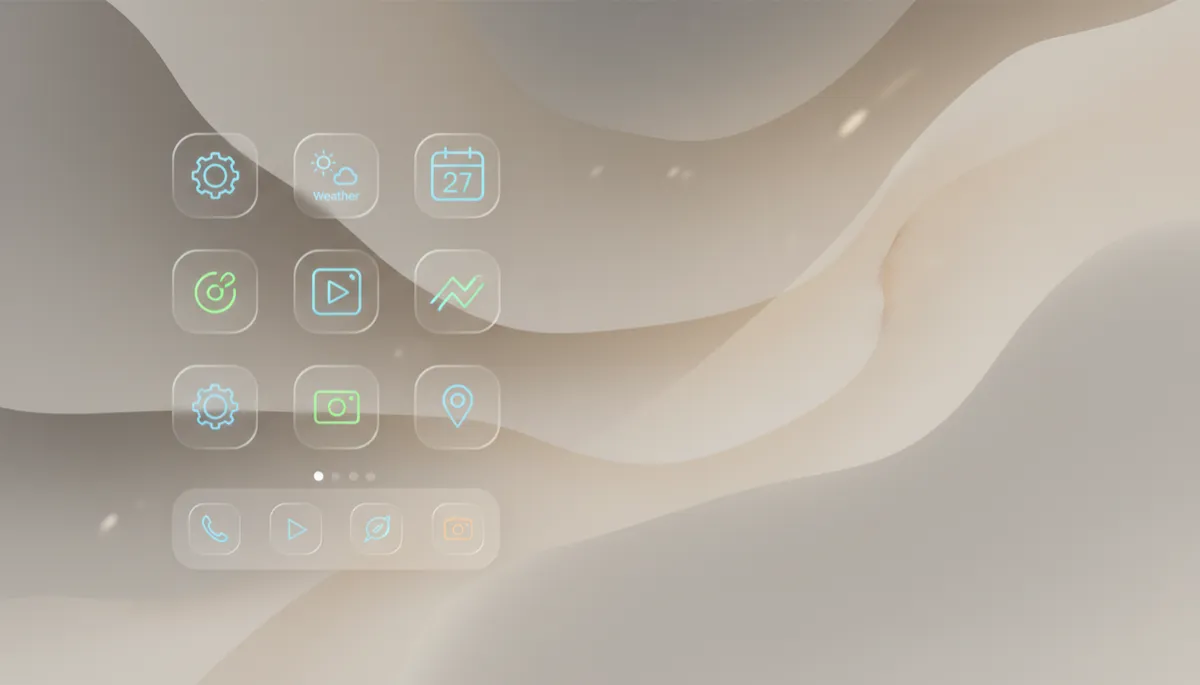
The moment you switch to Clear, your Home Screen gets a dramatic makeover. Every app icon turns into a fully transparent glass tile. Your wallpaper shows straight through the icon background, while the familiar app logo and label float crisply on top. Widgets and the dock pick up the same Liquid Glass treatment, so the entire screen feels like one seamless, layered sheet of glass. It’s clean, futuristic, and honestly a little addictive to stare at.
Best Wallpapers to Make Clear Icons Look Insane (In a Good Way)
Because your wallpaper shines through every icon, the background you pick matters more than ever. Here are wallpaper styles that look especially stunning:
- Vibrant sunsets: Rich oranges, purples, and pinks glow through the glass and give your apps a warm halo.
- Galaxy and space art: Stars and nebulae make icons feel like they’re floating in deep space.
- Ocean scenes: Deep blues and turquoise waves pair beautifully with the translucent effect.
- Flowers and botanicals: Petals and leaves peeking through each icon create a soft, organic grid.
- Mountain landscapes: Dramatic peaks and skies give your Home Screen a cinematic, postcard feel.
Pro Tips for the Best Clear Icon Experience
To keep things both gorgeous and usable, keep these simple guidelines in mind:
- Avoid white or very pale wallpapers. They can make icons and text harder to read, especially in the Light variant.
- Go dark with bright accents on OLED screens. Deep blacks with neon streaks or glowing elements look incredible and save a bit of battery, too.
- If things feel too busy, switch to the Dark Clear variant for stronger contrast while keeping that glassy vibe.
The Fun Part: One Wallpaper, Completely New Phone
Here’s the coolest thing about the Clear icon theme: changing your wallpaper instantly transforms your entire Home Screen. Swap a moody galaxy shot for a bright beach photo, and it feels like you’re holding a totally different iPhone. No icon packs, no tedious setup — just a new background and your grid of glass tiles takes on a whole new personality.
If you’re even a little bit into customization, you owe it to yourself to try Clear icons. Dive into Settings, flip the switch, and watch your Home Screen turn into a sheet of living glass in seconds.
