iOS 26 Apple Intelligence: How Siri Learns Your Personal Context
Apple Intelligence, Siri, iOS 26
iOS 26 Apple Intelligence: How Siri Learns Your Personal Context
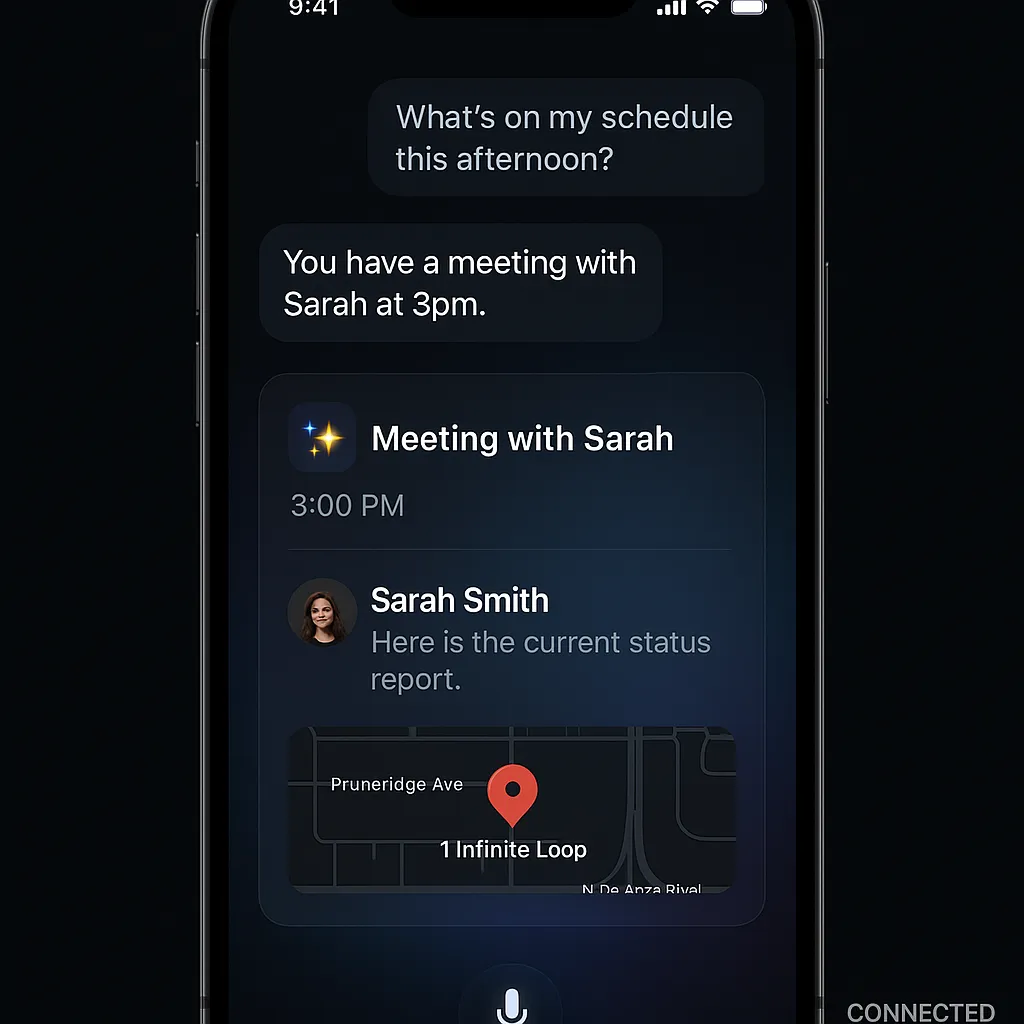
With iOS 26 and Apple Intelligence, Siri finally feels less like a generic voice assistant and more like someone who actually knows you. By understanding your personal context, Siri can answer questions about your day, your plans, and even your photos in a way that feels surprisingly natural, while still keeping your data private and on your device.
What “personal context” means for Siri
Personal context is Siri’s way of using the information already on your iPhone to give you genuinely helpful, personalised answers. Instead of treating every request as if it came from a stranger, Siri can now look at:
- Calendar – meetings, trips, reminders of important dates.
- Mail – flight confirmations, work emails, follow‑ups you might forget about.
- Messages – conversations about projects, plans, and commitments you made in chats.
- Photos – people, places, and events captured in your camera roll.
- Habits and patterns – when you usually go to the gym, who you message most, recurring routines inferred on‑device over time.
- Contacts – who people are, how they relate to you, and how you typically communicate with them.
Combined under Apple Intelligence, this lets Siri respond in a way that feels tailored to your life, not just to your words. And importantly, all of this understanding happens on your device, not in the cloud (Apple, Privacy Features).
Siri before vs after personal context
Think back to the “old” Siri. If you asked something like, “What time is my flight?”, you probably got a web search or a confused answer. Siri simply couldn’t see into your emails or calendar in a meaningful way, so anything personal was basically off‑limits or very hit‑and‑miss.
With Apple Intelligence in iOS 26, the experience is very different. Now, when you ask a question that depends on your own information, Siri can read the relevant details from your calendar, Mail, Messages, and more, then give you an exact, concise answer instead of sending you off to dig for it yourself. It feels less like “using a feature” and more like quickly checking in with someone who already knows what’s going on in your life.
Practical examples you can try right away
Here are some everyday requests that show off how powerful personal context can be:
- “Find the email from Sarah about the report.” Siri looks in Mail for messages from Sarah mentioning “report” and opens the one that matches, so you do not have to scroll through your inbox.
- “What time is my flight to Miami?” Instead of giving airline websites, Siri pulls the flight details from your confirmation email or calendar entry and tells you the departure time, terminal, and sometimes even when you should leave for the airport.
- “Who was I talking to about the project deadline?” Siri checks your recent Messages and Mail threads for conversations mentioning that project and can surface the person and the latest messages, so you can pick up right where you left off.
- “Show me photos from my birthday last year.” Siri jumps into Photos with a filtered view showing images taken around your birthday, so you can relive the day without manually searching dates or albums.
These are the kinds of small but meaningful moments where Siri’s new awareness saves you time and mental energy. Instead of thinking, “Which app do I open?”, you just ask in plain language and let Siri do the digging.
How Siri understands and uses your photos
Photos are a big part of your personal story, and Apple Intelligence helps Siri make sense of them in a friendly, useful way. On‑device intelligence can recognise faces, locations, and events, so when you ask for specific memories, Siri is not guessing – it is matching your request with what it sees in your library.
- Identifying people: If you have people labelled in Photos, Siri can respond to requests like “Show me pictures of Mum and Dad at the beach” by finding those faces together in beach photos.
- Finding events: Because your iPhone understands when a set of photos looks like “a concert,” “a birthday,” or “a trip,” Siri can pull up those moments when you ask for them by name, date, or even by place.
Again, all of this analysis stays on your device, which means your memories are not being uploaded to Apple for processing, aligning with Apple’s long‑standing privacy approach (Apple, Privacy Features).
Personal context meets Writing Tools
One of the most helpful parts of Apple Intelligence is how it blends personal context with Writing Tools. When you ask Siri to help you write an email, message, or note, it does not just generate generic text. Instead, it learns from how you usually write and suggests wording that matches your natural communication style – friendlier or more formal, short and direct or a bit more detailed.
For example, you can say, “Help me reply to James about the budget update,” and Siri can look at the previous conversation, understand what you are responding to, and offer a draft that sounds like you, not a robot. You stay in control, editing and approving, but Siri handles the heavy lifting so you can move on faster.
How to enable and verify Siri’s personal context access
To get the most out of these features, it is worth checking that Apple Intelligence and Siri have the access they need. The good news is you can see and control this in one place:
- Open Settings on your iPhone.
- Tap Apple Intelligence & Siri.
- Look for a section like Siri has access to… and review the list of apps.
- Make sure the apps you want Siri to use for personal context are turned on.
You can turn access on or off at any time, which gives you a simple, friendly way to tune Siri’s intelligence to your comfort level.
Which apps can Siri use as personal context?
In iOS 26, Apple Intelligence lets Siri draw from several core apps to understand your world better:
- Messages – for conversations, commitments, and shared info.
- Mail – for confirmations, updates, and longer discussions.
- Calendar – for events, flights, meetings, and reminders.
- Photos – for memories, events, and people in your life.
- Contacts – so Siri knows who you mean when you use first names or nicknames.
- Notes – for ideas, lists, and project details you have saved.
- Reminders – for tasks, to‑dos, and things you do not want to forget.
By combining context from all of these, Siri can answer questions that span apps, like “When is the deadline we agreed on with Alex?” or “What did I promise to buy for Mum this weekend?”
How Apple protects your privacy while using personal context
Personal context only works if you can trust it, and Apple leans heavily on privacy here. According to Apple’s privacy documentation, Siri in iOS 26 is designed so that most processing happens on your device, not on Apple’s servers (Apple, Privacy Features). That means your emails, messages, and photos are analysed locally by Apple Intelligence, and are never sent to Apple just to answer your personal questions.
When Siri does need to contact Apple’s servers – for example, to fetch web results – requests are tied to a random identifier rather than your Apple ID, and you can reset this by turning Siri & Dictation off and on again in Settings. You can also opt out of “Improve Siri & Dictation” if you prefer that Apple never uses your audio or transcripts to improve the service. The overall idea is simple: you get the benefits of a highly personal assistant, without handing over your personal life to the cloud.
Friendly tips for getting the most out of Siri’s personal context
- Speak naturally. Treat Siri like a person who already knows your schedule: “Do I have time for coffee before my next meeting?” works better than memorising rigid commands.
- Keep your apps up to date. Make sure events are in Calendar, confirmations are saved in Mail, and tasks live in Reminders so Siri has good information to work with.
- Label people in Photos. Adding names to faces helps Siri find the right photos when you ask for them by person and event.
- Review access regularly. Every so often, revisit Settings → Apple Intelligence & Siri → Siri has access to… and make sure it still matches your comfort level and needs.
- Use Type to Siri. When you are in a quiet place, typing your contextual questions can be a discreet and precise way to use these new powers.
With iOS 26 and Apple Intelligence, Siri finally grows into the role it was always meant to play: a genuinely helpful, personal assistant that understands your world, respects your privacy, and quietly takes care of the little things so you can focus on what matters most.
