iOS 26 Apple Intelligence: The Complete Cheat Sheet & Getting Started Guide
iOS, Apple Intelligence, iPhone Tips
iOS 26 Apple Intelligence: The Complete Cheat Sheet & Getting Started Guide (Day 6)
Apple Intelligence in iOS 26 turns your iPhone into a genuinely smart helper, not just a screen full of apps. This Day 6 cheat sheet walks you through what it is, how to switch it on, every major feature, and simple tips to start using it today—no tech background required.
What Exactly Is Apple Intelligence in iOS 26?
Apple Intelligence is Apple’s built‑in AI system for iPhone. Instead of being one single app, it’s a collection of smart features woven throughout iOS 26—helping you write, organize notifications, reply to messages, clean up photos, translate conversations, and much more. It uses advanced language and image models, but Apple has wrapped all that complexity in simple, friendly tools you can use with a tap or two.
Most importantly, Apple designed Apple Intelligence to be personal and private. It can understand context from your calendar, messages, emails, and photos to be more helpful, while still keeping your data protected through on‑device processing and a new system called Private Cloud Compute (more on that below).
Device Requirements & How to Enable Apple Intelligence
First, check that you have a supported iPhone. Apple Intelligence in iOS 26 requires:
- iPhone 15 Pro or 15 Pro Max (15 Pro+), or
- Any iPhone 16 model or newer.
Once you’re on iOS 26 with a compatible device, turn Apple Intelligence on:
- Open Settings.
- Tap Apple Intelligence & Siri.
- Tap Apple Intelligence.
- Toggle Apple Intelligence to ON, then follow any on‑screen prompts to confirm language, privacy, and ChatGPT options.
After this, Apple Intelligence quietly switches on across your apps. You won’t see one giant “Apple Intelligence” button; instead, you’ll spot new menus, suggestions, and tools in places you already use every day.
The Complete Apple Intelligence Feature List in iOS 26
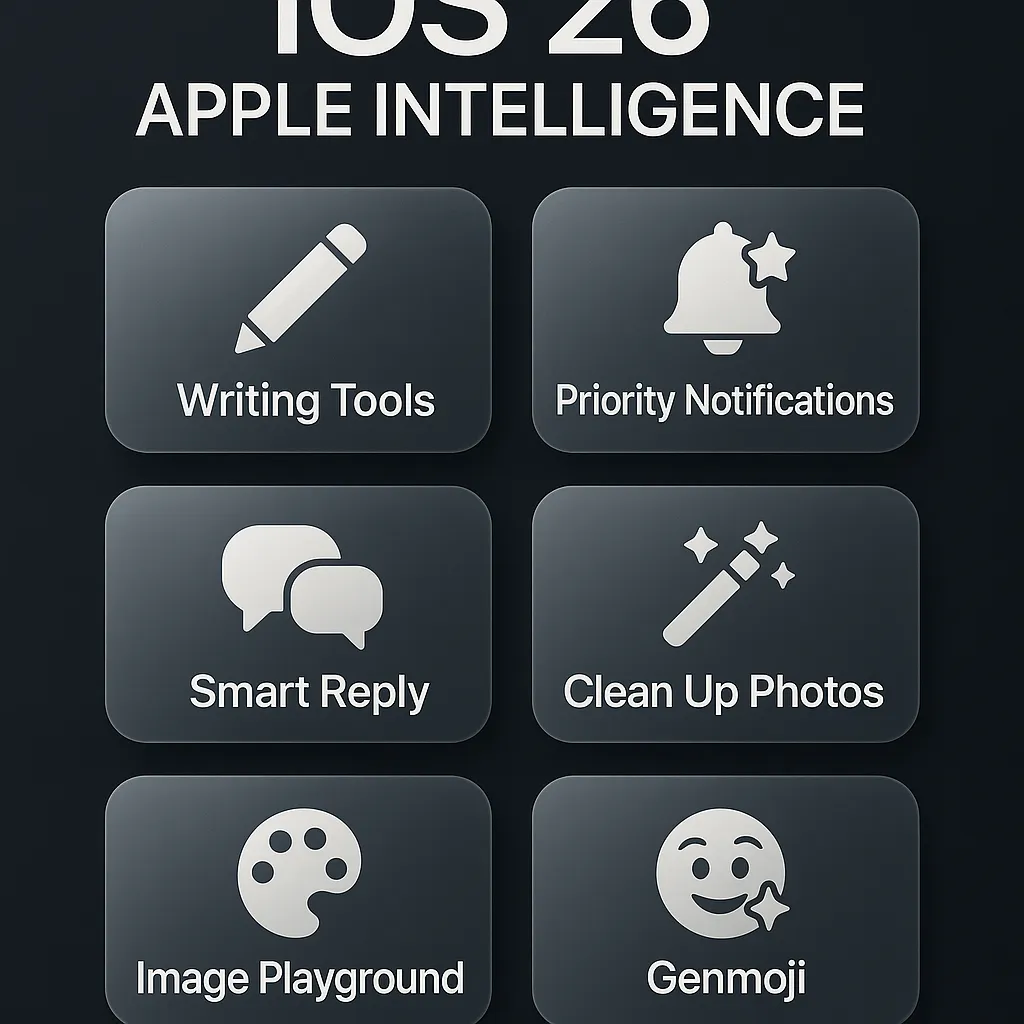
Here’s your at‑a‑glance cheat sheet of the major Apple Intelligence features you can start using right now:
- Writing Tools – Smarter writing options built into text fields across iOS.
- Priority Notifications – Important alerts automatically rise to the top of your stack.
- Smart Reply – One‑tap suggested responses in Messages and Mail.
- Clean Up in Photos – Remove unwanted objects from photos with a quick brush gesture.
- Image Playground – Generate fun, stylized images in Messages, Notes, and more.
- Genmoji – Create custom emoji‑style characters from simple descriptions or photos.
- Smarter Siri – A more capable assistant that understands your personal context from calendar, messages, email, and more.
On top of these, Apple Intelligence also powers live translation across Messages, FaceTime, and calls, and plugs into Shortcuts so power users can build automations that use Apple’s language and image models behind the scenes (see Apple’s support documentation for more advanced workflows, based on support.apple.com).
Writing Tools: Your Built‑In AI Editor
Writing Tools are some of the most useful Apple Intelligence features, especially if you write emails, notes, or messages all day. They live right inside the text fields you already use.
To use them, select any text in apps that support Apple Intelligence (like Mail, Notes, and Messages). You’ll see a Writing Tools menu. Tap it, and you’ll get options such as:
- Rewrite – Get a fresh version of what you wrote, keeping the meaning but changing the wording.
- Proofread – Fix spelling, grammar, and clarity issues while keeping your voice.
- Summarize – Turn long paragraphs into a short, easy‑to‑scan summary.
- Make Professional – Great for work emails; polishes your tone to sound more formal and clear.
- Make Concise – Trims down wordy text so you get straight to the point.
- Make Friendly – Softens your message, adds warmth, and avoids sounding too blunt.
- Key Points – Pulls out the main ideas into bullet‑style highlights you can skim or share.
- Table – Turns structured text (like lists or schedules) into a neat table automatically.
A nice way to start: take a long email draft, tap Summarize to see the key ideas, then use Make Professional before sending. You’ll look polished without spending ages editing.
Priority Notifications: Let iOS 26 Decide What Matters Most
If your Lock Screen is a wall of alerts, Priority Notifications will feel like a breath of fresh air. Apple Intelligence scans your incoming notifications and automatically floats the most important ones to the top—things like messages from close contacts, time‑sensitive reminders, or travel updates—so they’re harder to miss.
To get the best experience, enable Notification Summaries:
- Go to Settings → Apple Intelligence & Siri.
- Tap Notification Summaries and turn them on.
Now your iPhone groups less urgent alerts into summaries and highlights the ones that actually need your attention. You still stay informed, but the noise level drops dramatically.
Smart Reply in Messages and Mail: Reply in One Tap
Smart Reply uses Apple Intelligence to suggest quick responses so you can blast through your inbox and message threads without typing everything from scratch.
Smart Reply in Messages
In Messages, you’ll see up to three suggested replies right below the last message you received. They’re based on the conversation, so if a friend asks “Dinner at 7 or 8?”, you might see “7 works!”, “Let’s do 8,” or “Either time is fine” as suggestions. Just tap one to send instantly, or edit it before sending if you want to tweak the wording.
Smart Reply in Mail
In Mail, Smart Reply offers suggestions while you’re composing. For example, if someone sends you a long email with three questions, Mail might propose a short summary reply or bullet‑style answers. You can accept, adjust, or build on them, saving you from starting with a blank screen every time.
Clean Up in Photos: Erase Distractions in a Swipe
Ever take a great photo, only to notice a random stranger, trash can, or sign in the background? Clean Up in Photos fixes that with just a quick brush gesture, powered by Apple Intelligence’s image understanding.
- Open Photos and pick the picture you want to edit.
- Tap Edit, then choose Clean Up.
- Brush over the object or person you want to remove.
Apple Intelligence fills in the background to match the rest of the photo, so it looks like the distraction was never there. It’s ideal for travel shots, family photos, or social posts where you want the focus to stay on you, not what’s happening in the background.
Image Playground: Have Fun Making AI Art
Image Playground is Apple’s playful image generator. It lets you create cute, stylized visuals to drop into chats, notes, or documents—perfect for birthday messages, inside jokes, or quick mockups.
In Messages, tap the + button next to the text field, then choose Image Playground. Type a short description (for example, “a corgi in sunglasses on a skateboard”), then pick a style:
- Animation – A fun, cartoon‑like look.
- Illustration – A more detailed, poster‑style image.
- Sketch – A hand‑drawn feel for quick concepts.
Pick your favorite result and send it. You can also access Image Playground in Notes to add visuals to your ideas, planning boards, or journals without needing any drawing skills at all.
Genmoji: Custom Emoji That Feel Like You
Genmoji lets you create your own emoji‑style characters on the fly. They look and behave like regular emoji, but they’re generated based on your description or even your photos, giving your reactions a personal twist.
- In any app with the keyboard open, tap the emoji key.
- Look for the Genmoji icon with a sparkle effect and tap it.
- Type a description like “happy cat with party hat” or base it on a person or photo.
- Choose from three suggested Genmoji and tap to insert.
They’re perfect for group chats, reactions, and social posts when the standard emoji set just doesn’t quite capture the mood you’re going for.
Smarter Siri: Personal Context Without the Creepiness
With Apple Intelligence, Siri gets a serious upgrade. It can now understand and use your personal context—things like your calendar events, recent messages, emails, and notes—to give more helpful answers and take smarter actions, all while keeping your data protected.
For example, you can say:
- “When is my dentist appointment?” and Siri can check your calendar and answer directly.
- “Summarize the email John just sent about the trip.” and get a quick overview instead of reading a long message on the go.
- “Text Mom that I’ll be 20 minutes late.” and Siri will understand who “Mom” is from your contacts and recent conversations.
Because Apple Intelligence is deeply integrated, Siri can also tap into Writing Tools, translation, and more, so you can ask it to rewrite or summarize content hands‑free when your hands are busy or you’re on the move.
Privacy & ChatGPT: How Your Data Stays Protected
Apple has been clear that privacy is at the heart of Apple Intelligence. Here’s what that means in practice:
- Most features run on your device. Writing Tools, many Smart Replies, Genmoji, and Clean Up are processed directly on your iPhone’s chip, so your data never leaves your device for those tasks.
- Private Cloud Compute handles more complex requests. When your iPhone needs extra power, it sends data to Apple’s special servers designed for privacy. According to Apple, these servers don’t store your requests or allow Apple staff to view your content, and software on them is publicly verifiable (support.apple.com).
- ChatGPT is opt‑in only. In some places, Apple Intelligence may offer to use ChatGPT (for example, for certain creative tasks). This never happens automatically. You’ll see a clear prompt and can choose whether to send your request. If you don’t opt in, ChatGPT is simply not used.
In short, you get the benefits of powerful AI features without having to give up control of your personal information, which is especially important when your calendar, messages, and photos are involved.
Top Tips for Getting Started with Apple Intelligence Today
To make Apple Intelligence feel natural instead of overwhelming, ease in with a few high‑impact habits:
- Turn it on and explore one area at a time. Start with Writing Tools in Mail or Notes for a day. Once that feels comfortable, move on to Smart Reply, then Clean Up in Photos, and so on.
- Use Apple Intelligence on real tasks. Ask it to polish an important email, summarize meeting notes, or clean up a photo you actually plan to share. You’ll quickly see where it saves you time and stress.
- Let Priority Notifications calm your Lock Screen. Turn on Notification Summaries, then give it a day or two to learn which alerts truly matter. Adjust app notification settings if you still see too much noise.
- Play with Genmoji and Image Playground in chats. They’re low‑pressure ways to get comfortable with Apple Intelligence, and they instantly make your conversations more fun and expressive.
- Talk to Siri like a real assistant. Instead of simple commands, try natural requests that use your context: “Summarize my last email from Sarah,” or “What’s on my calendar after lunch?” The more you use it, the more natural it feels.
Apple Intelligence in iOS 26 is less about flashy demos and more about small, everyday boosts that add up. Turn it on, try a few features that fit your routine, and let your iPhone quietly do more of the heavy lifting for you—while you stay firmly in control.
